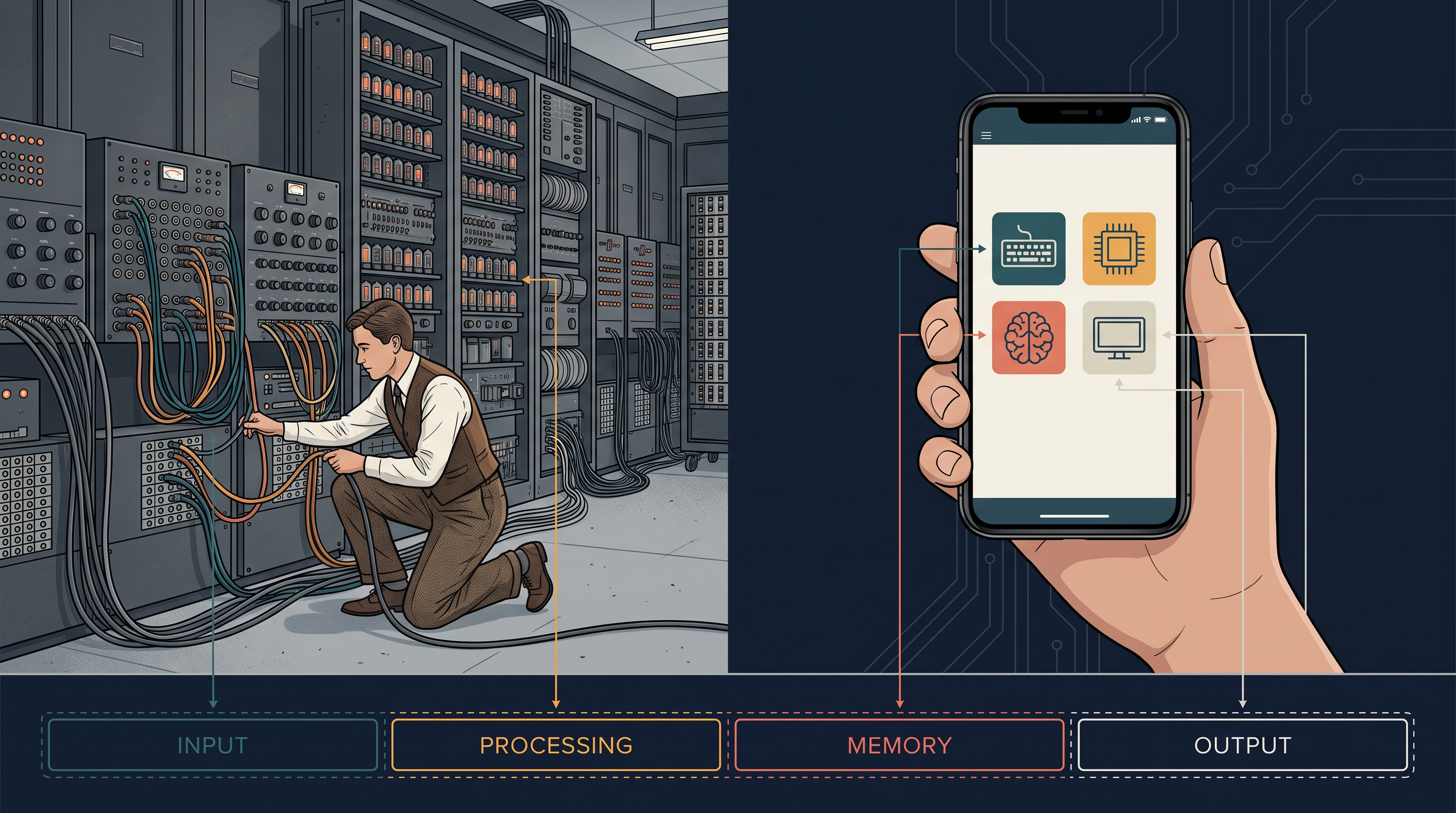
In the middle of the 1940s, a machine called the Electronic Numerical Integrator and Computer, or ENIAC, was built at the Moore School of Electrical Engineering in the United States. It filled a large room, weighed several tonnes and ran on thousands of vacuum tubes. It could calculate far faster than any person with a desk calculator, and for the problems it was built to solve, it was extraordinary.
It had one awkward habit. To make it solve a different problem, engineers had to set switches by hand and move cables from one socket to another. The machine held numbers, but it did not hold its own instructions. Changing the task meant physically rebuilding the path the electricity took, and that was the work of days.
In 1945 John von Neumann circulated a report describing a different arrangement. Let the instructions be stored in the memory of the machine, in exactly the way the numbers already were. Then changing the task would mean loading a different set of instructions — no switches, no cables, no waiting.
That single idea is why the device in your pocket can run a calculator, a camera and a music player one after another without a screwdriver coming anywhere near it. Almost every computer built since then follows the arrangement described in that report.
Q1. A computer forgets everything in its main memory the moment the power goes off, yet your files are still there when you switch it on again. Where were they in the meantime? Q2. If instructions and data are both sitting in memory as patterns of 0s and 1s, how does the processor know which memory location to pick up next? Q3. A fully automatic washing machine decides on its own when to drain the water and when to spin the clothes. Is there a computer inside it, and if so, why does it not look like one? Q4. A song, a photograph and a marks list are all stored as 0s and 1s. Why, then, is a marks list so much easier for a computer to search than a photograph? Q5. You can use a computer that has no word processor installed on it. Why can you not use one that has no operating system installed on it?
This chapter answers each of these questions.
1.1 Introduction to Computer System
Ask someone to point at “the computer” in a school laboratory and you will get several different answers. One student points at the screen, another at the metal box under the table, a third at the whole desk. All three are partly right, and that is exactly the difficulty this chapter begins with.
A computer is an electronic device that accepts data, works on it according to a set of instructions, and produces a result. The data that goes in is called input, the result that comes out is called output, and everything that happens in between is called processing. Nothing more is needed for a machine to count as a computer.
(A computer is an electronic device that accepts data as input, processes it according to a given set of instructions, and produces the result as output.)
The machine on the desk, though, is more than the processing part alone. It has a screen, a keyboard, a disk, cables, and a large collection of programs already loaded on it. A computer system is the computer together with the additional hardware — the physical parts you can see and touch — and the software, the sets of instructions that tell the hardware what to do.
(A computer system is a computer together with the additional hardware and software that make it usable for a task.)
This is why a computer system comes in so many sizes without changing in nature. A high-end server in a data centre, a desktop in a school laboratory, a laptop, a tablet and a smartphone are all computer systems. They differ in speed, size and cost, not in the kind of work they do.
The four parts and how they connect
Every computer system, of whatever size, is built from four kinds of physical component: a processing unit, memory, input devices and output devices. The arrangement of these parts, and the paths along which data travels between them, is shown in Fig. 1.1.
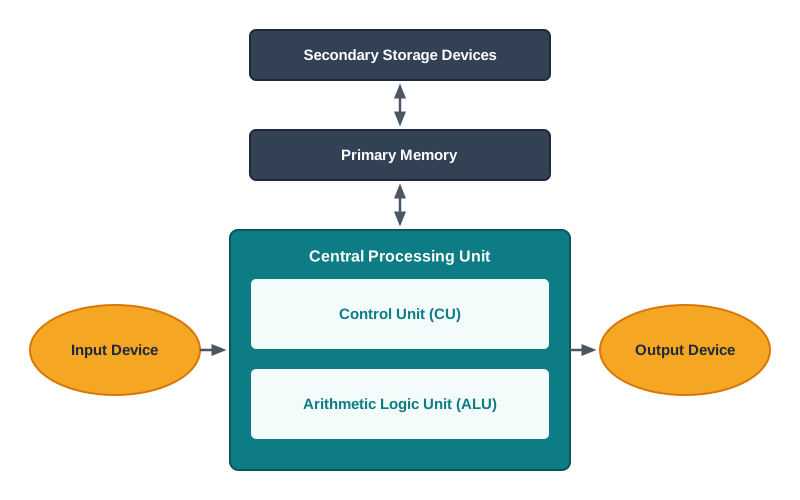
Read the figure as a journey rather than as a picture. Data enters through an input device, is held in memory, is worked on by the processing unit, and leaves through an output device. The arrows matter as much as the boxes, because they record which part can send what to which.
Two boxes in the figure concern memory rather than processing. Primary memory is the working memory that the processing unit reads from and writes to directly while a task is going on. Secondary memory, also called storage, holds data and instructions for the long term, even when the machine is switched off. Section 1.3 takes both apart in detail.
The input–process–output cycle Statement: Every computation consists of accepting input, processing it according to instructions, and producing output, with memory holding the data and instructions while the work is in progress. In words: Something goes in, something is done to it, something comes out — and memory is where things wait their turn. Why it holds: Processing circuitry can only act on values presented to it, so the values must first be captured and stored; and a result that is never sent out cannot be used by anyone. Used for: Describing any computing device at all, from a calculator to a server, and for locating where a fault lies when a system misbehaves. Watch out: The cycle says nothing about speed or order of steps. A real machine overlaps these stages constantly, and a single click may set off thousands of such cycles.
One design, many shapes
The reason this one description fits a server and a smartphone alike is that miniaturisation changed the size of the parts, not their roles. A smartphone’s touch screen is its main input device and also its main output device; its processing unit sits on a chip a few millimetres across. The four roles are all still there, and you can point to each one.
Look at any three devices around you that are not usually called computers — a calculator, a digital weighing scale at a shop, an ATM. For each one, write down what its input device is, what its output device is, and what processing you think it performs in between.
1.1.1 Central Processing Unit
The central processing unit (CPU) is the electronic circuitry that carries out the actual processing in a computer. It is often called the brain of the computer, and it is also called the processor. Physically, a CPU is placed on one or more microchips called integrated circuits (IC), which are made of semiconductor materials.
(The central processing unit (CPU) is the electronic circuitry of a computer that executes instructions, performing the arithmetic and logic operations they specify and controlling the flow of data between the other components.)
The word “CPU” is used loosely in everyday speech for the metal cabinet standing beside the monitor. That cabinet is not the CPU. It is a case holding the CPU, the memory, the disk, the power supply and much else, and the CPU itself is a chip inside it, usually smaller than a matchbox.
Calling the system cabinet “the CPU” What students write: “The CPU is the big box on the floor; the monitor and keyboard are attached to it.” What happens: The mistake seems harmless until a question asks what the CPU contains, and the answer given lists the hard disk and the power supply — parts that sit beside the CPU, not inside it. The fix: The CPU is a chip that performs processing. The cabinet is the system unit, which houses the CPU along with many other components.
What happens inside
The CPU is given both instructions and data through programs. It fetches the instructions and the data it needs from memory, performs the arithmetic and logic operations that those instructions call for, and stores the result back in memory.
While this is going on, the CPU keeps the values it is working on in its own tiny, extremely fast internal memory locations called registers. Registers are part of the CPU chip itself. They are few in number and very small in size, and different registers are used for holding data, instructions or intermediate results.
Apart from the registers, the CPU has two main components, shown in Fig. 1.2. The arithmetic logic unit (ALU) performs all the arithmetic and logic operations required by the instructions in a program. The control unit (CU) controls the sequence in which instructions are executed, interprets each instruction, and directs the flow of data between memory, the ALU and the input or output devices.
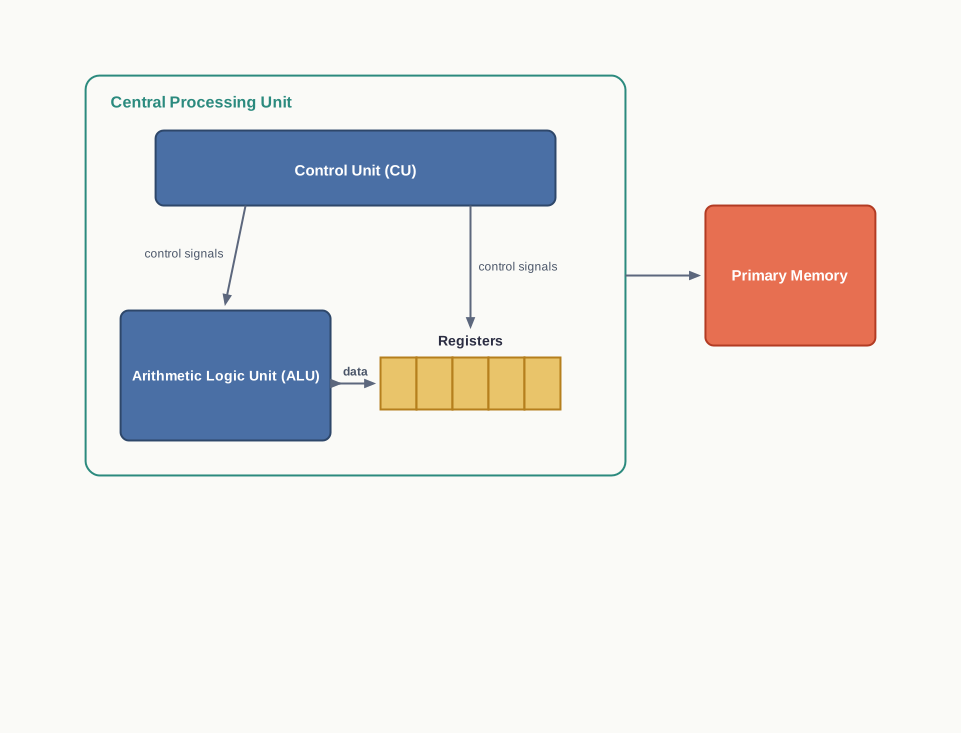
The division of labour between these two is worth pausing on, because it is easy to blur. The ALU is where a value is actually changed; the CU never changes a value, it only decides what is to be done next and tells the other parts to do it.
Table 1.1 – Arithmetic logic unit vs control unit
| Main task |
Performs arithmetic and logic operations |
Directs and coordinates the execution of instructions |
| Acts on |
The data values supplied to it |
The instructions of the program |
| Produces |
A result value, such as a sum or a comparison outcome |
Control signals sent to the other components |
| Changes data? |
Yes, it computes new values |
No, it only decides what is done and by which part |
| If it were absent |
Nothing could be calculated or compared |
Instructions would have no fixed order and no coordination |
You will meet the CPU again in Section 1.5 under another name, because a CPU built on a single chip is called a microprocessor, and nearly all CPUs today are of that kind.
1.1.3 Output Devices
An output device receives data from a computer system and presents it in a form a human being can understand, whether that is displayed, spoken or physically produced. It performs the reverse conversion of an input device, turning digital information back into something we can read, hear or hold.
(An output device is a device that receives data from a computer system and converts digital information into a form that a human being can perceive or use.)
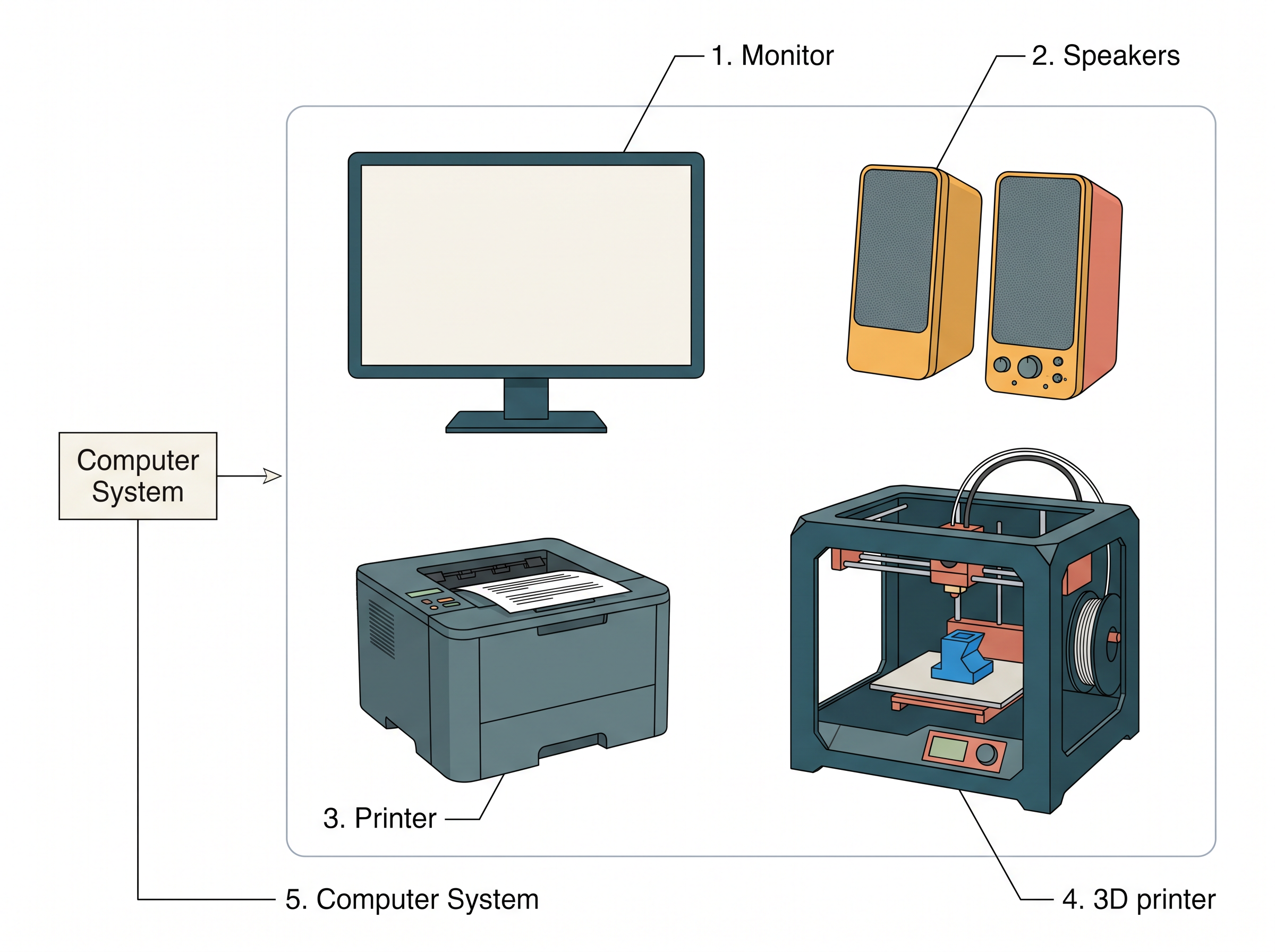
Some common output devices are shown in Fig. 1.4. A monitor and a projector display information as an image on a screen. Speakers and headphones convert digital audio into sound. A braille display monitor raises patterns of dots so that a visually challenged user can read textual output by touch.
Printers, flat and solid
A printer is the most commonly used device for obtaining output in physical form. Three types of printer in common use are inkjet, laserjet and dot matrix, which differ in how they place ink or toner on the paper and therefore in speed, cost and print quality.
A newer kind of printer, the 3D printer, does not print on paper at all. It builds a physical replica of a digital three-dimensional design, usually by depositing material layer upon layer. Manufacturers use 3D printers to produce prototypes of products quickly, and their use is being explored in the medical field, particularly for developing body organs.
A 3D printer stretches the ordinary meaning of “output”. The output of a computation is normally information, but here the output is an object. What the machine actually receives is still only a description in digital form; the shape is produced by following it.
One device, two roles
A few devices belong to both categories, and a touch screen is the clearest example. It displays information, which makes it an output device, and it senses where a finger touches it, which makes it an input device.
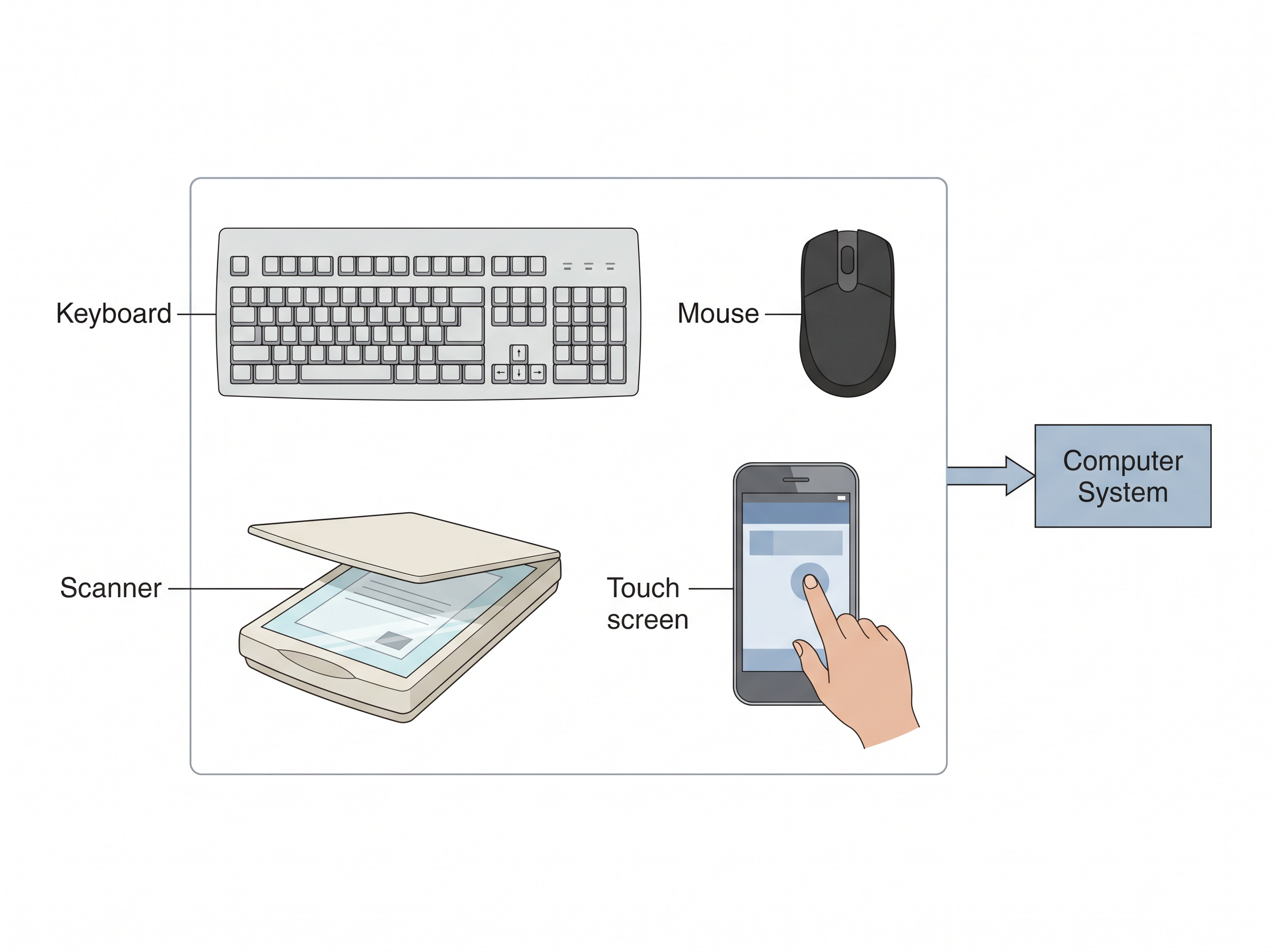
Fig. 1.3 and Fig. 1.4 together cover most of the devices you will meet in a school laboratory. Table 1.2 sets them out in one place, with the direction of data flow and the conversion each one performs, so that the pattern behind the classification is visible.
Table 1.2 – Common devices, the direction in which data flows, and the conversion each performs
| Keyboard |
Input |
Key presses to character codes |
| Mouse |
Input |
Movement and clicks to positions and commands |
| Scanner |
Input |
A printed page to a digital image |
| Microphone |
Input |
Sound to digital audio |
| Monitor |
Output |
Digital information to an image on a screen |
| Speaker |
Output |
Digital audio to sound |
| Printer |
Output |
Digital information to marks on paper |
| Braille display monitor |
Output |
Text to raised patterns of dots |
| Touch screen |
Input and output |
Finger position to coordinates; digital information to an image |
Take the computer you use in your school laboratory and list every device attached to it. Mark each one as input, output, or both, and write one line saying what it converts into what. Then add one device from the list that your computer does not have, and say what you would use it for.
1.2 Evolution of Computer
A modern data processor and a simple calculator are separated by a surprisingly short span of history. Machines that could count are ancient, but machines that could be told what to do are barely a lifetime old, and machines small enough to carry are younger still.
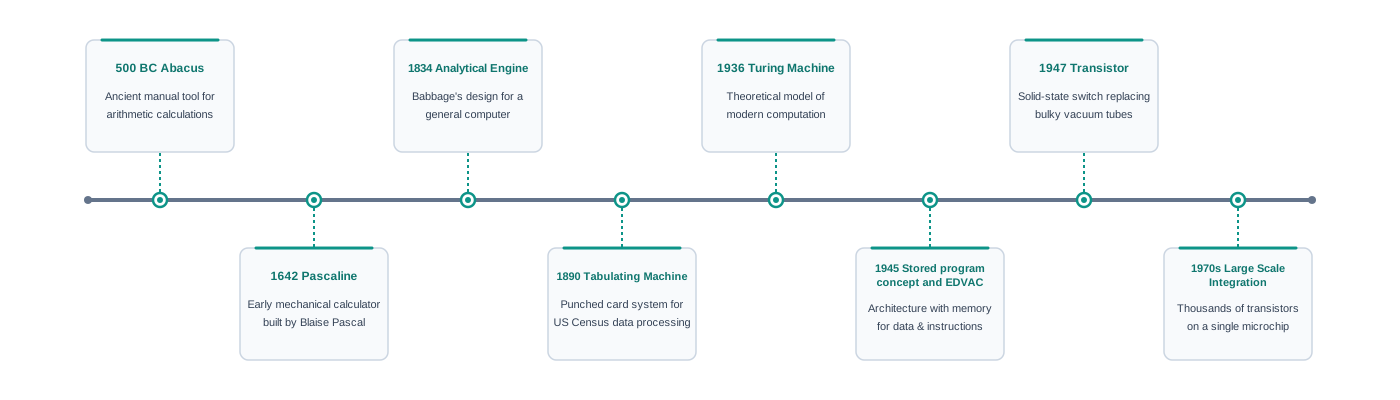
It helps to see the whole sequence before examining any part of it. Fig. 1.5 sets out the key inventions in computing technology along a single timeline.
From beads to gears
Computing is usually traced back to the abacus, a mechanical device of beads on rods that has been in use for well over two thousand years. It could carry out simple arithmetic calculations only, and it did no thinking of its own — the method lived in the head of the person using it.
In 1642, Blaise Pascal built a mechanical calculator known as the Pascal calculator, or Pascaline. It performed addition and subtraction of two numbers directly, and handled multiplication and division through repeated addition and subtraction. That last detail is worth noticing, because reducing a hard operation to many repetitions of an easy one is a habit computing never gave up.
In 1834, Charles Babbage designed the analytical engine, a mechanical computing device for inputting, processing, storing and displaying the output. It was never completed in his lifetime, yet it is considered to form the basis of modern computers, because it separated those four functions in the way every machine has done since.
In 1890, Herman Hollerith designed a tabulating machine for summarising data stored on punched cards. Census records could now be counted and grouped by a machine rather than by hand, which was the first large-scale demonstration that data processing could be mechanised.
A punched card is a piece of stiff paper that stores digital data in the form of holes at predefined positions. A hole or its absence at a fixed spot is a yes or a no — the same two-valued idea that later became the bit.
Deciding what a machine could compute
In 1936, Alan Turing described a mathematical model of computation now called the Turing machine. It was not a device to be built but a thought experiment: an imaginary general-purpose machine that reads and writes symbols on a tape according to a fixed set of rules.
Its importance is that it gave a precise meaning to the phrase “this can be computed”. Turing’s model showed that one general machine, given the right set of rules to follow, could carry out the work of any number of special-purpose machines — the idea on which all programmable computers rest.
The stored program idea
The machines of the early 1940s could compute at electronic speed, but each of them held only numbers. The instructions were fixed in the wiring, so setting one to a new task was a matter of physical rearrangement.
In 1945 John von Neumann described an arrangement in which the instructions are held in the memory of the machine in the same way as the data. This is called the stored program concept, and the design built around it is called the von Neumann architecture. The Electronic Discrete Variable Automatic Computer (EDVAC) was among the first machines designed on this principle, and it became operational at the end of that decade.
The structure is shown in Fig. 1.6. It consists of a central processing unit for carrying out arithmetic and logical instructions, a memory holding both the data and the program, input and output devices, and the communication channels along which data travels.
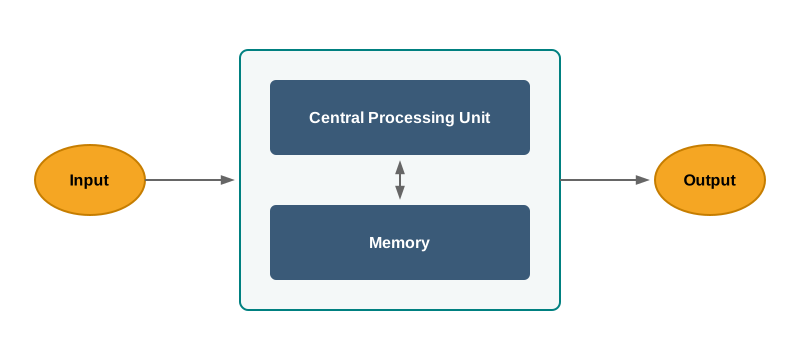
The von Neumann architecture Statement: A computer consists of a central processing unit, a memory that holds both instructions and data, and input and output devices, with the CPU fetching instructions from memory one after another and executing them. In words: Keep the program in the same memory as the numbers, and the machine can be given a new task simply by loading a new program. Why it holds: Instructions, like data, can be represented as patterns of bits. Once they are stored in addressable memory, the control unit can fetch them in turn just as it fetches values. Used for: Almost every general-purpose computer built since — desktops, laptops, tablets and phones all follow this arrangement. Watch out: Because instructions and data share the same path to memory, the CPU cannot fetch both at the same instant. This limit is real, and later designs work around it rather than escape it.
Smaller circuits, faster machines
The next advances were in the components rather than the design. In 1947 the transistor was developed using semiconductor materials, and it replaced the bulky, hot and unreliable vacuum tubes that earlier machines had depended on.
Transistors were then combined onto integrated circuits, so that a whole circuit could sit on one small silicon chip instead of occupying a board full of separate parts. Because size fell and reliability rose together, the effect on computers was dramatic.
During the 1970s, large scale integration (LSI) of electronic circuits made it possible to place a complete CPU on a single chip. In the 1980s, very large scale integration (VLSI) raised the processing power of computers sharply by integrating millions of components on a small chip. Further advances led to super large scale integration (SLSI), with still higher densities of transistors and other components on a single integrated circuit. Table 1.3 sets these levels side by side.
Table 1.3 – Levels of circuit integration, the period in which each became common, and what each made possible
| Large scale integration (LSI) |
The 1970s |
A complete CPU fabricated on a single chip |
| Very large scale integration (VLSI) |
The 1980s |
Millions of components on one small chip, raising processing power sharply |
| Super large scale integration (SLSI) |
Later years |
Still higher component densities on a single integrated circuit |
Section 1.5 takes up such chips in detail, and Fig. 1.7 shows how steeply the count of transistors on a single integrated circuit has climbed over the decades.
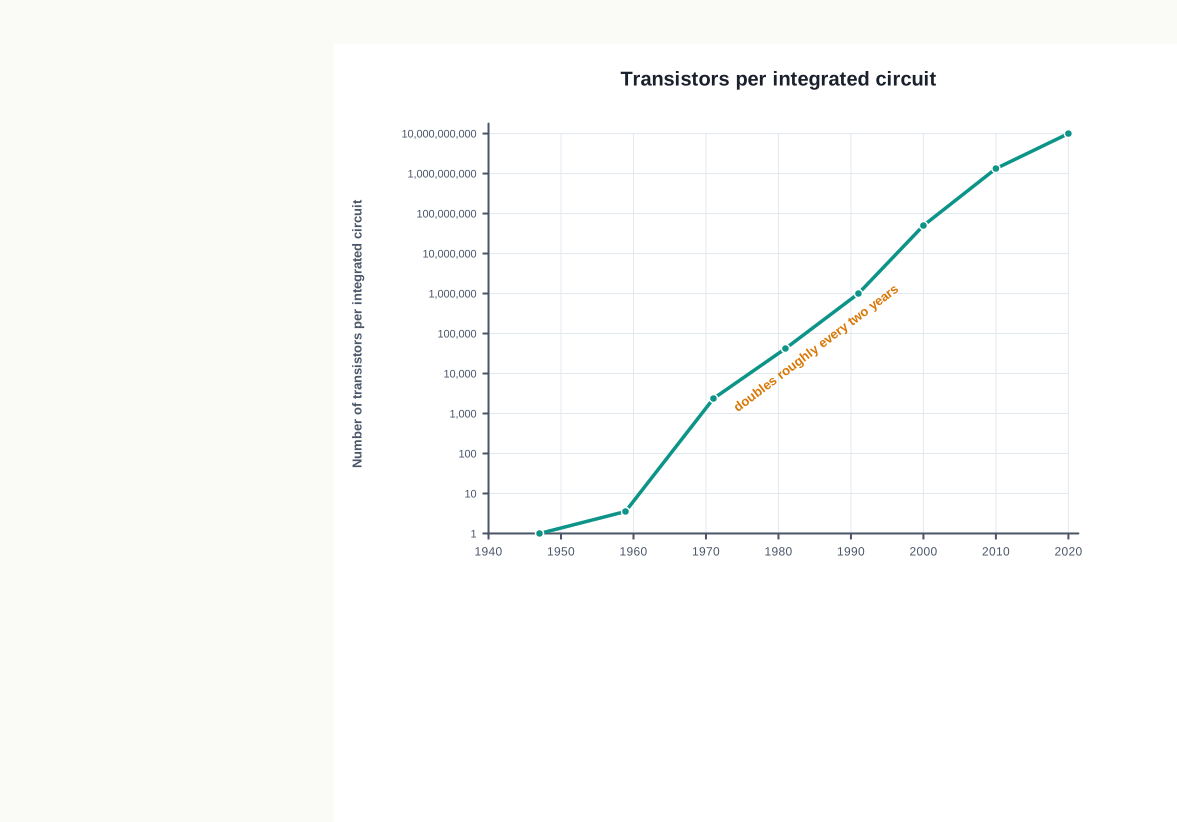
The pattern in that graph was noticed early. In 1965, Gordon Moore put forward the observation that came to be called Moore’s Law, which predicted that the number of transistors on a chip would double about every two years while the cost would be halved.
Moore’s Law Statement: The number of transistors that can be placed on a single chip roughly doubles every two years, while the cost per chip falls. In words: The same piece of silicon holds about twice as much circuitry every couple of years, for about the same money. Why it holds: It is not a law of nature but an observation about the pace of manufacturing improvement, and it held because each generation of fabrication technology could print finer features than the last. Used for: Planning — designers, manufacturers and buyers have used it for decades to estimate what will be affordable a few years ahead. Watch out: A trend is not a guarantee. Features cannot shrink below the size of atoms, and the doubling has slowed as physical limits come closer.
Reading Moore’s Law as a statement about speed What students write: “Moore’s Law says that the speed of a computer doubles every two years.” What happens: The statement is then used to explain things it does not cover, such as memory capacity or the price of a laptop, and it cannot be defended when questioned. The fix: Moore’s Law is about the number of transistors on a chip. More transistors have usually brought more performance, but performance is a consequence, not the claim itself.
Computers become personal
In 1981 the first personal computer for the home user was introduced, and a compact desktop machine of this kind was followed in 1984 by another that brought a graphical style of working to a wide audience. The popularity of the personal computer then surged as operating systems using icons, menus and a pointer replaced systems in which every task had to be typed as a command.
Around the 1990s, the growth of the World Wide Web (WWW) accelerated the mass use of computers further. A machine that had been a tool for calculation and record keeping became a way of reaching information and other people, and computers soon became an indispensable part of everyday life.
Laptops then made personal computing genuinely portable, and smartphones, tablets and other personal digital assistants followed. All of these rest on the same set of advances: smaller processors, faster memory, and high-speed data and connectivity mechanisms.
What is arriving now
The next wave of computing devices includes wearable gadgets such as smart watches, lenses, headbands and headphones. Computing here is no longer something you sit down in front of; it is carried, worn, and often not noticed at all.
Alongside these, ordinary appliances are being given processors and network connections, so that they can report their state and be controlled remotely. Such devices form part of the Internet of Things (IoT), and many of them draw on artificial intelligence (AI) to interpret what they sense and decide what to do about it.
Find the oldest working computing device in your home or school — an old calculator, a landline telephone with a display, a music player, a first-generation smartphone. Estimate the decade it belongs to, place it on the timeline of Fig. 1.5, and write two lines on what it can do that the abacus could not.
1.3 Computer Memory
A computer system needs somewhere to keep the data and the instructions it is working on. That much followed from the stored program idea in Section 1.2: if the program is to be fetched from memory, there must be a memory to fetch it from.
In ordinary speech, the “memory” of a computer system means its main or primary memory — the working memory the CPU reads from and writes to while a task is in progress. Secondary memory, also called the storage device, keeps data, instructions and results permanently for future use.
Neither can do the other’s job well, and the reason is worth stating at the outset. Fast memory is expensive and therefore small; cheap memory is large and therefore slow. Every computer system is a compromise between the two, and Fig. 1.8 shows the shape that compromise takes.
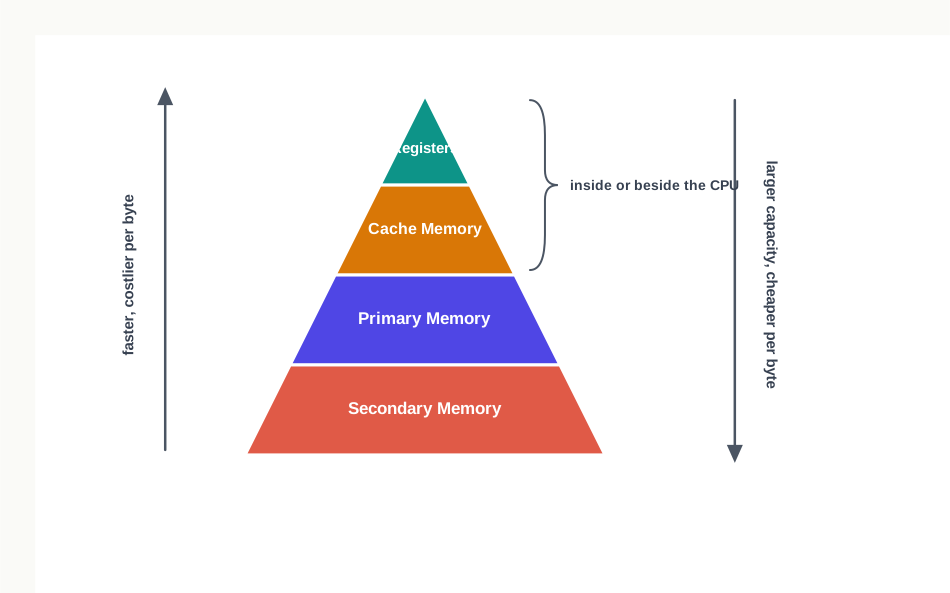
Read the pyramid downwards and capacity grows; read it upwards and speed grows. The registers met in Section 1.1.1 sit at the very top, and the disk in the cabinet sits at the bottom. This section works through the bands below the registers, but first it settles the units in which any of them is measured.
1.3.1 Units of Memory
A computer system stores and processes data using binary numbers. The binary digits 0 and 1 are the basic units of memory, and each such digit is called a bit. A bit is the smallest thing a memory can hold, because a storage location must be in one of at least two states for it to record anything at all.
(A bit is a single binary digit, 0 or 1, and is the basic unit of computer memory.)
Bits are grouped together to form words. A 4-bit word is called a nibble — 1001, 1010 and 0010 are nibbles. A word of two nibbles, that is 8 bits, is called a byte, and 01000110, 01111100 and 10000001 are bytes.
The byte is the unit in which memory sizes are actually quoted, because one byte is roughly the space needed for one character of ordinary text. Bytes are then grouped into larger units, as Table 1.4 shows.
Table 1.4 – Measurement units for digital data, each unit and the number of smaller units it contains
| KB (kilobyte) |
1024 bytes |
PB (petabyte) |
1024 TB |
| MB (megabyte) |
1024 KB |
EB (exabyte) |
1024 PB |
| GB (gigabyte) |
1024 MB |
ZB (zettabyte) |
1024 EB |
| TB (terabyte) |
1024 GB |
YB (yottabyte) |
1024 ZB |
The step from one unit to the next is a factor of 1024, not 1000, and the reason is the binary counting the machine already does. Since \(1024 = 2^{10}\), each unit in the table is the previous one multiplied by \(2^{10}\), which keeps memory sizes as whole powers of two.
Written out in bytes, then, \(1\ \text{KB} = 2^{10}\) bytes, \(1\ \text{MB} = 2^{20}\) bytes and \(1\ \text{GB} = 2^{30}\) bytes, where the exponent counts how many times the value 2 is multiplied by itself. The pattern continues upward through the table in steps of ten in the exponent.
The prefixes kilo, mega and giga were borrowed from the metric system, where they mean exactly one thousand, one million and one thousand million. Computing bent them to the nearest power of two, which is why a disk sold as 500 GB can appear smaller when a computer reports its size.
Write each of these as a power of 2, in bytes: 1 KB, 1 MB, 1 GB, 4 GB, 16 GB. Then find out how much main memory the computer in your laboratory has, and express that figure both in bytes and as a power of 2.
1.3.2 Types of Memory
Think of how you work at a desk. The papers you are using right now are spread in front of you, within arm’s reach; everything else is in a cupboard on the other side of the room. The desk is small but instantly available, the cupboard is large but takes a walk to reach.
Computers make the same division, for the same reason. They have two kinds of memory — primary and secondary — and a third, cache memory, sits between the primary memory and the CPU to reduce the waiting.
1.3.2.1 Primary Memory
Primary memory is an essential component of a computer system. A program and its data are loaded into primary memory before processing, and the CPU interacts with primary memory directly to perform a read or a write operation. It is of two types, namely random access memory and read only memory.
Random access memory (RAM) is volatile, which means that it retains its contents only as long as power is supplied to the computer. The moment the power supply is turned off, everything in RAM is wiped out.
RAM is used to hold data temporarily while the computer is working. Whenever the computer is started, or a software application is launched, the required program and data are loaded into RAM for processing. RAM is usually referred to as the main memory, and it is faster than secondary memory.
Read only memory (ROM), on the other hand, is non-volatile: its contents are not lost when the power is turned off. It serves as a small but fast permanent store for contents that are rarely changed. The startup program, or boot loader, which loads the operating system into primary memory when the machine is switched on, is stored in ROM.
That last example explains why a computer needs both. At the instant of switching on, RAM is empty and the operating system is still on the disk. Something already present and still readable must run first, and it must have survived the power being off — which only non-volatile memory can promise.
Table 1.5 – Random access memory vs read only memory
| Volatility |
Volatile — contents are lost when power goes off |
Non-volatile — contents survive power being off |
| Contents |
Programs and data currently in use |
Contents that rarely change, such as the startup program |
| Written to during normal use? |
Yes, constantly |
No, or only rarely and by special means |
| Typical size |
Larger of the two |
Small |
| Purpose |
Working space for whatever the computer is doing now |
Holding what must be available the moment the machine starts |
1.3.2.2 Cache Memory
RAM is much faster than secondary storage, but it is still not as fast as the processor. Left to itself, a CPU would spend a large part of its time waiting for values to arrive from primary memory, and its speed would be wasted.
To reduce that waiting, a very high speed memory called cache memory is placed between the CPU and the primary memory, as shown in Fig. 1.9. It holds copies of the data from frequently accessed primary memory locations, and so reduces the average time needed to get data from primary memory.
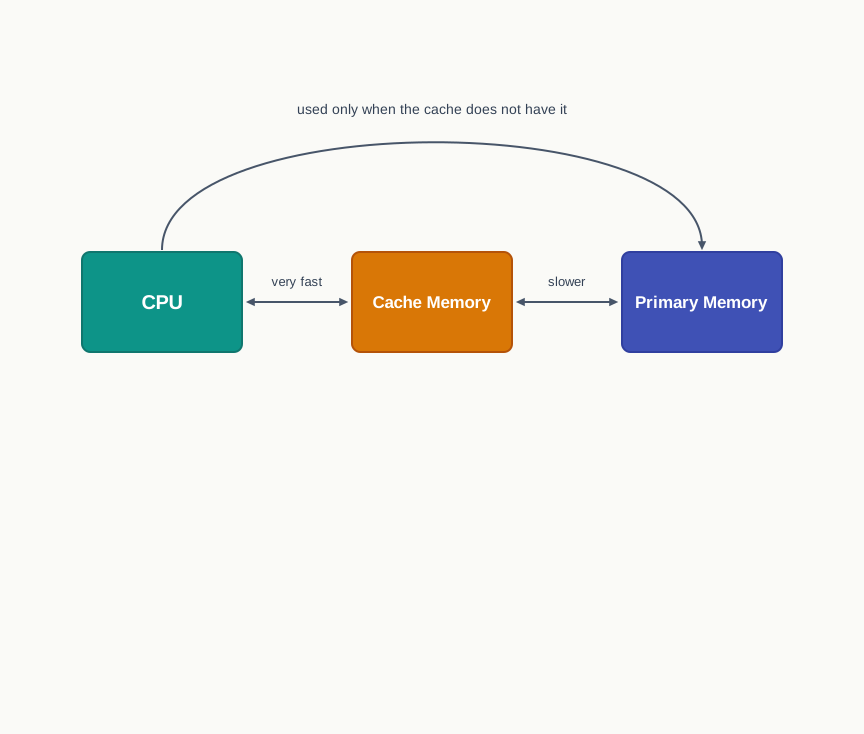
(Cache memory is a small, very high speed memory placed between the CPU and the primary memory, which holds copies of frequently accessed primary memory contents so as to reduce the average access time.)
The order of search is what makes this work. When the CPU needs some data it first examines the cache; if the requirement is met there, the value is read from the cache, and only otherwise is primary memory accessed. A small memory therefore pays for itself, provided the same handful of locations are used again and again — which, in real programs, they usually are.
1.3.2.3 Secondary Memory
Primary memory has limited storage capacity, and it is either volatile, as RAM is, or read-only, as ROM is. Neither condition suits data that must be kept and changed over months. A computer system therefore needs auxiliary or secondary memory to store data and instructions permanently for future use.
Secondary memory is non-volatile and has a much larger storage capacity than primary memory. It is slower and cheaper than main memory, and — this is the point students most often miss — it cannot be accessed directly by the CPU. The contents of secondary storage must first be brought into main memory for the CPU to work on them.
Table 1.6 – Primary memory vs secondary memory
| Accessed by the CPU |
Directly |
Not directly; contents must first be brought into main memory |
| Volatility |
RAM is volatile; ROM is non-volatile |
Non-volatile |
| Capacity |
Smaller |
Much larger |
| Speed |
Faster |
Slower |
| Cost per unit of storage |
Higher |
Lower |
| Holds |
The program and data currently in use |
Data, instructions and results kept for future use |
Common secondary memory devices are shown in Fig. 1.10. They include the hard disk drive (HDD), CDs and DVDs, and memory cards. A solid state drive (SSD) is a newer device of this kind that supports far faster data transfer than an earlier hard disk drive, since it has no moving parts to wait for.
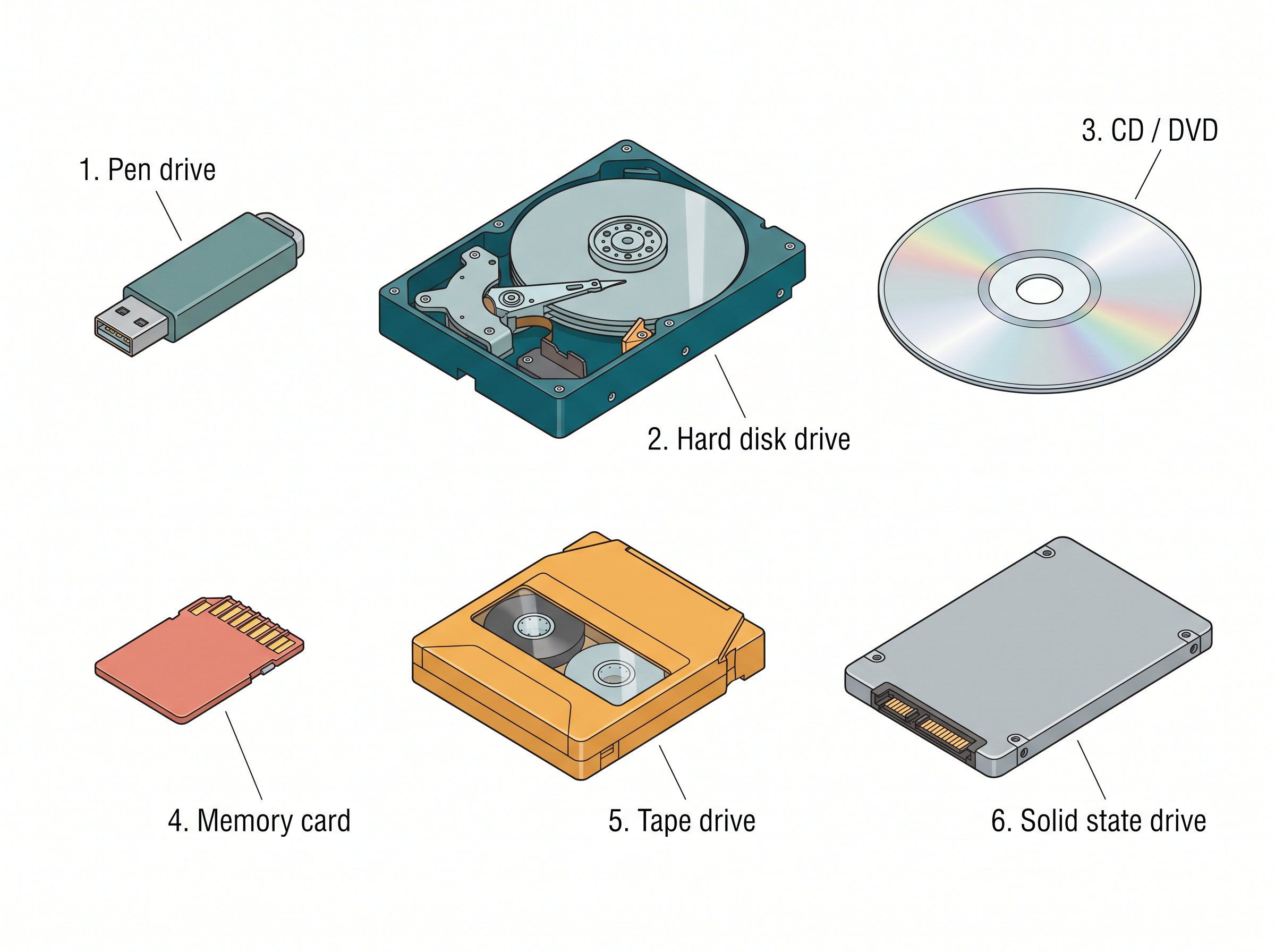
Small, portable flash drives, usually called pen drives, have also made carrying data between computers simple. The variety in the figure is a variety of packaging, price and speed; the defining property they share is that switching the power off does not empty them.
Q1. A computer forgets everything in its main memory the moment the power goes off, yet your files are still there when you switch it on again. Where were they in the meantime?
A. They were in secondary memory — on the hard disk, the solid state drive or the memory card. Main memory is RAM, which is volatile and holds a file only while you are working on it. Saving a file copies it from RAM to secondary memory, which is non-volatile and keeps its contents without power. Anything typed but never saved was only ever in RAM, and that is precisely what is lost.
Using “memory” for storage and storage for “memory” What students write: “This phone has 128 GB of memory and 6 GB of storage.” What happens: The two figures have been swapped. The 128 GB is secondary memory used for keeping files; the 6 GB is RAM, the working memory. Any reasoning built on the swapped labels then goes wrong — for instance, concluding that the phone loses its photographs when switched off. The fix: Memory usually means the primary, working memory; storage means the secondary, permanent memory. When there is any doubt, name the type — RAM or disk — rather than relying on the looser word.
Find out the size of the RAM and of the hard disk or solid state drive of a computer in your school laboratory. Make a small table showing each size in bytes, kilobytes, megabytes and gigabytes, and then write one line on how many times larger the secondary memory is than the primary memory.
1.4 Data Transfer between Memory and CPU
The components described so far do not sit in isolation. Data has to be moved between the CPU and primary memory constantly, and between primary and secondary memory whenever a file is opened or saved. Something must carry it.
Data is transferred between the different components of a computer system along physical wires called a bus. The same arrangement carries data between a USB port and a hard disk, or between a hard disk and main memory; only the endpoints change.
(A bus is a set of physical wires along which data, addresses or control signals are carried between the components of a computer system.)
A bus is not a store. Nothing stays on it; a value is placed on the wires, read off at the other end, and gone. Thinking of it as a road rather than a room keeps this straight.
Three buses, one system bus
A bus is of three types, according to what it carries. The data bus transfers data between different components. The address bus transfers addresses between the CPU and main memory — the address of the memory location that the CPU wants to read from or write to is specified on the address bus. The control bus communicates control signals between the different components of a computer.
All three together are collectively called the system bus, shown in Fig. 1.11.
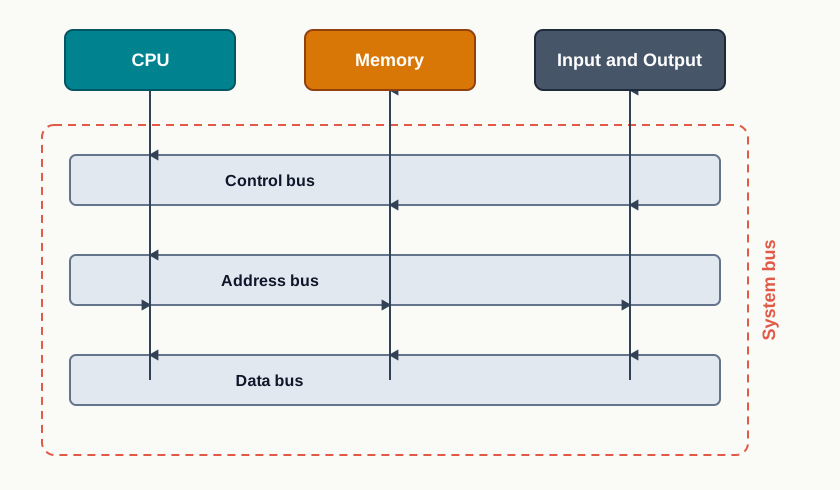
The figure repays a careful look, because the arrowheads carry information. Every component touches every bus, but not every component may drive every bus, and the directions in the figure record who is allowed to send what.
What happens on a read and on a write
The CPU interacts directly with main memory, so any data entered from an input device, or any data to be fetched from the hard disk, must first be placed in main memory before it can be processed. Only then does the transfer between CPU and main memory begin.
To read a value, the CPU places on the address bus the address of the main memory location it wants, and specifies the read signal on the control bus. A dedicated piece of hardware called the memory controller, which manages the flow of data into and out of main memory, then locates that address and places the stored value on the data bus, from where the CPU collects it. The sequence is shown in Fig. 1.12.
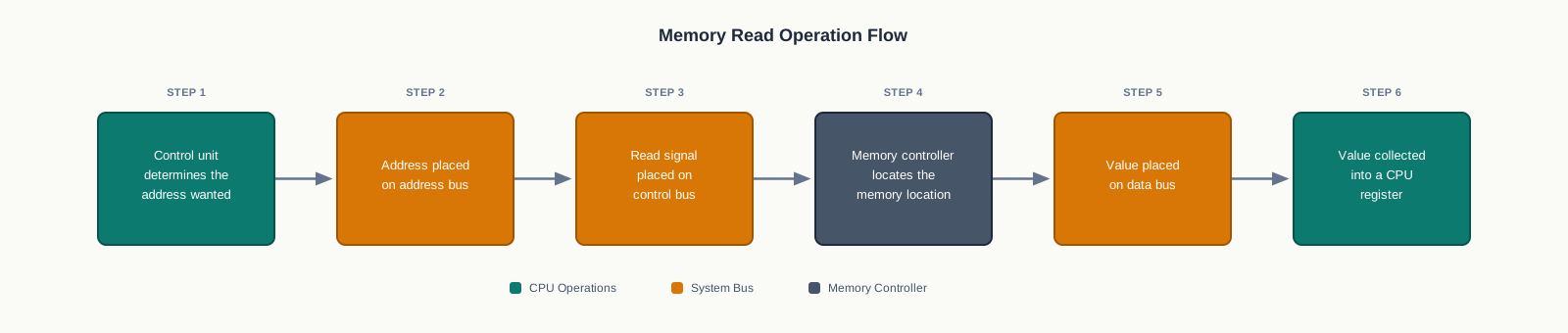
To write a value, the order of the last two steps is reversed. The CPU places the data on the data bus and the destination address on the address bus, specifies the write signal on the control bus, and the data is then written into the location that the address identifies.
Notice that the address and the value travel on separate wires at the same moment. Sending both along a single set of wires would work, but the receiving end would then have to be told which was which — an extra step on an operation performed billions of times a second.
Why the directions differ
Since the CPU may need either to read data from main memory or to write data to main memory, the data bus is bidirectional: values travel along it in both directions. The address bus and the control bus, in contrast, are unidirectional.
The reason is that only one party ever originates those two kinds of signal. Memory never chooses an address for the CPU, and it never issues a read or write command; it only obeys one. A wire that is never driven from the other end has no use for a return direction.
The number of wires in a bus is called its width, and width sets limits. The width of the data bus fixes how many bits can move in one transfer, and the width of the address bus fixes how many distinct locations can be identified at all. This is one reason why memory capacities in Section 1.5 rise in step with word size.
Table 1.7 – The three buses of the system bus
| Carries |
Data values being transferred |
The address of the memory location wanted |
Control signals such as read and write |
| Direction |
Bidirectional |
Unidirectional |
Unidirectional |
| Originated by |
CPU on a write, memory on a read |
The CPU |
The CPU |
| Answers the question |
What is the value? |
Which location? |
What is to be done with it? |
Q2. If instructions and data are both sitting in memory as patterns of 0s and 1s, how does the processor know which memory location to pick up next?
A. It is told, and it keeps track. Every memory location has an address, and the CPU holds the address of the instruction it must fetch next in one of its own registers. The control unit places that address on the address bus and issues a read signal on the control bus; the memory controller returns the contents of exactly that location on the data bus. The bits themselves do not announce whether they are an instruction or a value — what makes them an instruction is that the CPU fetched them at the moment it was looking for one.
Believing the CPU reads a file directly from the disk What students write: “When I open a file, the CPU reads it from the hard disk and shows it on the screen.” What happens: The step in the middle is missed, and the student is then unable to explain why a computer with very little RAM slows down badly even when the disk has plenty of free space. The fix: The CPU cannot access secondary memory directly. The contents of the file are first brought from the disk into main memory, and the CPU works on them there.
Take a single instruction such as “add the number stored at location 200 to the number stored at location 201, and put the answer in location 202”. Working on paper, list every trip along the system bus that this needs, and for each trip write down which bus is used and in which direction the signal travels.
1.5 Microprocessors
In the early days a computer’s CPU occupied a large room, or several cabinets standing side by side. As fabrication improved, the same circuitry shrank until it could be placed on a single microchip.
A processor implemented on a single microchip is called a microprocessor. Nowadays almost every CPU is of this kind, so the two words are used interchangeably for practical purposes — but they are not synonyms in principle. “CPU” names a role, and “microprocessor” names how that role has been packaged.
(A microprocessor is a central processing unit implemented on a single microchip.)
A microprocessor is a small electronic component inside a computer that carries out the tasks involved in data processing, along with arithmetic and logical operations. It is built over an integrated circuit made up of millions of small components such as resistors, transistors and diodes.
Microprocessors have improved steadily since their appearance in the early 1970s: processing capability has increased, physical size has fallen, and cost has come down. Currently available microprocessors can process millions of instructions in a millisecond. Table 1.8 sets out the generations, with the technology and capability of each.
Table 1.8 – Generations of microprocessor, with the chip technology, word size, maximum memory size, clock speed and number of cores of each
| First |
1971–73 |
LSI |
4 / 8 bit |
1 KB |
108 kHz – 200 kHz |
Single |
| Second |
1974–78 |
LSI |
8 bit |
1 MB |
Up to 2 MHz |
Single |
| Third |
1979–80 |
VLSI |
16 bit |
16 MB |
4 MHz – 6 MHz |
Single |
| Fourth |
1981–95 |
VLSI |
32 bit |
4 GB |
Up to 133 MHz |
Single |
| Fifth |
1995 onwards |
SLSI |
64 bit |
64 GB |
533 MHz upwards |
Multicore |
Read the table across a row and the columns turn out to be connected rather than independent. A larger word size allows more memory to be addressed, a denser chip allows a higher clock speed, and the last generation adds a change of a different kind — more than one processing unit on the same chip.
1.5.1 Microprocessor Specifications
Microprocessors are classified on the basis of several features, which include chip type, word size, memory size and clock speed. These are the figures quoted when a machine is described, and each of them means something quite specific.
1.5.1.1 Word Size
Word size is the maximum number of bits that a microprocessor can process at a time. Earlier a word was of 8 bits, as that was the maximum limit at the time. At present the minimum word size is 16 bits and the maximum word size is 64 bits.
(Word size is the maximum number of bits that a microprocessor can process at one time.)
Word size matters because it fixes the size of the pieces the machine handles naturally. A processor with a 64-bit word size deals with a 64-bit quantity in one operation, where an 8-bit processor would need several operations and extra instructions to achieve the same result.
1.5.1.2 Memory Size
The size of RAM that can be used varies with the word size. Early machines with 4-bit or 8-bit words could work with only very small memories, and as the word size rose to 64 bits it became feasible to use RAM of sizes up to 16 exabytes.
The arithmetic behind that figure is simple, and doing it once makes the whole column of Table 1.8 sensible. If an address is \(n\) bits wide, then there are \(2^n\) distinct addresses, and with one byte stored at each address the largest memory that can be identified is \(2^n\) bytes.
For a 32-bit address this gives \(2^{32}\) bytes, which is 4 GB — exactly the fourth-generation entry in the table. For a 64-bit address it gives \(2^{64}\) bytes, which is 16 EB, a quantity far beyond anything a machine actually carries.
1.5.1.3 Clock Speed
Computers have an internal clock that generates pulses, or signals, at regular intervals of time. Clock speed is simply the number of pulses generated per second by the clock inside a computer, and it indicates the speed at which the computer can execute instructions.
The clock matters because the parts of a computer must act in step. Each pulse marks the moment at which the next small action may begin, so more pulses per second means more actions per second.
Clock speed was earlier measured in hertz (Hz) and kilohertz (kHz). With advances in technology and chip density it is now measured in gigahertz (GHz), that is, billions of pulses per second, where \(1\ \text{GHz} = 10^9\) pulses per second.
Judging a computer only by its clock speed What students write: “This computer has 3.2 GHz and that one has 2.8 GHz, so the first one is faster.” What happens: The comparison holds only if everything else about the two processors is identical, which it rarely is. A 2.8 GHz processor with more cores, a larger word size and a bigger cache can finish a real task sooner than a 3.2 GHz one without them. The fix: Clock speed is one specification among several. Read it together with word size, number of cores and cache, and remember that it counts pulses, not completed instructions.
1.5.1.4 Cores
A core is a basic computation unit of the CPU. Earlier processors had only one computation unit and were therefore capable of performing only one task at a time.
With the arrival of the multicore processor it became possible for a computer to execute multiple tasks at once, which raises the performance of the system. A CPU with two, four and eight cores is called a dual-core, quad-core and octa-core processor respectively.
The gain is real but it is not automatic. Four cores help when there are four independent pieces of work to be done; a single long calculation that must proceed step by step cannot be shared out, and on such work a second core sits idle.
Find the clock speed and the number of cores of the microprocessor in the computer you use, and compare the figures with those of two of your classmates. Then look at Table 1.8 and say which generation each of your machines belongs to.
1.5.2 Microcontrollers
Not every machine that computes is a computer in the ordinary sense. A washing machine, a digital camera and a remote controller all take decisions, yet none of them has a screen full of icons or a disk full of programs.
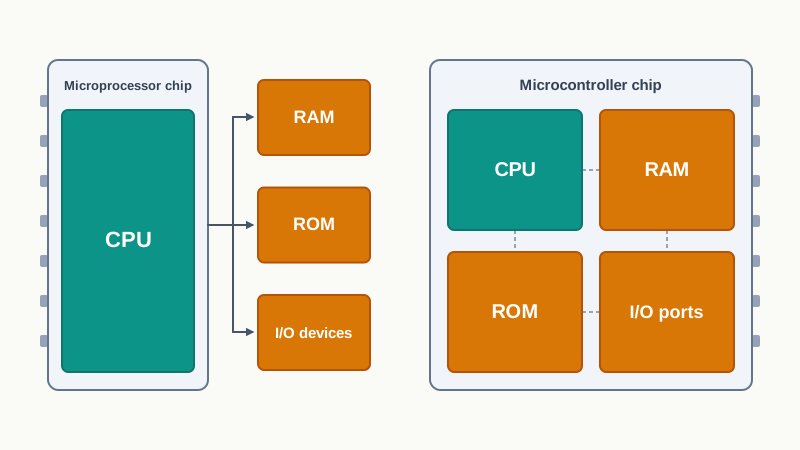
Inside such a device is a microcontroller: a small computing device that has a CPU, a fixed amount of RAM, ROM and other peripherals, all embedded on a single chip. A microprocessor chip, by contrast, carries only the CPU, and its memory and peripherals are separate components outside it.
(A microcontroller is a small computing device that has a CPU, a fixed amount of RAM, ROM and other peripherals embedded together on a single chip.)
The structure of a microcontroller is shown in Fig. 1.13, and Fig. 1.14 places the two kinds of chip side by side so that the difference in what is packed inside them is visible.
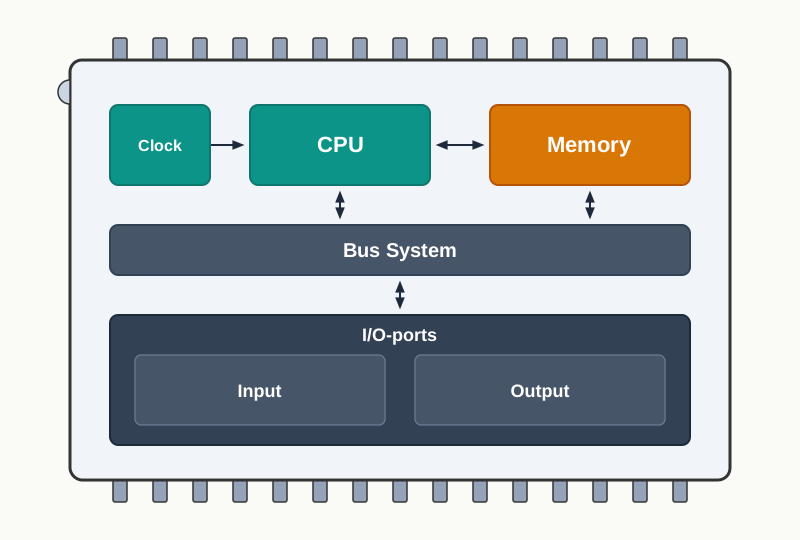
Keyboards, mice, washing machines, digital cameras, pen drives, remote controllers and microwaves are a few examples of devices built around microcontrollers. Since these are designed for a specific task only, both their size and their cost are reduced.
Because a microcontroller is so small, it is embedded inside another device or system to perform one particular function. The microcontroller in a fully automatic washing machine, for instance, controls the washing cycle without any human intervention: water is filled, the clothes are soaked and washed, the water is drained, and the clothes are spin dried, one stage after another. The plain result is that a tedious, repetitive job is carried out automatically, saving time that a person would otherwise have to spend watching it.
Table 1.9 – Microprocessor vs microcontroller
| What the chip contains |
The CPU only |
CPU together with a fixed amount of RAM, ROM and other peripherals |
| Memory and peripherals |
Added separately outside the chip |
Already embedded on the same chip |
| Purpose |
General purpose — runs whatever program is loaded |
Designed for one specific task |
| Size and cost of the system |
Larger and costlier |
Smaller and cheaper |
| Typically found in |
Computers, laptops, tablets, smartphones |
Washing machines, cameras, remote controllers, microwaves |
Q3. A fully automatic washing machine decides on its own when to drain the water and when to spin the clothes. Is there a computer inside it, and if so, why does it not look like one?
A. There is one, but it is a microcontroller rather than a general-purpose computer. Its CPU, its RAM, its ROM and its input and output ports all sit on a single small chip, and the program it runs is fixed in ROM when the machine is built. It does not look like a computer because it needs none of the things that make a computer look like one — no monitor, no keyboard, no disk full of other programs — since it will only ever run the wash cycle it was made for.
List five devices in your home that are not called computers but that take decisions on their own. For each one, write down what it senses as input, what it controls as output, and one reason why a microcontroller suits it better than a full computer would.
1.7 Software
Everything examined so far — the processor, the buses, the memory, the storage devices — is hardware. It is also, on its own, entirely inert. A processor with no instructions to fetch does nothing at all.
Software is the component of a computer system that we cannot touch or view physically. It consists of the instructions, together with the data those instructions work on, that make the hardware do something useful. Hardware and software complete a task together, and neither half is a computer system by itself.
Each piece of software is written for some computational purpose: a set of instructions which, on execution, delivers a particular outcome. That purpose may be as broad as running the whole machine or as narrow as converting one file format into another.
A document or an image stored on a hard disk or a pen drive is called a soft copy. Once it has been printed on paper it is called a hard copy. The same information exists in both, but only one of them survives a broken disk, and only one of them can be searched in a second.
1.7.1 Need of Software
The sole purpose of software is to make computer hardware useful and operational. Software knows how to make the different hardware components work and communicate with each other, and how to present the result to the person using the machine.
The deeper reason is that we cannot instruct the hardware of a computer directly. Nobody sets voltages on a chip by hand. Software acts as the interface between human users and the hardware, accepting an instruction in a form a person can give and converting it into actions the hardware can perform.
Depending on the mode of interaction with the hardware and the functions to be performed, software is broadly classified into three categories, namely system software, programming tools and application software. Their relationship is shown in Fig. 1.19.
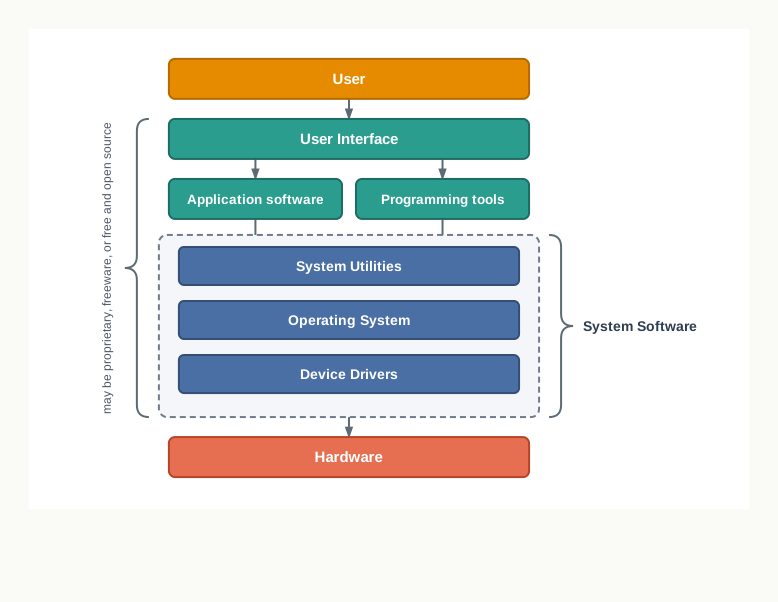
Read the figure from the bottom up and it is a chain of translation: hardware at the base, device drivers speaking to it, the operating system above them, and the user at the top, several layers away from any wire. Each layer exists so that the layer above it does not have to know how the layer below works.
1.7.2 System Software
Software that provides the basic functionality to operate a computer by interacting directly with its constituent hardware is termed system software. It knows how to operate and use the different hardware components, and it provides its services either directly to the end user or to other software.
(System software is software that operates a computer by interacting directly with its hardware, providing basic services to the user and to other software.)
Operating systems, system utilities and device drivers are the three kinds of system software, and they are taken up in turn below.
1.7.2.1 Operating System
As the name implies, the operating system (OS) is the system software that operates the computer. It is the most basic system software, without which no other software can work at all, and it manages the other application programs while providing access and security to the users of the system.
This one piece of software is important enough to deserve a section of its own, and Section 1.8 examines what it does and how a user interacts with it. Here it is enough to place it: it is system software, and everything else on the machine runs on top of it.
1.7.2.2 System Utilities
Software used for the maintenance and configuration of the computer system is called a system utility. Utilities do not produce work of their own; they keep the machine in a fit state to do work.
Some system utilities are shipped along with the operating system — a disk defragmentation tool, a formatting utility, a system restore utility. Another set is not shipped with the operating system but is added to improve the performance or safety of the system, such as anti-virus software, a disk cleaner tool or disk compression software.
1.7.2.3 Device Drivers
The purpose of a device driver is to ensure the proper functioning of one particular device. The operating system handles the overall working of the computer system, but new devices and components are added to computers every day, each with its own characteristics, and no operating system can be written to know them all in advance.
The responsibility for the control, operation and management of a particular device at the hardware level is therefore delegated to its device driver. The driver acts as an interface between the device and the operating system, providing the services required while hiding the details of what happens at the hardware level of the device.
Much like a language translator, a device driver sits between two parties that do not speak the same language — the operating system, which issues general requests such as “print this page”, and the attached device, which understands only its own particular signals.
With your teacher’s help, locate any two device drivers installed on the computer you use. For each one, write down which device it serves, and then say in one line what the operating system would be unable to do if that driver were removed.
1.7.3 Programming Tools
To get some work done by a computer we must give it instructions that will be applied to the input data to produce the desired outcome. Computer languages exist for writing those instructions, and programming tools exist for turning what we write into something the machine can execute.
The difficulty they solve is a plain mismatch. Human beings write comfortably in something close to English, while computers execute only machine language, so a conversion is needed every time a program is run. Editors are needed to write the instructions in the first place, and translators to convert them afterwards.
1.7.3.1 Classification of Programming Languages
It is very difficult for a human being to write instructions in the form of 1s and 0s. Different types of programming language were developed to simplify this coding, and they fall into two major categories: low-level languages and high-level languages.
Low-level languages are machine dependent, and they include machine language and assembly language. Machine language uses 1s and 0s to write instructions that are directly understood and executed by the computer. Writing code in it is hard, since the programmer has to remember all the operation codes and machine addresses, and finding errors in such code is harder still.
To simplify the writing of code, assembly language was developed, allowing English-like words and symbols to be used instead of 1s and 0s. One major drawback remains: the code is computer specific, so a program written for one type of CPU cannot be used on another type of CPU.
High-level languages are machine independent and much simpler to write code in. Instructions use English-like sentences, and each high-level language follows a set of rules of its own, in the way a natural language does. Such languages are not directly understood by the computer, so translators are needed to convert them into machine language. C++, Java and Python are examples of high-level languages.
1.7.3.2 Language Translators
Since a computer can understand only machine language, a translator is needed to convert a program written in assembly or high-level language into machine language. The program code written in assembly or a high-level language is called source code, and the machine-understandable form it is converted into is called object code, or machine code. The conversion is shown in Fig. 1.20.
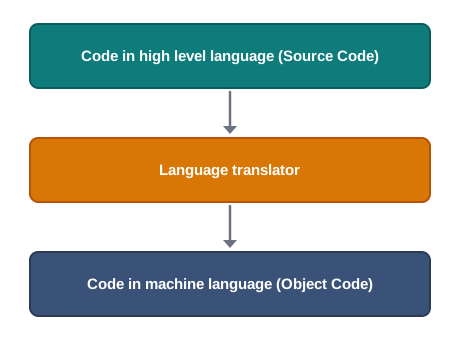
Because there are different types of computer language, there are different translators. The three types of translator used in computing systems are the assembler, the compiler and the interpreter.
The translator used to convert code written in assembly language into machine language is called an assembler. Each assembler understands one specific microprocessor instruction set only, which is why the machine code it produces is not portable.
A compiler converts the source code of a high-level language into machine code in one go. If the code follows all the syntactic rules of the language, the resulting machine code is then executed by the computer, and once the translation is done the compiler is no longer needed.
An interpreter translates one line at a time instead of the whole program at once. It takes a line, converts it into executable code if that line is syntactically correct, and then repeats these steps for every line in the source code. An interpreter is therefore needed every time the source code is to be executed. Fig. 1.21 places the two side by side.
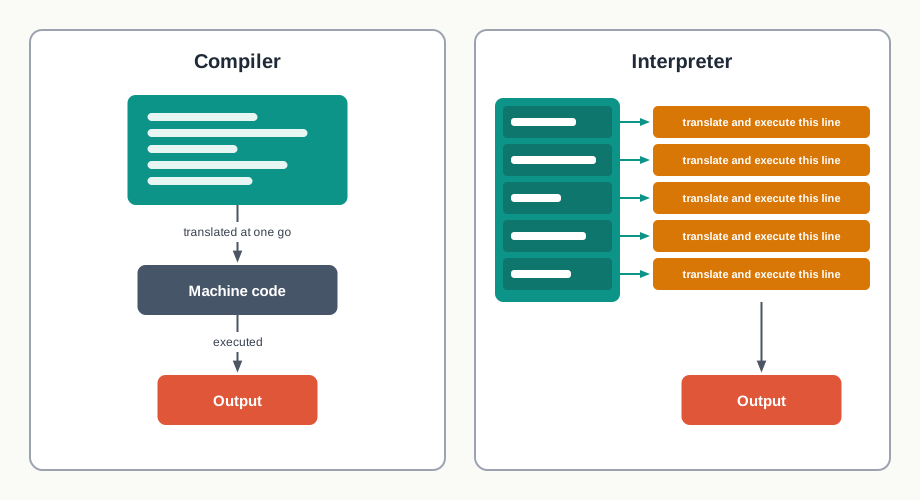
Table 1.12 – Compiler vs interpreter
| Unit of translation |
The whole program at one go |
One line at a time |
| Needed while the program runs |
No — once translated, it is not needed |
Yes — it is needed every time the code is executed |
| Errors reported |
After the whole program has been examined |
On reaching the line that contains the error |
| Output produced |
Machine code that can be executed on its own |
No separate machine code file is kept |
| Speed of execution |
Faster, since translation is already done |
Slower, since translation happens as the program runs |
This table also settles a question that puzzles many students: why machine code executes faster than source code. The machine code has already been translated, so the processor spends its time executing instructions; running from source means paying the cost of translation while the program is in progress.
Naming the translator as though it were the language What students write: “Python is an interpreter, and C++ is a compiler.” What happens: The sentence confuses a language with a program that processes it, and the student is then unable to explain how the same language could have more than one implementation. The fix: Python and C++ are high-level languages. A compiler and an interpreter are software that translate a language; the language is what you write, the translator is what converts it.
1.7.4 Application Software
System software provides the core functionality of the computer system, but different users need a computer for very different purposes. A further category of software is needed to meet those requirements, and software of this kind, working on top of the system software, is called application software.
(Application software is software that works on top of the system software to perform a specific task for the end user.)
There are two broad categories of application software, general purpose and customised.
1.7.4.1 General Purpose Software
Application software developed for generic applications, catering to a large audience rather than to one buyer, is called general purpose software. Such ready-made software can be used by end users as they require, without any of them having asked for it to be written.
A spreadsheet tool is a good example: it is used by a shopkeeper for accounts, by a teacher for marks and by a student for a science practical, and none of these uses was designed for specifically. Word processors, photo editors, web browsers and media players fall into the same category.
1.7.4.2 Customised Software
Customised software is custom or tailor-made application software, developed to meet the requirements of one specific organisation or individual. Because it is designed to a particular set of requirements, it fits those requirements better than any general purpose package can.
A school management system, an accounting package written for one firm’s way of working, and a website built for one institution are examples. The comparison is much like buying cloth and having a garment stitched to your own measurements instead of buying it ready-made: the fit is better, and the cost and the wait are greater.
Table 1.13 – System software vs application software
| Interacts with |
The hardware, directly |
The system software, which deals with the hardware |
| Purpose |
To operate and maintain the computer system |
To perform a specific task for the user |
| Needed for the computer to work? |
Yes — without it the machine cannot be used |
No — the machine works without any particular application |
| Runs |
From the moment the machine starts |
When the user chooses to start it |
| Examples |
Operating systems, system utilities, device drivers |
Word processors, spreadsheets, browsers, school management systems |
1.7.5 Proprietary and Free and Open Source Software
The categories above describe what software does. A second, quite separate question is what you are allowed to do with it — read it, change it, share it, or only run it. This is settled by the terms under which it is released, not by the kind of work it performs.
The developers of some application software make the source code, as well as the software itself, freely available to the public, with the aim of improving it further with each other’s help. Such software is known as free and open source software (FOSS). Several widely used operating systems, office packages, web browsers and programming languages — Python among them — are released in this way.
Sometimes software is freely available for use, but its source code is not available. Such software is called freeware. It costs nothing, yet it cannot be studied or modified, because only the executable form has been given away.
When software has to be purchased from the vendor who holds its copyright, it is proprietary software. The buyer receives the right to use it under stated terms, and neither the source code nor permission to modify it comes with the purchase.
Table 1.14 – Free and open source software, freeware and proprietary software
| Cost to the user |
Usually free |
Free |
Purchased from the vendor |
| Source code available |
Yes |
No |
No |
| May be modified by the user |
Yes |
No |
No |
| May be redistributed |
Yes, under the stated terms |
Usually not |
No |
| Who improves it |
Anyone with the required knowledge |
The developer only |
The vendor only |
A single piece of software can belong to any one of these three groups depending on the terms and conditions set by the person or group who developed and released it. Note carefully that “free” is the word doing the most work here, and it carries two different senses: free of cost, as in freeware, and free to be studied and changed, as in open source.
Make a list of eight pieces of software installed on the computer you use. Sort them into three columns — system software, programming tools and application software — and mark each application as general purpose or customised. Then pick any two and find out whether their source code is publicly available.
1.8 Operating System
Several programs are usually running on a computer at the same moment, and all of them want the same processor, the same memory and the same disk. Something has to decide who gets what, and when. That something is the operating system.
An operating system can be considered a resource manager, since it manages all the resources of a computer — its hardware, including the CPU, RAM, disk, network and other input and output devices. It also controls the various application software and device drivers, manages system security, and handles access by different users. It is the most important system software on the machine.
(An operating system is the system software that manages the resources of a computer, controls the other software running on it, and provides an interface through which the user can work with the machine.)
Two objectives
The primary objectives of an operating system are twofold. The first is to provide services for building and running application programs. When an application program is to be run, it is the operating system that loads that program into memory and allocates it to the CPU for execution; and when several application programs are to be run, the operating system decides the order of execution.
The second objective is to provide an interface to the user, through which the user can interact with the computer. A user interface is a software component, part of the operating system, whose job is to take commands or inputs from a user for the operating system to process.
1.8.1 Types of User Interface
There are different types of user interface, each offering a different way of telling the machine what you want. The commonly used ones are shown in Fig. 1.22, and they are described in turn below.
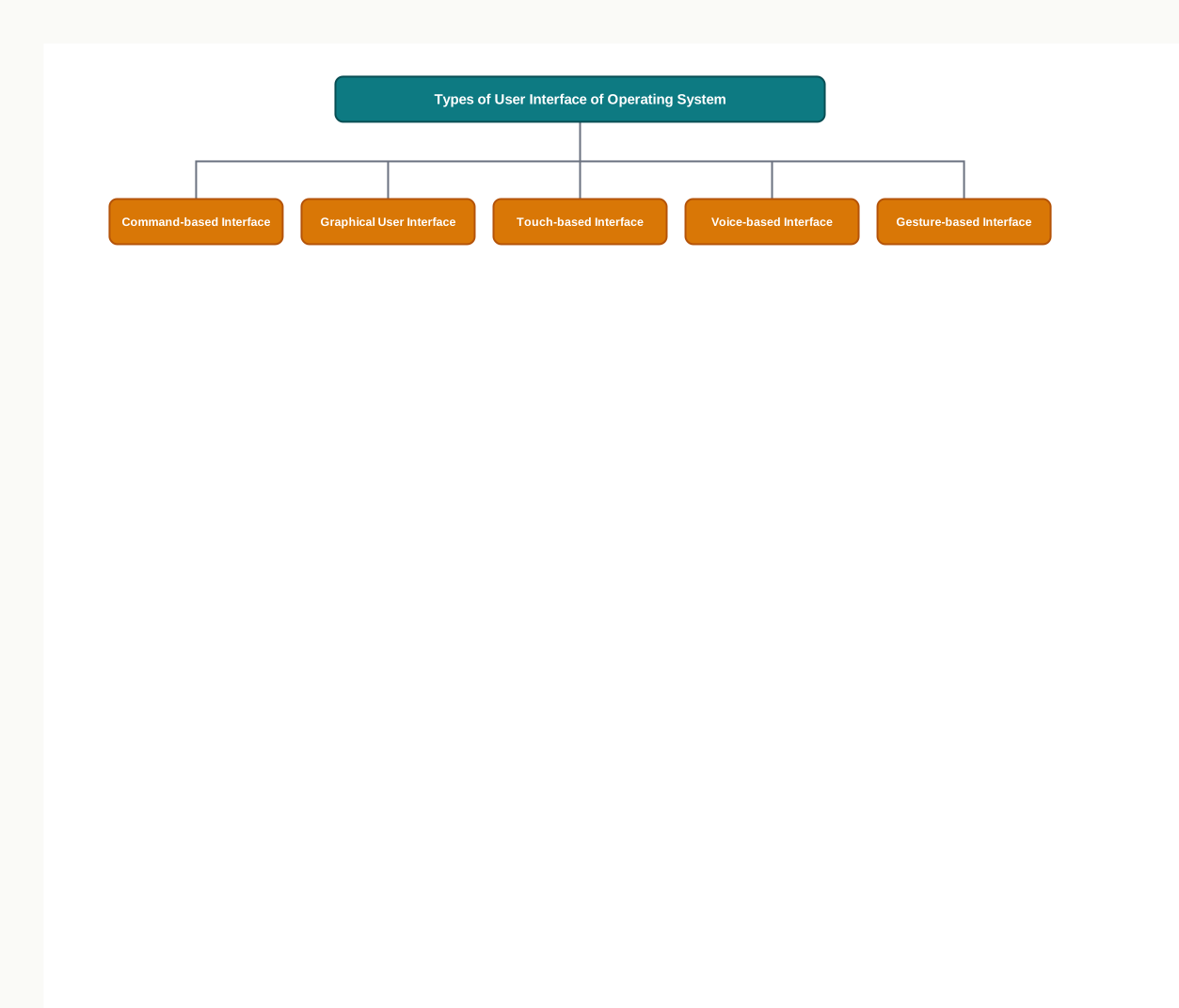
1.8.1.1 Command-based Interface
A command-based interface requires the user to type in commands to perform tasks such as creating, opening, editing or deleting a file. The user has to remember the names of the programs or the specific commands that the operating system supports.
The primary input device for such an interface is the keyboard. A command-based interface is often less interactive, and usually allows a user to run a single program at a time. Early operating systems of this kind were the ordinary way of working before graphical systems arrived.
The demand it makes on memory is real, but so is what it offers in return. A typed command can be exact, repeatable and written down, which is why this style of working never entirely disappeared.
1.8.1.2 Graphical User Interface
A graphical user interface (GUI) lets users run programs or give instructions to the computer in the form of icons, menus and other visual options. Icons usually represent files and programs stored on the computer, and windows represent running programs that the user has launched through the operating system.
The input devices commonly used to interact with a GUI are the mouse and the keyboard. Nothing has to be remembered and typed correctly; the available choices are displayed, and the user selects one.
Table 1.15 – Command-based interface vs graphical user interface
| How a task is given |
By typing a command |
By selecting an icon or a menu option |
| Demand on the user |
The commands must be remembered |
The choices are shown on the screen |
| Main input device |
Keyboard |
Mouse, along with the keyboard |
| Interactivity |
Less interactive; usually one program at a time |
Highly interactive; several programs in separate windows |
| Suits |
Exact, repeatable instructions |
Beginners, and work that is visual by nature |
1.8.1.3 Touch-based Interface
Smartphones, tablets and many personal computers today allow users to interact with the system simply by touch. Using the touch screen, a user provides inputs which the operating system interprets as commands — opening an app, closing an app, dialling a number, scrolling across apps.
What is new here is not the idea but the removal of an intermediary. With a mouse, a movement of the hand is mapped onto a pointer on the screen; with a touch screen, the finger is the pointer.
1.8.1.4 Voice-based Interface
Modern computers are designed to address the needs of all types of users, including people with special needs and people who wish to interact with a device while their hands are busy with something else. For users who cannot use input devices such as the mouse, the keyboard and the touch screen, modern operating systems provide other means of human–computer interaction.
Voice-based commands allow such a user to make a computer work in the desired way, and several widely used operating systems now offer voice control of this kind. An interface of this sort is not a convenience feature alone; for some users it is the only practical way in.
1.8.1.5 Gesture-based Interface
Some smartphones and laptops let users interact with the device using gestures such as waving, tilting, eye motion and shaking. No contact with the machine is needed at all, and the movement itself is the command.
This technology is evolving fast, and it has promising potential for application in gaming, in medicine and in other areas — anywhere, in fact, where the user’s hands are occupied, unsteady, or must remain sterile.
Taking the icons on the screen to be the operating system What students write: “The operating system is the desktop with the icons and the taskbar.” What happens: The user interface is mistaken for the whole of the operating system, and the student cannot then explain what an operating system with a command-based interface manages, or why a phone with no desktop at all still has one. The fix: The interface is one part of the operating system — the part you see. Process, memory, file and device management go on whether anything is displayed or not.
1.8.2 Functions of Operating System
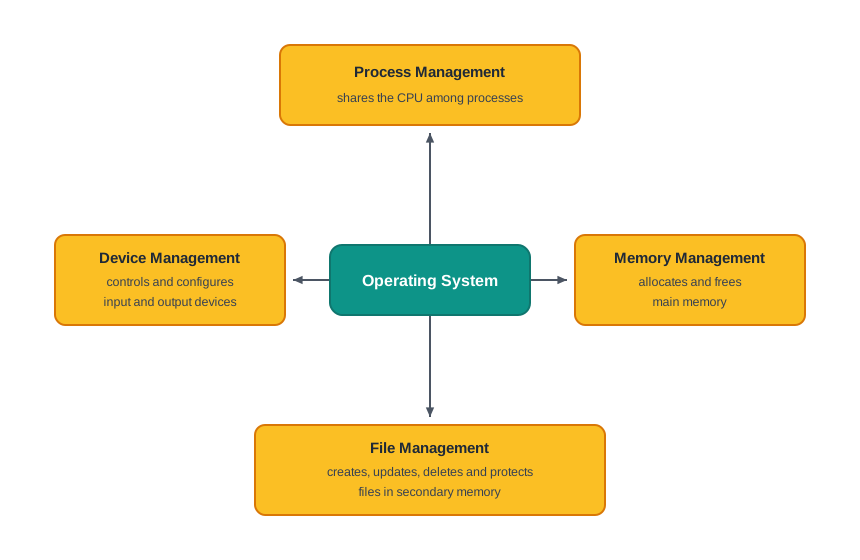
Below the interface lie the services that actually manage the machine. Fig. 1.23 groups them into the four functions taken up in this subsection.
1.8.2.1 Process Management
While a computer system is working, many different tasks are running at the same time. A program is written to carry out some task, and a task in execution is known as a process. A system monitor program can be activated to show which processes are being executed on a computer at a given moment.
(A process is a task in execution — that is, a program that has been loaded and is currently being run.)
It is the responsibility of the operating system to manage these processes and get multiple tasks completed in the minimum time. Since the CPU is the main resource of a computer system, allocating it among the processes is the most important service the operating system performs.
Process management therefore covers three things together: the management of multiple processes, the allocation of the resources each of them requires, and the exchange of information among processes.
1.8.2.2 Memory Management
The primary or main memory of a computer system is limited, and every running process wants some of it. The main task of memory management is to give memory to running processes and to take it back from them.
Since several processes are running at a time, memory has to be allocated and freed dynamically, that is, as the work proceeds rather than once at the start. The operating system must do this without disturbing the other processes already residing in memory, and when a process finishes, it is again the operating system’s responsibility to take that memory space back for reuse.
Memory management thus concerns the management of main memory so that as much of it as possible is usefully occupied by as many processes as possible, while keeping track of every location within the memory as either free or occupied.
1.8.2.3 File Management
Data and programs are stored as files in the secondary storage of a computer system. File management involves the creation, updation, deletion and protection of these files in secondary memory.
Protection is a crucial function here, because several users may share one computer system. There must be a mechanism that stops a user from reaching files that belong to some other user and have not been shared with them.
The distinction between this function and the previous one is easy to state and easy to forget: the file management system manages secondary memory, while the memory management system handles the main memory of the computer system.
Table 1.16 – Memory management vs file management
| Memory concerned |
Main memory |
Secondary memory |
| What is managed |
Space given to running processes |
Files stored for future use |
| Lifetime of what it handles |
Only while the process is running |
Until the file is deleted |
| Main operations |
Allocating and freeing memory, tracking free and occupied locations |
Creating, updating, deleting and protecting files |
1.8.2.4 Device Management
A computer system has many input and output devices and other hardware connected to it, and the operating system manages these heterogeneous and interdependent devices. For each device it works with the corresponding device driver and the related software, in the way described in Section 1.7.2.3.
The operating system must also provide options for configuring a particular device, so that it can be used by an end user or by some other device. Just as files do, devices need security measures, and access to them must be restricted by the operating system to authorised users, software and hardware only.
Q5. You can use a computer that has no word processor installed on it. Why can you not use one that has no operating system installed on it?
A. Because a word processor is application software and an operating system is system software, and only the second one is required for the machine to function. An application performs one task for you, and if it is absent you simply do that task some other way or not at all. The operating system, by contrast, is what loads any program into memory, allocates the CPU to it, reaches the disk through the device drivers and presents an interface for you to work through. Without it there is nothing to start a program, nothing to manage memory and no way to give an instruction — so a computer with no operating system cannot even be told to do nothing.
Find out which operating system is installed on the computer you use at school and on any device you use at home. For each one, note which of the five types of user interface it offers, and write two lines on how you would carry out one everyday task — such as deleting a file — through two different interfaces on the same device.
1.9 Summary
The computer system and its components
- A computer is an electronic device that accepts data as input, processes it according to a set of instructions, and produces a result as output. A computer system is that computer together with the additional hardware and software that make it usable.
- Every computer system is built from four kinds of physical component: a central processing unit, memory, input devices and output devices. The same four roles are present in a server, a desktop, a laptop, a tablet and a smartphone; only their size and speed differ.
- The CPU executes instructions. Apart from its registers — small, very fast storage locations on the chip itself — it has two main components: the arithmetic logic unit (ALU), which performs all arithmetic and logic operations, and the control unit (CU), which controls the sequence of instruction execution, interprets instructions and directs the flow of data.
- An input device converts data from the outside world into a digital form the computer can accept; an output device converts digital information into a form a person can perceive. A device such as a touch screen belongs to both classes, because data flows through it in both directions.
- Data entered through an input device is placed first in main memory, because the CPU works only with main memory. It survives beyond the session only if it is written to secondary memory.
Evolution
- Computing devices advanced from the abacus, through Pascal’s mechanical calculator, Babbage’s analytical engine and Hollerith’s tabulating machine, to Turing’s mathematical model of a general-purpose computing machine.
- The stored program concept, described by von Neumann in 1945, holds that instructions are kept in the memory of the machine in the same way as data. The design built on it — the von Neumann architecture — consists of a CPU, a memory holding both program and data, input and output devices, and the channels joining them. Almost every general-purpose computer since follows it.
- Improvements in components followed: the transistor replaced the vacuum tube, and integration levels rose through large scale integration (LSI), very large scale integration (VLSI) and super large scale integration (SLSI). LSI first made it possible to place a complete CPU on a single chip.
- Moore’s Law is the observation, put forward in 1965, that the number of transistors on a chip doubles roughly every two years while cost falls. It is a trend in manufacturing, not a law of nature, and not a statement about speed.
Memory
- A bit is a single binary digit, 0 or 1, and is the basic unit of memory. A 4-bit word is a nibble and an 8-bit word is a byte. Larger units rise in steps of 1024, that is \(2^{10}\): KB, MB, GB, TB, PB, EB, ZB and YB.
- Computer memory is of two kinds. Primary memory is the working memory the CPU reads from and writes to directly; secondary memory stores data, instructions and results permanently for future use.
- Primary memory is of two types. RAM is volatile, so its contents are lost when the power is turned off, and it holds whatever is currently in use. ROM is non-volatile, and holds contents that rarely change, such as the startup program that loads the operating system.
- Cache memory is a small, very high speed memory placed between the CPU and primary memory. It holds copies of frequently accessed primary memory contents, and the CPU examines it first, going to primary memory only when the value is not found there.
- Secondary memory is non-volatile, larger, slower and cheaper than primary memory, and it cannot be accessed directly by the CPU — its contents must first be brought into main memory. Hard disk drives, CDs and DVDs, memory cards, solid state drives and pen drives are examples.
- The memory hierarchy runs registers, cache, primary memory, secondary memory. Reading down it, capacity grows and cost per byte falls; reading up it, speed grows.
Data transfer
- Components are joined by buses, which are physical wires that carry values between them. A bus stores nothing; it only carries.
- A bus is of three types: the data bus, which transfers data between components; the address bus, which carries the address of the memory location the CPU wants; and the control bus, which carries control signals such as read and write. All three together are called the system bus.
- The data bus is bidirectional, since data travels to memory on a write and from memory on a read. The address bus and the control bus are unidirectional, since only the CPU ever originates an address or a command.
- On a read, the CPU places the address on the address bus and the read signal on the control bus, and the memory controller — the hardware managing the flow of data in and out of main memory — places the value on the data bus.
Microprocessors and microcontrollers
- A microprocessor is a CPU implemented on a single microchip. Nearly all CPUs today are microprocessors, so the terms are used interchangeably in practice.
- Microprocessors are described by four specifications. Word size is the maximum number of bits the processor can handle at a time; memory size is limited by the width of the address, since \(n\) address bits identify \(2^n\) locations; clock speed is the number of pulses generated per second by the internal clock; and a core is a basic computation unit, a multicore processor having more than one.
- A microcontroller has a CPU, a fixed amount of RAM, ROM and other peripherals embedded on a single chip, whereas a microprocessor chip carries the CPU alone. Because it is designed for one specific task, it is small and cheap, and it is embedded inside devices such as washing machines, cameras and remote controllers.
Software
- Software is the set of instructions that makes hardware operational, and it acts as the interface between the user and the hardware. It is broadly classified into three categories: system software, programming tools and application software.
- System software operates the computer by interacting directly with its hardware. It includes the operating system, system utilities used for maintenance and configuration, and device drivers, each of which manages one particular device and hides its hardware-level details from the operating system.
- Programming languages are of two major categories. Low-level languages are machine dependent and include machine language, written in 1s and 0s, and assembly language, which uses English-like words but remains specific to one type of CPU. High-level languages are machine independent and need a translator.
- Code written in assembly or a high-level language is called source code, and the machine-understandable form is called object code. The three translators are the assembler, which converts assembly language; the compiler, which converts a whole high-level program at one go and is not needed afterwards; and the interpreter, which translates and executes one line at a time and is needed at every run. Machine code executes faster than source code because the translation has already been paid for.
- Program development uses an editor to write source code, and often an integrated development environment (IDE) that bundles an editor, building tools and a debugger, the debugger being the software used to detect and correct errors.
- Application software works on top of system software to perform a specific task. It is either general purpose, written for a wide audience, or customised, tailor-made for one organisation or individual.
- The terms of release are a separate question from the type of software. Free and open source software (FOSS) is supplied with its source code and may be studied, modified and redistributed; freeware is free of cost but without source code; proprietary software must be purchased from the vendor holding its copyright.
The operating system
- The operating system is a resource manager. It manages the hardware, controls application software and device drivers, manages system security and handles access by different users, and it is the most important system software.
- Its two primary objectives are to provide services for building and running application programs — loading a program into memory, allocating the CPU to it and deciding the order of execution — and to provide a user interface through which the user can interact with the computer.
- The types of user interface are the command-based interface, the graphical user interface, the touch-based interface, the voice-based interface and the gesture-based interface. A command-based interface requires commands to be remembered and typed; a graphical user interface offers icons, menus and windows to select from.
- The functions of the operating system are process management, memory management, file management and device management. A process is a task in execution; process management allocates the CPU among processes, memory management allocates and frees main memory, file management creates, updates, deletes and protects files in secondary memory, and device management controls, configures and secures the input and output devices.
1.10 Key Terms
- address bus — the bus that carries the address of the memory location the CPU wants to read from or write to.
- AI — artificial intelligence.
- ALU — arithmetic logic unit.
- application software — software that works on top of the system software to perform a specific task for the user.
- arithmetic logic unit — the part of the CPU that performs all arithmetic and logic operations.
- artificial intelligence — the field concerned with making machines interpret what they sense and decide what to do about it.
- assembler — the translator that converts a program written in assembly language into machine language.
- assembly language — a low-level language that uses English-like words and symbols in place of 1s and 0s, specific to one type of CPU.
- ATM — automated teller machine.
- bit — a single binary digit, 0 or 1, and the basic unit of computer memory.
- bus — a set of physical wires along which data, addresses or control signals travel between components.
- byte — a word of 8 bits, that is two nibbles.
- cache memory — a small, very high speed memory between the CPU and primary memory, holding copies of frequently accessed contents.
- CD — compact disc, an optical secondary storage device.
- central processing unit — the circuitry that executes instructions and controls the flow of data between the other components.
- clock speed — the number of pulses generated per second by the internal clock of a computer.
- comma separated values — a plain text file format in which commas separate the values of a record.
- compiler — the translator that converts a whole high-level program into machine code at one go.
- computer — an electronic device that accepts data, processes it according to instructions, and produces a result.
- computer system — a computer together with the additional hardware and software that make it usable.
- control bus — the bus that carries control signals, such as read and write, between components.
- control unit — the part of the CPU that interprets instructions, controls their sequence and directs the flow of data.
- core — a basic computation unit of the CPU.
- CPU — central processing unit.
- CSV — comma separated values.
- CU — control unit.
- data — raw, unorganised facts given to a computer for processing.
- data bus — the bidirectional bus that carries data values between components.
- data recovery — the retrieving of deleted, corrupted or lost data from secondary storage, possible only while the space has not been overwritten.
- debugger — software used to detect and correct errors in source code.
- device driver — system software that controls one particular device and acts as an interface between it and the operating system.
- DVD — digital versatile disc, an optical secondary storage device of larger capacity than a CD.
- EB — exabyte, equal to 1024 PB.
- EDVAC — Electronic Discrete Variable Automatic Computer.
- ENIAC — Electronic Numerical Integrator and Computer.
- FOSS — free and open source software.
- free and open source software — software released along with its source code, which may be studied, modified and redistributed.
- freeware — software available free of cost but without its source code.
- GB — gigabyte, equal to 1024 MB.
- GHz — gigahertz, a thousand million pulses per second.
- graphical user interface — an interface in which instructions are given through icons, menus, windows and other visual options.
- GUI — graphical user interface.
- hard copy — a document or image once it has been printed on paper.
- hard disk drive — a common secondary storage device that keeps its contents when the power is off.
- hardware — the physical components of a computer system, which can be seen and touched.
- HDD — hard disk drive.
- high-level language — a machine-independent programming language written in English-like statements, needing a translator.
- HTML — hypertext markup language, the tagged language in which web pages are written.
- Hz — hertz, one pulse per second.
- IC — integrated circuit.
- IDE — integrated development environment.
- information — data that has been processed and organised so that it carries meaning.
- input device — a device that sends data and control signals into a computer in digital form.
- integrated circuit — a silicon chip carrying an entire electronic circuit in a very small area.
- integrated development environment — software bundling a text editor, building tools and a debugger for program development.
- Internet of Things — the arrangement in which ordinary appliances carry processors and network connections and can be monitored or controlled remotely.
- interpreter — the translator that converts and executes a high-level program one line at a time.
- IoT — Internet of Things.
- KB — kilobyte, equal to 1024 bytes.
- kHz — kilohertz, a thousand pulses per second.
- large scale integration — the level of integration that first allowed a complete CPU to be placed on a single chip.
- low-level language — a machine-dependent programming language, namely machine language or assembly language.
- LSI — large scale integration.
- machine language — the language of 1s and 0s that is directly understood and executed by a computer.
- MB — megabyte, equal to 1024 KB.
- memory controller — the hardware that manages the flow of data into and out of main memory.
- MHz — megahertz, a million pulses per second.
- microcontroller — a small computing device with a CPU, a fixed amount of RAM, ROM and other peripherals embedded on a single chip.
- microprocessor — a central processing unit implemented on a single microchip.
- Moore’s Law — the observation that the number of transistors on a chip doubles roughly every two years while cost falls.
- multicore processor — a processor carrying more than one core, and therefore able to execute several tasks at once.
- nibble — a word of 4 bits.
- non-volatile — describing memory whose contents are not lost when the power is turned off.
- object code — the machine-understandable form of a program, produced by a translator from source code.
- operating system — the system software that manages a computer’s resources, controls other software and provides a user interface.
- OS — operating system.
- output device — a device that converts digital information into a form a person can perceive or use.
- PB — petabyte, equal to 1024 TB.
- primary memory — the working memory the CPU reads from and writes to directly while a task is in progress.
- process — a task in execution, that is a program that has been loaded and is being run.
- proprietary software — software that must be purchased from the vendor holding its copyright, and whose source code is not supplied.
- RAM — random access memory.
- random access memory — volatile primary memory that holds the programs and data currently in use.
- read only memory — non-volatile primary memory holding contents that rarely change, such as the startup program.
- register — a small, very fast storage location within the CPU chip itself.
- ROM — read only memory.
- secondary memory — non-volatile storage that keeps data, instructions and results permanently, and is not accessed directly by the CPU.
- semi-structured data — data with no well-defined structure but with internal tags or markings separating the data elements.
- SLSI — super large scale integration.
- soft copy — a document or image as stored on a disk or a pen drive.
- software — the sets of instructions, with their data, that make hardware perform a task.
- solid state drive — a secondary storage device with no moving parts, supporting much faster data transfer than a hard disk drive.
- source code — program code as written in assembly or a high-level language.
- SSD — solid state drive.
- stored program concept — the principle that a machine’s instructions are held in its memory in the same way as its data.
- structured data — data that follows a strict, pre-specified record format.
- super large scale integration — a level of integration packing still higher densities of components onto a single chip than VLSI.
- system bus — the data bus, address bus and control bus taken together.
- system software — software that operates a computer by interacting directly with its hardware.
- system utility — software used for the maintenance and configuration of a computer system.
- TB — terabyte, equal to 1024 GB.
- unstructured data — data that is not organised in any pre-defined record format.
- USB — universal serial bus, a standard port through which external devices are attached to a computer.
- user interface — the part of the operating system that takes commands or inputs from the user for the system to process.
- very large scale integration — the level of integration that placed millions of components on a small chip.
- VLSI — very large scale integration.
- volatile — describing memory whose contents are lost as soon as the power is turned off.
- von Neumann architecture — the design in which a CPU, a memory holding both program and data, and input and output devices are joined by communication channels.
- word size — the maximum number of bits a microprocessor can process at one time.
- World Wide Web — the system of linked documents and resources whose growth in the 1990s brought computers into mass everyday use.
- WWW — World Wide Web.
- YB — yottabyte, equal to 1024 ZB.
- ZB — zettabyte, equal to 1024 EB.
1.11 Points to Ponder
A cache works because it is fast, and it is fast partly because it is small. If enlarging the cache reduces the time the CPU spends waiting, what stops a designer from simply making the cache as large as the primary memory?
Deleting a file is quick precisely because nothing is actually erased. Would a computer that genuinely overwrote every deleted file be a safer machine or only a slower one, and who ought to decide which of the two you get?
A microcontroller runs the same program for its entire working life and cannot be given a different one. In the sense of the stored program concept, is such a device still a computer, or has it gone back to being a machine with its instructions built into the wiring?
Structured data can be searched in an instant, and unstructured data cannot. Why, then, does almost everything people create in a day — messages, photographs, recordings, notes — get created in unstructured form?
Code that has been compiled runs faster than code being interpreted line by line, and yet some of the most widely used languages are interpreted. What might a language be gaining that is worth the loss in execution speed?
The chapter treats the user interface as one part of the operating system, sitting above process, memory, file and device management. If two machines managed their resources in exactly the same way but offered completely different interfaces, would you call them the same operating system?
1.12 Objective Questions
Which of the following is not a part of the CPU? [1 mark]
- Arithmetic logic unit
- Control unit
- Registers
- Hard disk drive
1 TB is equal to [1 mark]
- 1024 KB
- 1024 MB
- 1024 GB
- 1024 PB
Which of the following buses is bidirectional? [1 mark]
- Address bus
- Control bus
- Data bus
- None of these
An HTML page is an example of [1 mark]
- Structured data
- Semi-structured data
- Unstructured data
- Information
The translator that converts a program written in assembly language into machine language is called [1 mark]
- Compiler
- Interpreter
- Assembler
- Debugger
A washing machine that runs its wash cycle without human intervention has an embedded [1 mark]
- Microprocessor
- Microcontroller
- Operating system
- System utility
Fill in the blank: A word of four bits is called a ______ . [1 mark]
Fill in the blank: The startup program that loads the operating system into primary memory is stored in ______ . [1 mark]
State whether true or false: The CPU can read data directly from secondary memory. [1 mark]
State whether true or false: Once a program has been compiled, the compiler is needed again every time the program is executed. [1 mark]
Assertion (A): RAM is described as volatile memory. Reason (R): The contents of RAM are wiped out as soon as the power supply is turned off. [1 mark]
- Both A and R are true, and R is the correct explanation of A
- Both A and R are true, but R is not the correct explanation of A
- A is true but R is false
- A is false but R is true
Assertion (A): The address bus is unidirectional. Reason (R): Data has to travel from memory to the CPU during a read operation and from the CPU to memory during a write operation. [1 mark]
- Both A and R are true, and R is the correct explanation of A
- Both A and R are true, but R is not the correct explanation of A
- A is true but R is false
- A is false but R is true
Match the item in Column A with its description in Column B. [1 mark]
| a. Control unit |
i. Translates and executes a program one line at a time |
| b. Cache memory |
ii. Holds copies of frequently accessed primary memory contents |
| c. Device driver |
iii. Controls the sequence in which instructions are executed |
| d. Interpreter |
iv. Acts as an interface between one device and the operating system |
- Write the full form of each of the following: SLSI, FOSS, IDE, SSD. [1 mark]
1.13 Check Your Concepts
Define cache memory. State why the CPU examines the cache before it reaches primary memory. [2 marks]
Differentiate between a soft copy and a hard copy, giving two points of difference. [2 marks]
What is a process? Name the function of the operating system that allocates the CPU among processes. [2 marks]
Differentiate between structured, semi-structured and unstructured data, giving one example of each. [3 marks]
Name the three types of bus in a computer system and state what each of them carries. Why is only one of the three bidirectional? [3 marks]
A computer system is fitted with both RAM and ROM. Explain, with reasons, why neither of the two can do the work of the other. [4 marks]
Differentiate between a compiler and an interpreter on any four points. Using your answer, explain why machine code executes faster than source code. [4 marks]
Explain the four functions of an operating system. For each function, state in one line what a user would be unable to do if that function were missing. [5 marks]
1.14 Output & Debugging
- Classify each of the following as structured, semi-structured or unstructured data: [2 marks]
- A file of bus fares in which each line holds the route code, the distance and the fare separated by commas
- A recorded speech from the school annual day
- A table of railway ticket bookings, each with the same fields
- A satellite image of a district
- The steps below are meant to describe a read operation, in which the CPU obtains a value from main memory. Exactly one step is wrong. Identify it, correct it, and write the four steps in the right order. [3 marks]
- The CPU places the address of the wanted location on the address bus.
- The CPU places the value to be read on the data bus.
- The CPU specifies the read signal on the control bus.
- The memory controller locates the addressed location.
- Table 1.17 compares a microprocessor with a microcontroller, and four entries have been left blank. Copy the table into your answer book and complete it. [3 marks]
Table 1.17 – Incomplete comparison of a microprocessor and a microcontroller
| What the chip contains |
The CPU only |
______ |
| Purpose |
______ |
Designed for one specific task |
| Cost of the complete system |
______ |
Lower |
| One example of a device |
A laptop |
______ |
- Identify the category — system software, programming tool or application software — of each of the following: [2 marks]
- A disk cleaner tool
- An assembler
- A school management package written for one school
- A printer’s device driver
- Fig. 1.24 shows the block diagram of a computer system with four components labelled P, Q, R and S. Name each component and state one function of each. [4 marks]
1.15 Case-Based Questions
- A school library is being computerised. The librarian keeps three kinds of record: a register in which every issued book is entered with the same four columns, a set of photographs of the old handwritten registers, and a weekly notice for the board that mixes a paragraph of text with a small chart. The librarian types the day’s entries on the library computer and leaves the machine on overnight without saving. [5 marks]
- Classify each of the three kinds of record as structured, semi-structured or unstructured data, giving a reason in each case. [2 marks]
- The power fails during the night and the day’s typed entries are lost. Explain why. [1 mark]
- Two old library computers are to be sold. State the security concern involved in disposing of them, and one measure the school should take before they leave the premises. [2 marks]
- A shopkeeper is buying a computer for billing. The dealer offers a machine described as: 64-bit processor, 3.2 GHz, quad-core, 8 GB RAM, 1 TB hard disk drive. A second dealer offers a 3.6 GHz dual-core machine and claims it must be faster because of the higher figure. [5 marks]
- State what the figures 8 GB and 1 TB refer to, and say which of the two is volatile. [2 marks]
- Express 1 TB in gigabytes, and state why the units rise in steps of 1024 rather than 1000. [1 mark]
- Do you agree with the second dealer’s claim? Give two reasons for your answer. [2 marks]
- In a school computer laboratory, students write their programs in a high-level language using an editor, and the programs are then run on the laboratory machines. A student notices that a program takes noticeably longer to run than a ready-made application on the same computer. [4 marks]
- Name the form in which the student’s program is written and the form in which the computer finally executes it. [1 mark]
- Name the two types of translator that could convert the student’s program, and state one difference between them. [2 marks]
- Give one reason why the ready-made application may run faster on the same machine. [1 mark]