Chapter 2: File Handling in Python
At the end of the 1960s, a small group of researchers at Bell Laboratories in the United States began building an operating system for a spare minicomputer. Ken Thompson and Dennis Ritchie, who led that work, had to answer a question that sounds simple and is not: what exactly is a file?
The systems of that time usually answered it with structure. A file was a collection of records, each record of a fixed size, laid out in a form the operating system itself understood. If your data did not fit the shape the expected, you fought the system.
Unix, the system they built, answered differently. A file would be nothing but a sequence of bytes, one after another, with no structure imposed from outside. Whatever meaning those bytes carried — a letter, a table of marks, a photograph, a program — was the business of the program that read them, not of the operating system.
That decision has outlived the machine it was made on. When you open a file in Python today, you are opening a stream of bytes and deciding, by the way you open it, how those bytes should be interpreted. Everything in this chapter follows from that one idea.
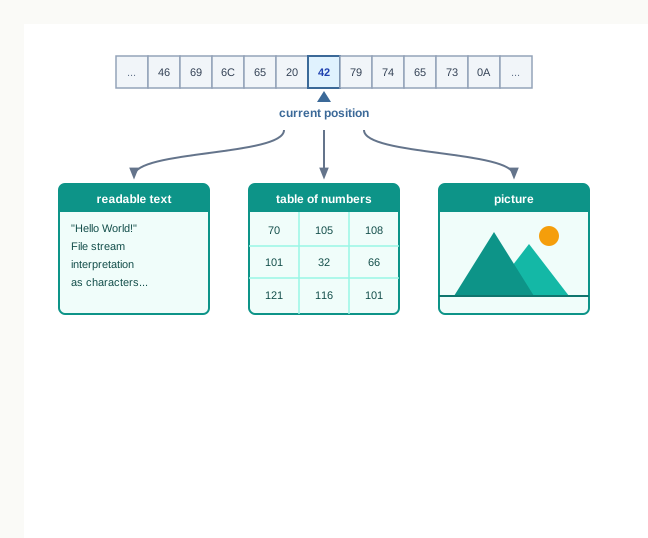
Fig. 2.0 – File byte interpretation.
Keep these five questions in mind as you read. By the end of the chapter you will be able to answer every one of them.
2.1 Introduction to Files
Every program you have written so far has followed the same shape. It takes some input, works on it, and displays a result on the screen. The moment the program ends, all of it is gone — the input, the intermediate values and the result alike.
For small exercises that is no loss. For anything real it is a serious limitation. A school office that records the marks of six hundred students cannot type them in afresh every morning. A shop that maintains a stock list needs yesterday’s list to still be there today. What such work needs is a way for data to outlive the program that produced it.
This chapter is about that. You will learn how a Python program can write data out to permanent storage, read it back later, move about inside it, and store whole Python objects such as lists and dictionaries so that they come back exactly as they were.
2.1.1 Why a Program Needs Permanent Storage
Consider a fragment as ordinary as this one.
marks = int(input("Enter the marks: "))
print("The marks entered are", marks)
While the program runs, the value typed by the user is held in the variable marks. That variable occupies space in the computer’s random access memory (RAM), also called primary memory. When the program finishes, the interpreter releases that space, and the value disappears with it. A variable’s lifetime lasts only as long as the program is under execution.
RAM behaves this way by design, and it also behaves this way physically. It is volatile memory — its contents survive only while the machine is powered. Switch the computer off, and whatever was in RAM is lost, whether a program was running or not.
Where data can survive
Data that must survive is therefore kept somewhere else: on a hard disk, a solid-state drive, a memory card or a pen drive. These are secondary storage devices. They are slower to reach than RAM and much larger, and — the property that matters here — they retain their contents when the power goes off.
Writing data to secondary storage is what gives it persistence: the data exists independently of any one run of any one program. A marks list written to a disk on Monday can be read back on Friday, by the same program, by a different program, or by a person opening it in a text editor.
The last row of Table 2.1 is the whole point of this chapter. A program reaches RAM through variables. It reaches secondary storage through files.
2.1.2 What a File Is
You already use files without calling them that. A photograph on a phone, a Python program saved as marks.py, a song, a spreadsheet of bus timings — each of these is a named collection of data kept on a storage device, and each can be found again by its name.
That is exactly what a file is. It is a file because it has a name, because it lives on secondary storage, and because it holds data that stays there until something deliberately changes it.
The name matters more than it first appears. Storage devices hold data as vast numbers of bytes with no natural boundaries between one collection and the next. It is the operating system that groups those bytes, gives the group a name, and records where it begins and how far it runs. Without that naming, a program would have no way to ask for one particular set of data rather than another.
Names, extensions and folders
A file name is usually written in two parts separated by a dot — practice.txt, stock.dat, library.py. The part after the dot is the file name extension, and it announces what kind of data the file is expected to hold: .txt for plain text, .py for a Python program, .csv for comma separated values, .dat for a data file.
An extension is a convention, not a rule enforced by the machine. Renaming a photograph to photo.txt does not turn it into text; it only misleads the software that trusts the name. The bytes inside decide what a file really is, which is the subject of the next section.
Files are organised into folders, and a folder may contain further folders. So the full description of a file is its name together with the path of folders leading to it. Section 2.3 returns to this when a program has to open a file that is not sitting in the same folder as the program itself.
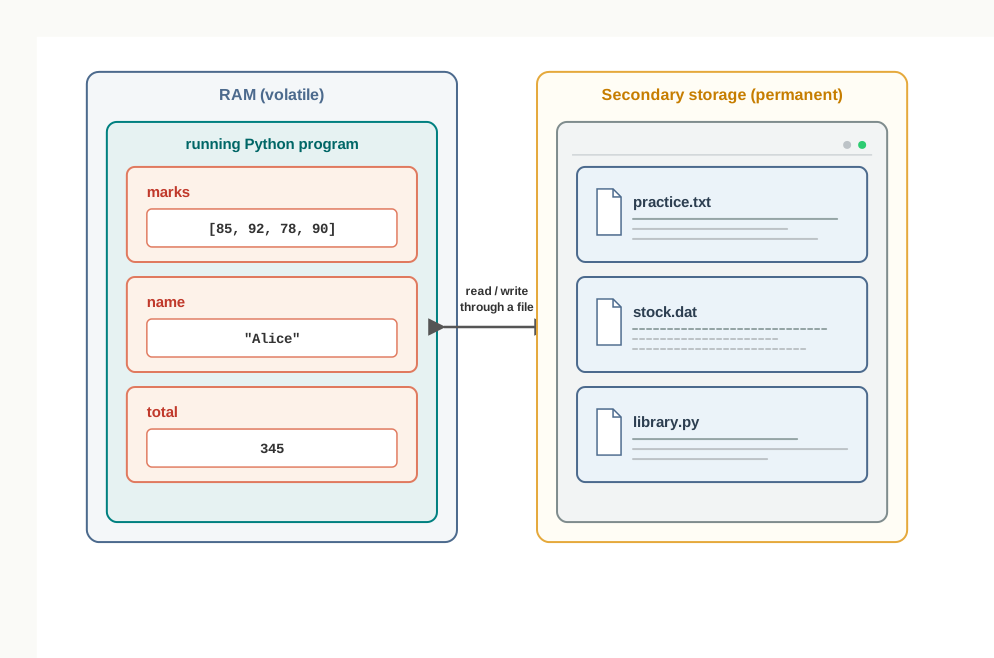
Fig. 2.1 – RAM versus secondary storage.
Data files and program files
Both library.py and stock.dat are files, but a program treats them very differently. A .py file holds instructions and is handed to the Python interpreter to be executed. A data file holds the information a program works on — marks, names, quantities, prices — and is opened, read and written by that program.
Everything from Section 2.3 onwards concerns data files. The program is one thing; the data it keeps is another, and separating the two is what allows the same program to be run tomorrow on a file that has grown by two hundred records.
2.2 Types of Files
Whatever a file holds — a paragraph of English, a photograph, a song, a program — the storage device records the same thing: a long run of bytes, each byte a group of eight bits, each bit a 0 or a 1. The device knows nothing about letters or pixels. It knows bytes.
So if the storage is identical, where does the difference between one kind of file and another come from? It comes from the agreement about what those bytes are supposed to mean, and from the software that honours that agreement.
On that basis, data files are divided into two kinds: text files and binary files. The division runs through the whole of this chapter, because Python opens the two differently, reads them differently and writes them differently.
2.2.1 Text Files
A text file stores characters — the letters of an alphabet, digits, punctuation marks, spaces and a few control characters. Each character is stored as the numeric code assigned to it by an encoding scheme, and that number is what actually sits on the disk.
The oldest and simplest such scheme is the American Standard Code for Information Interchange (ASCII), which gives every English letter, digit and common punctuation mark a number from 0 to 127. A more general scheme is Unicode, which extends the same idea to the scripts of the world, including Devanagari, Tamil and Bengali, and which Python 3 uses by default.
Table 2.2 shows a few characters with their ASCII codes. Read the third column as the eight-bit pattern that is physically stored.
Notice the fourth and the sixth rows. A space and a newline are characters like any other, with codes of their own, and they occupy a byte each exactly as A does. A file of ten visible letters spread over two lines is not ten bytes long.
Nothing in Table 2.2 is visible when you open the file. A text editor such as Notepad reads the byte 01000001, looks it up as 65, finds that 65 stands for A, and paints the letter A on the screen. That translation, done character by character, is the whole service a text editor provides.
Files with extensions such as .txt, .py, .csv and .html are text files. That includes every Python program you have ever written: a .py file is plain text, which is why you can open it in any editor and read it.
Lines and the end-of-line character
A text file is one continuous run of characters; the disk has no notion of a “line”. Lines exist because a special character is placed where one line is to end and the next to begin. This is the end of line (EOL) character, and in Python the default is the newline, written \n in a string.
Although it is written with two symbols, \n is a single character occupying a single byte, as Table 2.2 records. When an editor or a program meets it, everything after it is shown starting on a fresh line. Some operating systems store a line ending as a two-character combination instead; when a file is opened in text mode, Python takes care of the difference, so a program written on one machine reads correctly on another.
Within a line, values are separated by whatever the writer of the file chose — most often a space, but a comma or a tab (\t) just as commonly, since both are easy for a program to search for when the line has to be split back into separate values.
Fig. 2.2 shows the whole idea in one picture: a short two-line file, the characters it appears to hold, and the bytes actually stored.
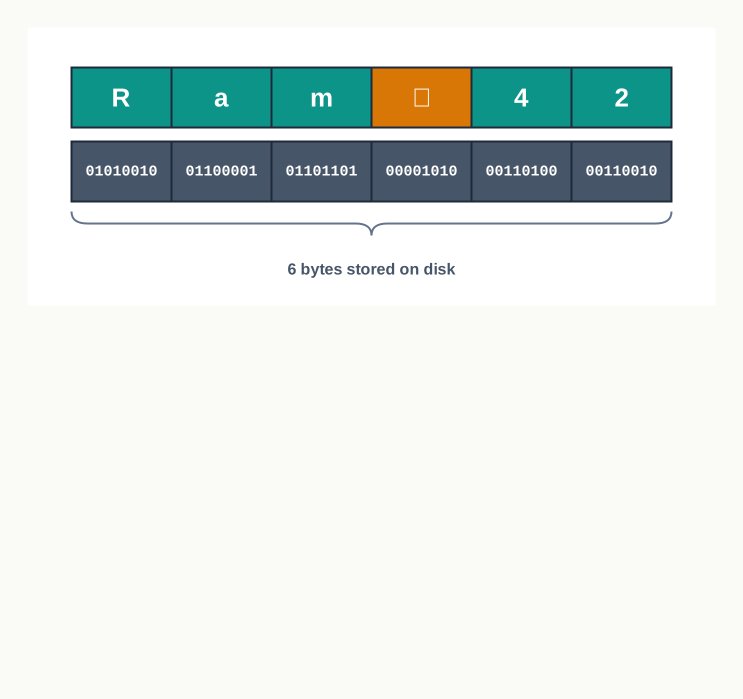
Fig. 2.2 – Text file character and byte representation.
2.2.2 Binary Files
A binary file is also a run of bytes, but its bytes are not codes for characters. They are the data themselves, in whatever form the application that created the file decided upon — the colour values of the dots in a photograph, the sound levels in a recording, the machine instructions of an executable program, the compressed contents of an archive.
Open such a file in a text editor and you get nonsense. The editor does what it always does — treats each byte as a character code and displays the corresponding character — but the bytes were never character codes, so the result is a jumble of symbols. Nothing is wrong with the file; the wrong software is reading it.

Fig. 2.3 – Binary file opened in different formats.
This dependence on format has a consequence worth noticing. In a text file, a damaged byte spoils one character and the rest of the file still reads. In a binary file, a single altered bit can shift the meaning of everything that follows, and the file may become unusable to the application that created it. Nor can you inspect the damage by eye, because the contents were never readable in the first place.
Python can read and write both kinds of file. What changes is how the file is opened, and — for binary files holding Python objects — the module used to write to it, which Section 2.8 introduces.
2.2.3 Choosing Between a Text File and a Binary File
The two kinds of file are not rivals; each answers a different need. A text file is chosen when the data are readable information that people or other programs may want to inspect, edit or exchange — a marks list, a log of bus timings, a set of records exported for another application. Its great advantage is that nothing special is needed to look at it.
A binary file is chosen when the data are not characters at all, or when a Python object such as a list or a dictionary is to be stored and later recovered in exactly its original form. Storing that object as text would mean converting it to characters on the way out and rebuilding it on the way back in; a binary file stores its structure directly.
2.3 Opening and Closing a Text File
A program cannot reach into a file the way it reaches into a variable. Between the program in memory and the file on the disk there has to be a connection, and that connection must be set up before any data can move and taken down when the work is done.
Python makes the setting-up explicit. Every piece of file handling in this chapter has the same three-part shape: open the file, work on it, close it. Miss the first step and the program has nothing to work with; miss the last, and the data you thought you had written may never reach the disk.
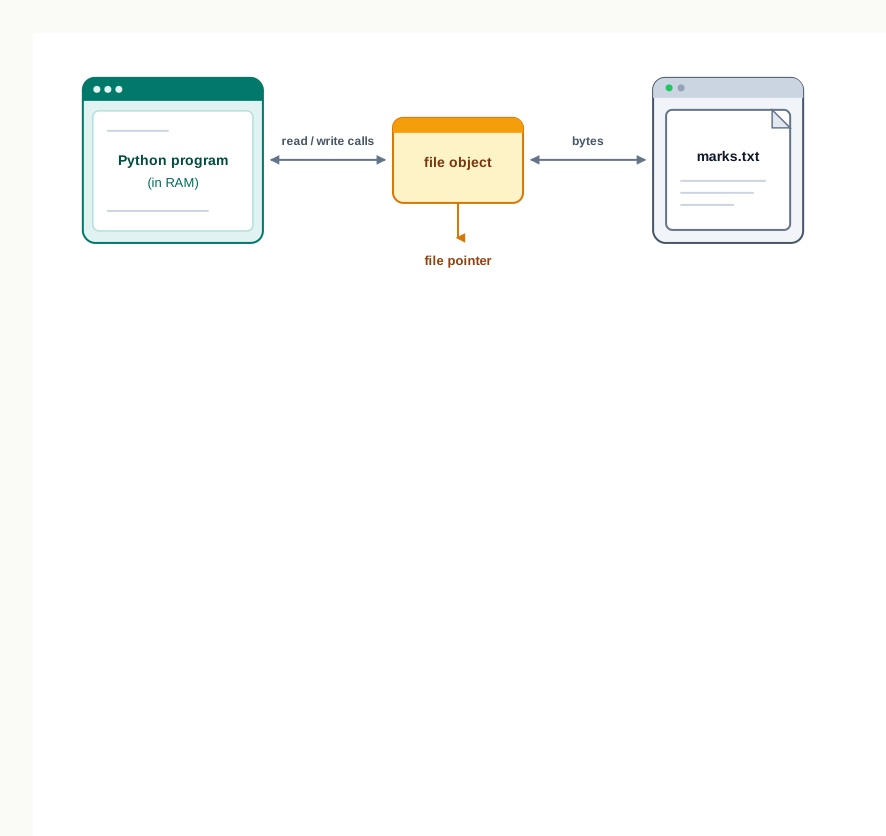
Fig. 2.4 – The file object as a link to the file.
2.3.1 Opening a File Using open()
A file is opened with the built-in function open(). It is given the name of the file and the way the file is to be used, and it hands back an object that stands for the open file.
That object is the file object, also called the file handle. It is not the file and it is not the file’s contents. It is the program’s link to the file: every later operation — writing, reading, moving about — is requested through it.
Where Python looks for the file
Written as a plain name, "marks.txt" refers to a file in the current working directory — normally the folder the program itself is running from. A file kept elsewhere must be named by its absolute path, the full route to it starting from the drive or the root of the file system.
On a Windows machine a path is written with backslashes, and a backslash inside a Python string begins an escape sequence. So the path is written either with the backslash doubled or as a raw string.
fobj = open("D:\\school\\records\\marks.txt", "r")
fobj = open(r"D:\school\records\marks.txt", "r")
Both statements name the same file. On systems that use forward slashes, no such precaution is needed.
2.3.2 File Access Modes
The second argument to open() is the file access mode, also called the processing mode. It answers three questions at once: may this program read the file, may it write to the file, and what is to happen to whatever the file already contains.
That third question is the one that catches people out. Two modes will happily create the file if it is missing, one of them will silently empty it if it is present, and one refuses to open a file that does not already exist.
The mode is built from a few letters. r asks for reading, w for writing, a for appending at the end. A + added to any of these asks for the other operation as well, so that the same file object can both read and write. A b added to any of them says that the file is to be treated as a binary file rather than as text; without it, Python works in text mode and transfers strings.
Table 2.4 sets out the six modes with their binary forms. The last column gives the initial file pointer position — where in the file the next operation will act — a matter Section 2.6 takes up in detail.
Read the fourth column carefully. Only "w", "w+", "a" and "a+" create a missing file. Asking for "r" or "r+" on a file that is not there raises a FileNotFoundError, and the program stops unless the error is handled. This is reasonable: reading a file that does not exist has no sensible meaning, whereas writing to one does.
Now read the fifth column. The difference between "w" and "a" on an existing file is total. Opening in "w" mode empties the file at the moment of opening — before a single character has been written, the old contents are gone and cannot be recovered. Opening in "a" mode keeps everything and positions the pointer past the last character, so that new data are added after the old.
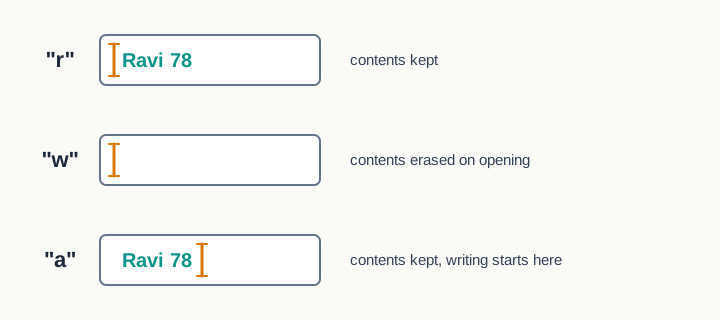
Fig. 2.5 – Behaviour of read, write and append modes.
2.3.3 Attributes of a File Object
Besides carrying out reading and writing, a file object holds a little information about the file it is linked to. Three attributes are worth knowing, and they are read simply by naming them — no brackets, because they are attributes and not methods.
The short program below opens a file, reports these three attributes, closes the file and asks again. It is worth running, because it makes the difference between an open and a closed file visible.
2.3.4 Closing a File Using close()
When a program has finished with a file, it should close it. The method that does so takes no arguments and is called on the file object.
The phrase “data still waiting in memory” is the important one. When a program writes to a text file, the characters do not travel to the disk one at a time — that would be extremely slow. They are collected in a region of memory called a buffer, and are transferred to the disk when the buffer fills up or when the file is closed. Closing the file therefore does not merely tidy up; it is what guarantees that the last of the data actually arrives.
A program that ends without closing its files usually gets away with it, because Python closes them as it shuts down. But “usually” is not a basis for handling someone’s records. If the program is stopped, or crashes, or the machine loses power while data sit in the buffer, those data are simply lost, and the file on disk is missing its last lines with nothing to indicate that anything is wrong.
There is a second reason. An operating system allows only a limited number of files to be open at one time. A program that opens files in a loop and never closes them will eventually be refused when it asks for one more.
2.3.5 Opening a File Using the with Clause
Closing a file is easy to promise and easy to forget, especially when a function has several possible exit points, or when an error occurs part way through the work and the close() call is never reached. Python offers a construct that removes the problem: the with clause.
Notice where the print() sits in that example. It is outside the block, and it works: the file is closed by then, but content is an ordinary string variable and survives perfectly well. What would fail is calling fobj.read() outside the block, because the file object is no longer connected to anything.
The with clause is the safer habit, and this book uses it wherever a file is opened for a single, self-contained piece of work. Where a program opens a file, works on it across several stages and closes it deliberately, the explicit form is clearer, and Section 2.7 uses it that way.
2.4 Writing to a Text File
To put data into a file, the file must first be opened in a mode that permits writing — "w", "w+", "a", "a+" or "r+". Which of these is chosen decides what happens to the data already in the file and where the new data land, exactly as Table 2.4 sets out.
Once the file is open, the writing itself is done by one of two methods. write() puts a single string into the file; writelines() puts a whole sequence of strings into it. Both send characters to the file at the current position of the file pointer, and both leave the pointer just after the last character written.
One thing neither method does is add a line break for you. A text file has lines only because newline characters were placed in it, and placing them is the program’s responsibility.
2.4.1 The write() Method
The write() method takes one string and writes it to the file. It also reports back: its return value is the number of characters written on that call, which for a text file is simply the length of the string passed to it.
Worked in the interactive shell, the effect is easy to see.
>>> fobj = open("greet.txt", "w")
>>> fobj.write("Welcome to the school library\n")
30
>>> fobj.close()
The shell displays 30 because that is what write() returned, and the string does contain thirty characters — twenty-nine visible ones and the newline. Although \n is typed as a backslash and a letter, it is a single character and is counted as one, as Section 2.2 established.
Numbers must be converted first
A text file stores characters, so write() insists on being given a string. Handing it an integer or a float is an error, not a convenience Python quietly performs for you. The value has to be converted with str() first.
>>> fobj = open("count.txt", "w")
>>> total = 245
>>> fobj.write(str(total))
3
>>> fobj.close()
The return value is 3, because str(245) is the three-character string "245". What is stored in the file is the codes for the characters 2, 4 and 5 — not the number 245 in any arithmetic sense. Reading it back later gives a string, and turning it into a number again needs int().
Writing a set of records
Most real writing is not one string but many, produced by a loop. The method is short enough to state in full before any code is written.
The file left behind holds three lines:
Notebook 12
Pen 30
Eraser 25
A trace makes the growth of the file visible, character by character.
2.4.2 The writelines() Method
When several strings are already sitting in a list or a tuple, writing them one at a time in a loop is unnecessary. The writelines() method takes the whole sequence and writes every string in it, in order.
Used in the shell on a small bus timetable, it looks like this.
>>> fobj = open("timings.txt", "w")
>>> routes = ["Route 12 - 7:10 am\n", "Route 5 - 8:25 am\n", "Route 9 - 9:40 am\n"]
>>> fobj.writelines(routes)
>>> fobj.close()
Nothing is displayed after the call to writelines(), and that is not an oversight. Unlike write(), this method returns no count at all, so the shell has nothing to show.
The name is misleading in one respect. writelines() does not write lines; it writes strings. Each element of the list above ends in \n because the programmer put it there, and it is those newlines, not the method, that produce three lines in the file. Remove them and all three strings run together into one long line, as Fig. 2.6 shows.
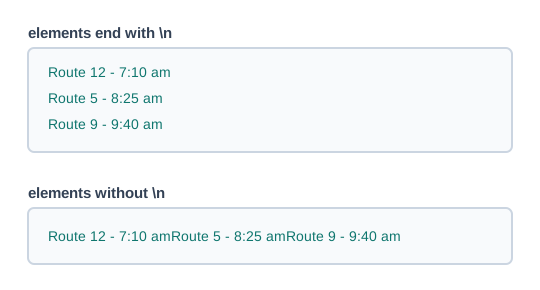
Fig. 2.6 – Writing sequence elements with and without newlines.
Every element must also be a string. A list of integers passed to writelines() raises a TypeError on the first element it reaches, for the same reason that write() refuses an integer — a text file holds characters and nothing else. Numbers must be converted before the list is handed over.
Neither method is more powerful than the other; the choice is one of convenience. If the strings must be built as the program goes along, write() inside a loop is natural. If they already exist as a list, writelines() says the same thing in one line.
2.5 Reading from a Text File
Writing puts data on the disk; reading brings them back. For reading, the file must be opened in a mode that permits it — "r", "r+", "w+" or "a+" — and, apart from "a+", the file pointer begins at the very start of the file.
Python offers three reading methods, and the difference between them is not what they read but what shape they hand back. read() returns one string, readline() returns one line as a string, and readlines() returns a list of strings. Choosing the right one is mostly a matter of asking what shape the rest of the program needs.
All three examples in this section work on the same file, library.txt, which holds three book titles, one to a line. Its last line does not end with a newline.
Wings of Fire
Discovery of India
The Guide
2.5.1 The read() Method
The read() method returns the contents of the file as a single string. Given a number, it returns at most that many characters; given nothing, it returns everything from the current position to the end of the file.
Worked in the shell, two successive calls show how the pointer carries over from one to the next.
>>> fobj = open("library.txt", "r")
>>> fobj.read(5)
'Wings'
>>> fobj.read(3)
' of'
>>> fobj.close()
The second call did not start again at the beginning. It resumed exactly where the first one stopped, which is why it returned a leading space — the sixth character of the file is the space after Wings.
Called with no argument, read() returns the whole file as one long string, newlines and all.
>>> fobj = open("library.txt", "r")
>>> print(fobj.read())
Wings of Fire
Discovery of India
The Guide
>>> fobj.close()
What print() displays as three lines is a single string of 42 characters. The line breaks you see on the screen are the two \n characters sitting inside that string; they are part of the data, not a formatting choice made by print().
2.5.2 The readline() Method
The readline() method reads one line — that is, it reads characters until it meets a newline and returns them together with that newline. It is the natural method when a file is to be dealt with one record at a time.
Four calls on library.txt show the whole behaviour, including what happens at the end.
>>> fobj = open("library.txt", "r")
>>> fobj.readline()
'Wings of Fire\n'
>>> fobj.readline()
'Discovery of India\n'
>>> fobj.readline()
'The Guide'
>>> fobj.readline()
''
>>> fobj.close()
Three points are worth drawing out of that sequence. The first two lines come back with their \n attached, because the newline is genuinely part of what was stored. The third comes back without one, because the file simply ends there. And the fourth call returns the empty string.
That empty string is how Python reports the end of file (EOF) — the point past which there is nothing more to read. It is not the same as a blank line in the file: a blank line is stored as a lone newline character and comes back as '\n', a string of length one, while EOF returns a string of length zero.
Given a number, readline() reads at most that many characters, but never past the end of the line.
>>> fobj = open("library.txt", "r")
>>> fobj.readline(5)
'Wings'
>>> fobj.readline(30)
' of Fire\n'
>>> fobj.close()
The second call asked for thirty characters and got nine. It stopped at the newline because the line ended there, and that is precisely the difference between readline(n) and read(n) — the latter would have run straight on into the second line.
Fig. 2.7 traces the pointer through these calls.
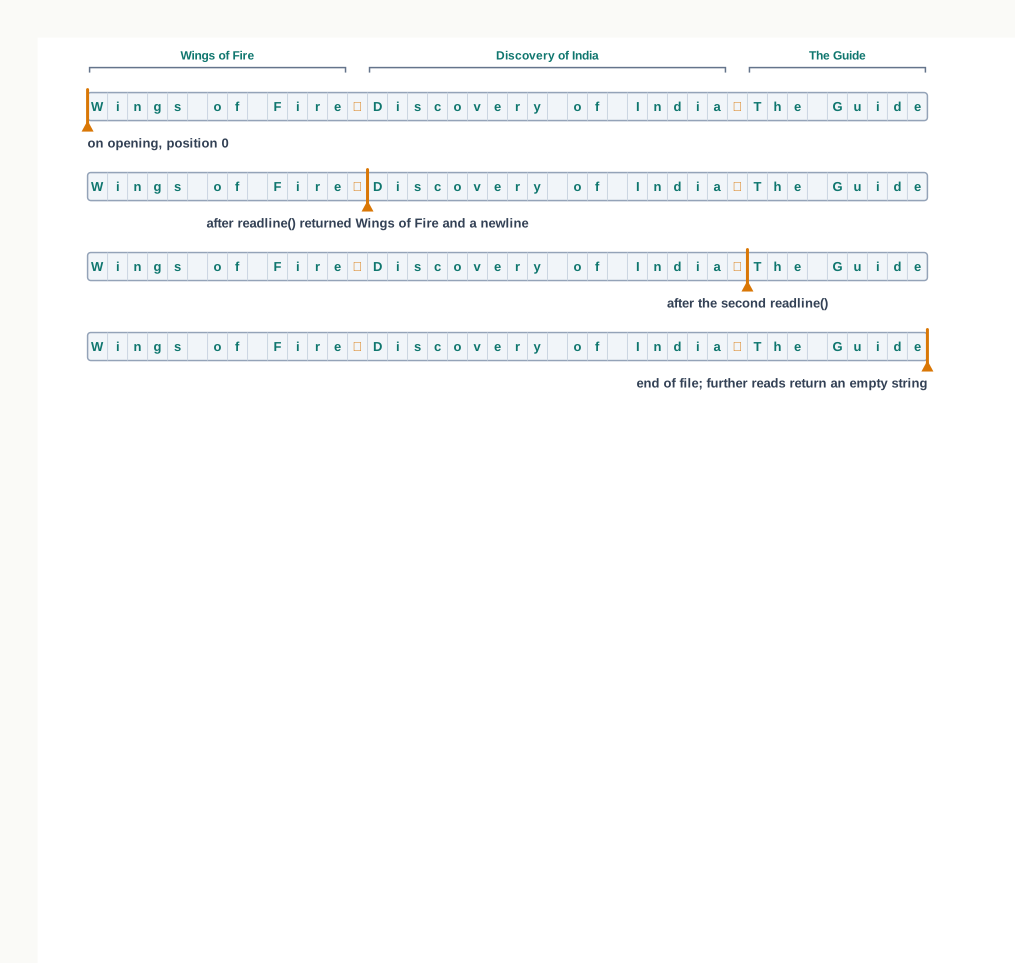
Fig. 2.7 – Pointer movement during repeated readline() calls.
2.5.3 The readlines() Method
The readlines() method reads all the remaining lines at once and returns them as a list of strings, one string per line, each keeping the newline that ended it.
>>> fobj = open("library.txt", "r")
>>> fobj.readlines()
['Wings of Fire\n', 'Discovery of India\n', 'The Guide']
>>> fobj.close()
The last element has no \n, exactly as the third readline() call did not, and for the same reason. A common mistake is to compare such strings with plain titles and wonder why the comparison fails — 'The Guide' matches, but 'Wings of Fire\n' does not match 'Wings of Fire'. The string method strip() removes the newline along with any surrounding spaces, and is worth applying as a habit whenever lines read from a file are to be compared or joined.
Once the lines are in a list, the ordinary string methods do the rest of the work. split() breaks a line into its words and returns them as a list.
>>> line = 'Discovery of India\n'
>>> line.split()
['Discovery', 'of', 'India']
Called without an argument, split() divides at whitespace and discards it, so the trailing newline disappears of its own accord. Given an argument, it divides at that string instead — line.split(",") for a line of comma-separated values.
Fig. 2.8 sets the three methods side by side, because what they return is what makes them different.
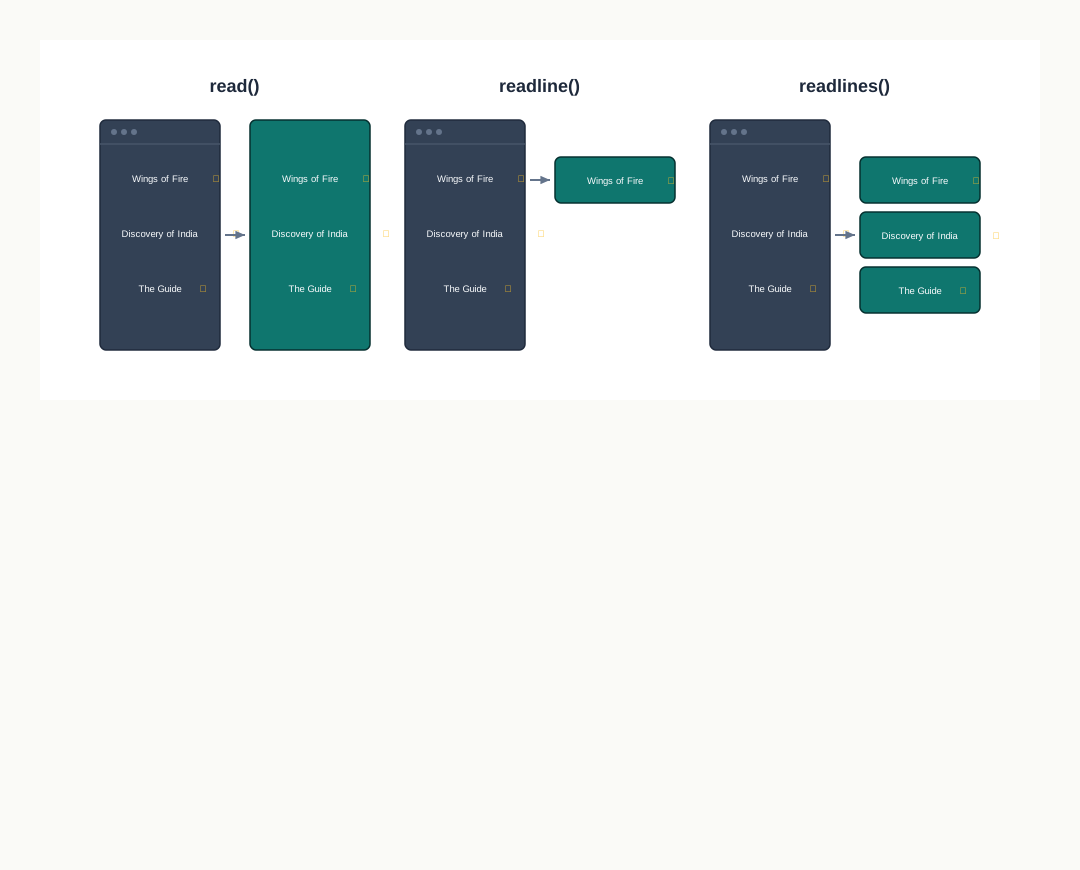
Fig. 2.8 – Data structures returned by reading methods.
The last row is the real basis for choosing. A file of a few hundred lines can be pulled into a list without a thought; a file of several lakh lines is better handled one line at a time, because readlines() would place every one of those lines in memory at once.
2.5.4 Looping Over a File Object
There is a fourth way to read, and in practice it is the most common of all. A file object can be used directly in a for loop, and it then yields the file one line at a time, exactly as readline() would, until the end of the file is reached.
with open("library.txt", "r") as fobj:
    for line in fobj:
        print(line, end="")
Wings of Fire
Discovery of India
The GuideThe end="" is not decoration. Each line already carries its own newline and print() normally adds one more, so without it the output would come out double-spaced. This is the commonest surprise in file reading, and it disappears once you remember that the newline belongs to the data.
This form has a practical advantage over readlines(): it never holds more than one line in memory at a time, so it works on a file of any size. It is also the shortest way to say “do this for every line”, which is why the programs later in this chapter use it.
The program below reads a file with readlines() and then counts what is in it.
2.6 Setting Offsets in a File
Every method met so far reads from wherever the file pointer happens to be and leaves it further along. Reading is therefore sequential: to reach the fiftieth line you read the forty-nine before it.
That is fine for a file you intend to process from end to end, and wasteful for a file in which you want one particular piece. Python allows a program to ask where the pointer is, and to move it wherever it likes. The two methods that do this are tell() and seek().
The position is measured in bytes from the beginning of the file, and is called the offset. For a file of ordinary English text, where each character occupies one byte, an offset of 17 means the eighteenth character — counting from zero, as Python counts everything.
Both examples in this section use the file fares.txt, which holds two bus fares, one to a line, with no newline after the second.
Route 12 fare 15
Route 05 fare 20
The first line takes 17 bytes — sixteen visible characters and the newline — so the second line begins at offset 17, as Fig. 2.9 shows.
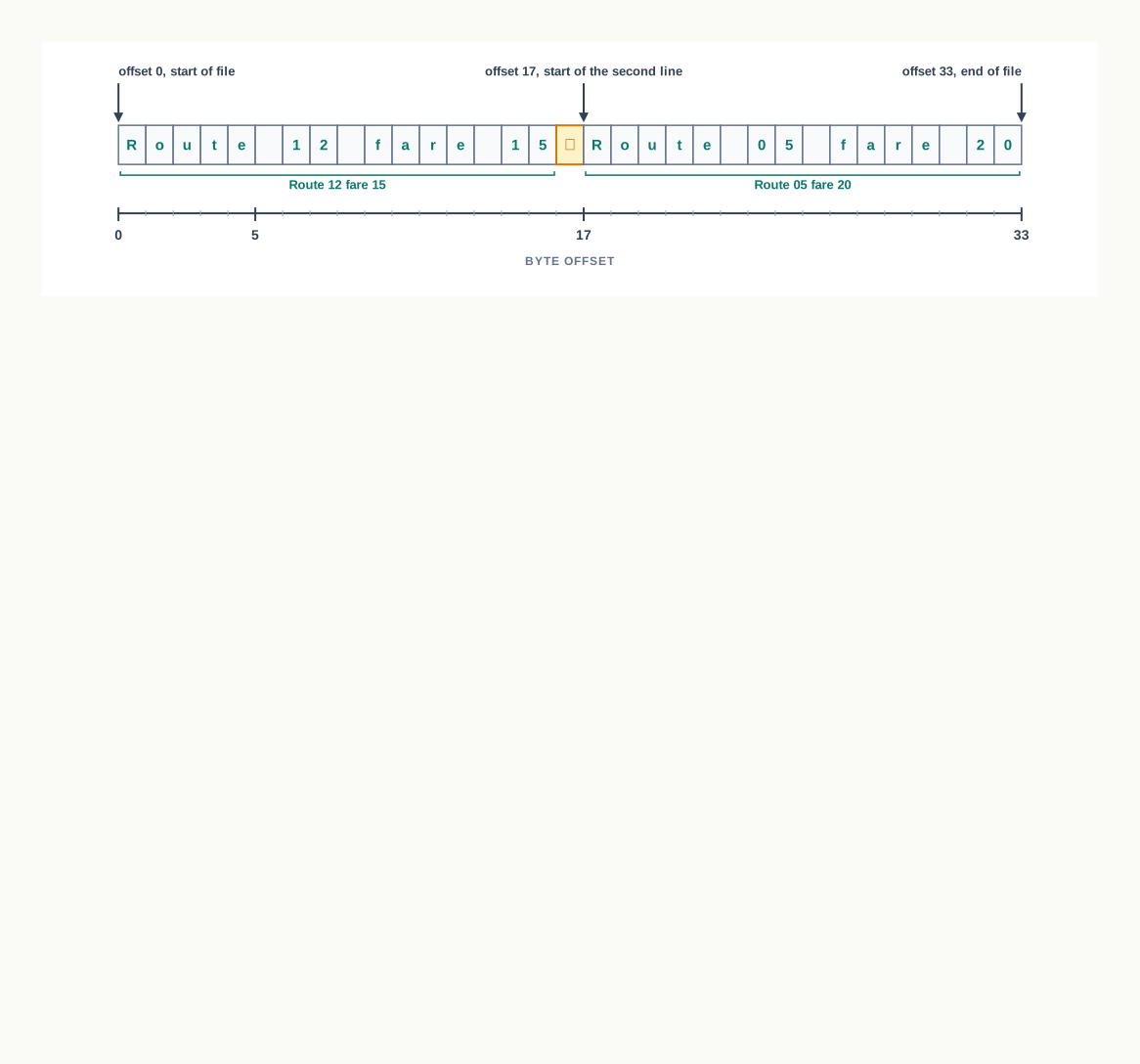
Fig. 2.9 – Measuring file offsets in bytes.
2.6.1 The tell() Method
The tell() method reports the current offset. It takes no argument and changes nothing; it only answers the question “where am I?”
Interleaving tell() with reads makes the movement of the pointer visible.
>>> fobj = open("fares.txt", "r")
>>> fobj.tell()
0
>>> fobj.read(5)
'Route'
>>> fobj.tell()
5
>>> fobj.readline()
' 12 fare 15\n'
>>> fobj.tell()
17
>>> fobj.close()
Read that sequence as one story. The file opens at offset 0. Five characters are read, so the pointer stands at 5. readline() then reads from 5 to the end of the first line — the twelve characters ' 12 fare 15\n' — leaving the pointer at 17, which is exactly where the second line begins.
2.6.2 The seek() Method
The seek() method moves the pointer. Once it has been moved, the next read or write acts at the new position, so a program can return to the start of a file, jump to a known record, or skip a header without reading it.
The three permitted reference points are listed in Table 2.11.
There is an important restriction on the last two. For a file opened in text mode, Python allows only offsets counted from the beginning — reference point 0 — together with the single special case seek(0, 2), which jumps to the end. Attempting fobj.seek(5, 1) on a text file raises an error. Reference points 1 and 2 may be used freely with any non-zero offset only when the file has been opened in a binary mode, where one byte is one byte and no character decoding is involved.
Used on fares.txt, seek() lets the second line be read without touching the first.
>>> fobj = open("fares.txt", "r")
>>> fobj.seek(17)
17
>>> fobj.read()
'Route 05 fare 20'
>>> fobj.tell()
33
>>> fobj.seek(0)
0
>>> fobj.readline()
'Route 12 fare 15\n'
>>> fobj.close()
Notice that seek() itself returns the new offset, which is why the shell displayed 17 and then 0. Notice also the last two statements: after the whole file had been read, seek(0) made it readable again from the beginning. That is the remedy for the error met in Section 2.5, where a second read returned nothing because the pointer was already at the end.
The program below puts both methods together and prints the pointer position at each stage, so that the movement can be watched rather than imagined.
2.7 Creating and Traversing a Text File
You now have every piece needed for real work on a text file: a way to open it in the right mode, to write to it, to read it back, and to move about inside it. This section puts those pieces together into complete programs of the kind you will write in the practical file.
Three tasks cover almost everything a text file is asked to do. The first is to create a file and fill it with data taken from the user. The second is to traverse it — to visit every line in turn and do something with each. The third is to do both through a single file object, which is where the file pointer stops being a technicality and becomes the thing that makes the program work.
Fig. 2.10 shows the shape common to the first two tasks.
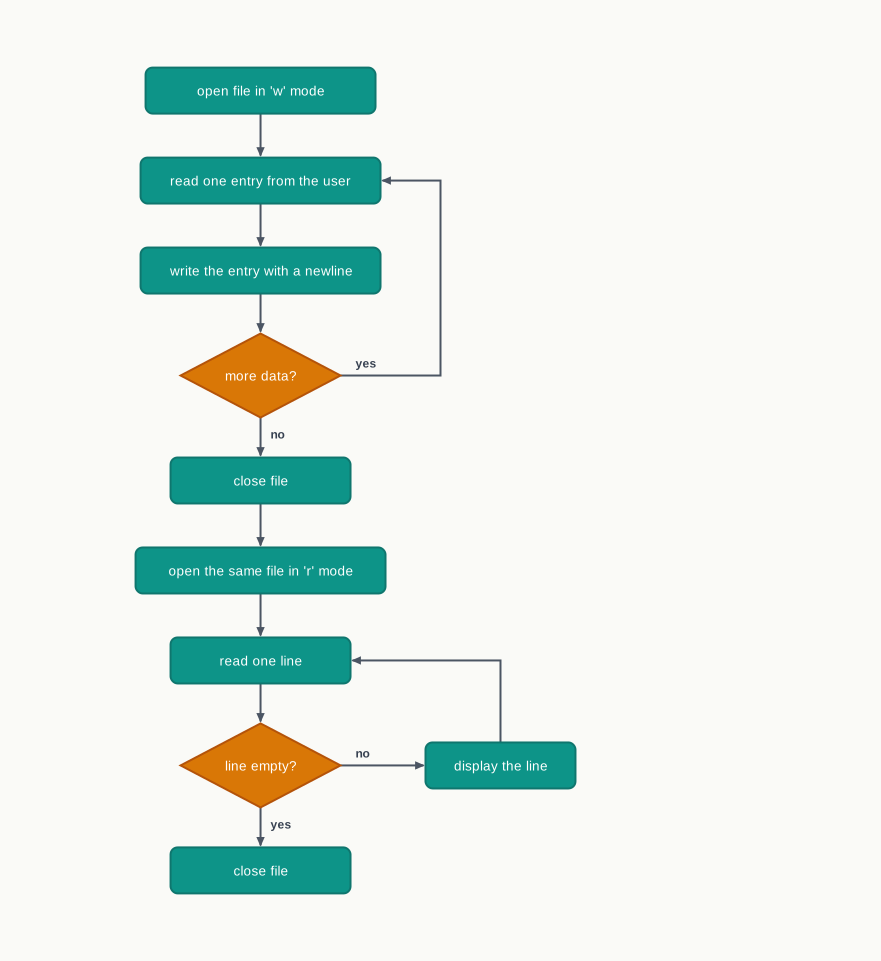
Fig. 2.10 – File writing and traversal flow.
2.7.1 Creating a File and Writing Data
Creating a file is not a separate operation in Python. Opening a file that does not exist, in "w", "w+", "a" or "a+" mode, creates it. Which of those modes is chosen decides the fate of any file that does exist under the same name: the two write modes empty it, the two append modes keep it.
The usual pattern is a loop that takes entries from the user until told to stop, writing each one as it arrives.
After that run, the file holds two lines:
Meeting the class teacher
Delivering library books2.7.2 Traversing a File and Displaying Data
To traverse a file is to visit its lines one after another until there are none left. The end is detected by the value a reading method returns: readline() gives back the empty string once the file pointer has reached the end of the file, and an empty string is false in a condition.
That single fact is what makes the loop below terminate.
2.7.3 Reading and Writing Through a Single File Object
So far, writing and reading have used two file objects: the file was written, closed, and opened again to be read. A single file object can do both, if the mode allows it — "w+", "r+" or "a+".
Doing so raises a question the earlier programs never had to face. After the writing is finished, the file pointer stands at the end of the file, so a read at that moment returns nothing at all. The pointer must be brought back to the beginning first, and seek(0) is what does it.
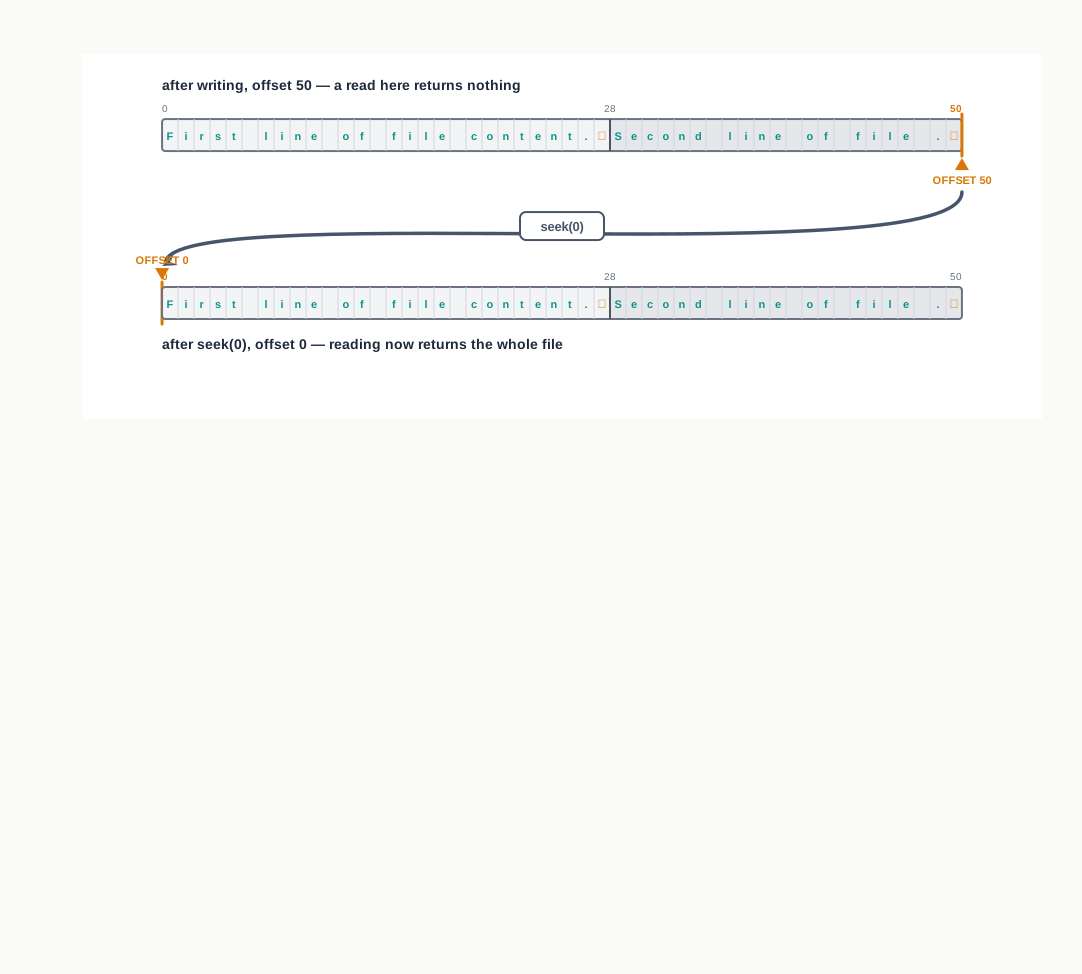
Fig. 2.11 – Using seek(0) to read after writing.
2.8 The Pickle Module
Everything written so far has gone into a text file, and a text file can hold only characters. That is a real limitation, and it shows up the moment a program has something more structured than characters to store.
Suppose a program holds a list of three sports events, each event itself a list of an event number, a name and a count of entries. Write that list to a text file and what reaches the disk is its printed appearance — brackets, commas, quotation marks and all. Read it back and you get one long string. The list has become a picture of a list, and rebuilding the real thing from that picture means picking the string apart character by character.
>>> record = [1, "100 m Race", 24]
>>> str(record)
"[1, '100 m Race', 24]"
Python offers a better answer. The pickle module can take a Python object as it stands — with its type, its structure and its nesting intact — turn it into a stream of bytes, and store that stream in a binary file. Later the same module reads the bytes back and rebuilds the object exactly as it was.
2.8.1 Pickling and Unpickling
Turning an object in memory into a stream of bytes is called serialization, and in Python it is called pickling. The reverse — rebuilding the object from those bytes — is deserialization, or unpickling.
The byte stream produced is not readable text and is not meant to be. It is a compact record of what the object is — that it is a list, that its first element is the integer 1, that its second is a string of ten characters, and so on — laid out in a form that pickle knows how to read back.
The module is used through two functions, dump() for writing and load() for reading, and it must be imported before either is used.
import pickleBecause a pickled object is a stream of bytes rather than characters, the file it goes into must be opened in a binary mode — "wb" to create it, "ab" to add to it, "rb" to read it. This is the point at which the binary modes of Table 2.4 stop being a list to learn and become something you actually need.
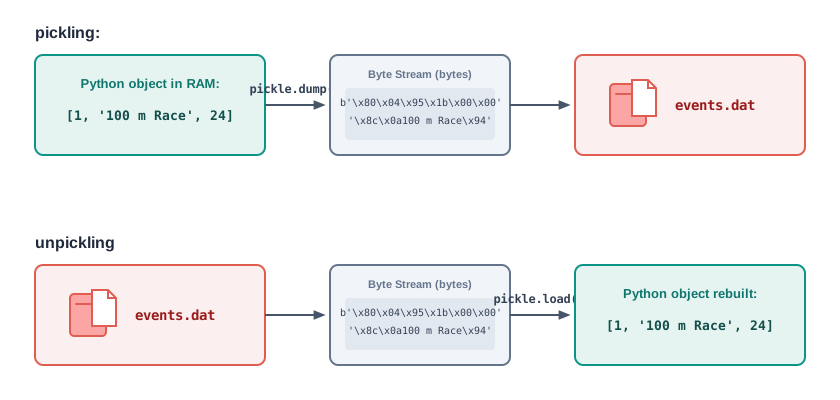
Fig. 2.12 – Serialization and deserialization of a Python object.
2.8.2 The dump() Method
The dump() function pickles one object and writes it to a binary file.
One call stores one object. To store several records, dump() is called once for each, and the byte streams are laid down one after another in the order they were written, as Fig. 2.13 shows. The file has no line structure and no separators — each pickled object carries within itself the information about where it ends.
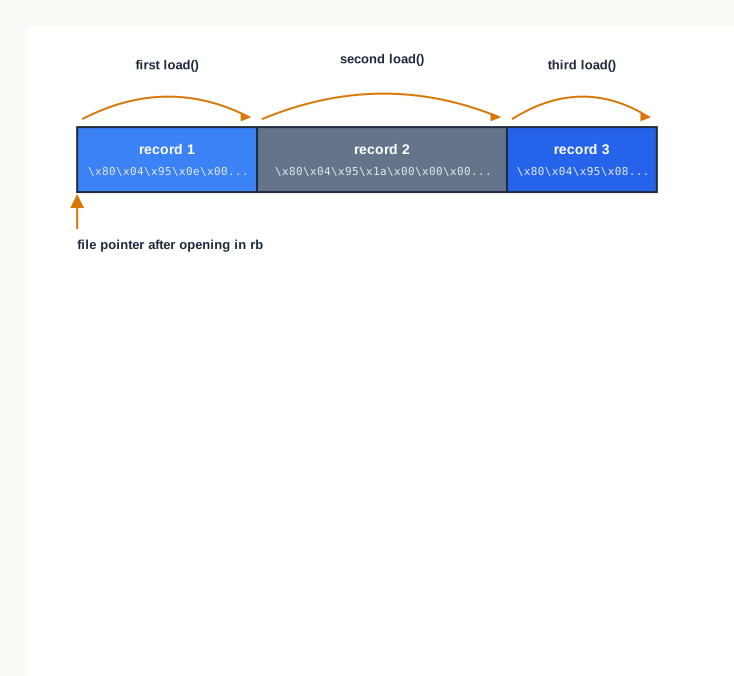
Fig. 2.13 – Sequential binary records without separators.
2.8.3 The load() Method
The load() function reads one pickled object from a binary file and returns it, rebuilt.
Each call returns the next object, in the order the objects were written. When there is nothing left, load() does not return an empty value the way readline() does — it raises an EOFError. That is the signal that the file has been read completely, and a program that reads until the end must be prepared to catch it.
2.8.4 File Handling Using the Pickle Module
The two functions together support the operations that any record file needs: adding records, displaying them all, and finding one. Searching is the operation that shows most clearly why the records were dumped separately.
2.9 Summary
A variable lives only while the program runs, and the memory holding it is volatile, so its value is lost when the program ends or the power goes off. Data that must survive are written to secondary storage, and this permanence is what the whole chapter is built on.
A file is a named location on a secondary storage medium where data are stored permanently for later access. The name and the path are what allow a program to ask for one particular collection of bytes rather than any other, and a file kept outside the current working directory must be named by its absolute path.
Every file is stored as a sequence of bytes. What makes a file a text file or a binary file is not the storage but the agreement about what those bytes mean, and which software is prepared to honour that agreement.
In a text file each byte, or small group of bytes, is the code of a character in a scheme such as ASCII or Unicode, so the contents can be read by any text editor. In a binary file the bytes carry the data directly in the format of the application that created them, and are not readable as characters.
A text file has lines only because newline characters were placed in it. The end of line character,
\nby default in Python, is a single character occupying one byte, and it is counted like any other character.A file is opened with
open(), which is given the file name and the access mode and returns a file object. The file object is the program’s only link to the file, and it keeps track of the file name, the mode and the current position within the file.The access modes are
r,r+,w,w+,aanda+for text files, andrb,rb+,wb,wb+,abandab+for binary files. The letter says what the file may be used for,+adds the other operation, andbsays that the file is to be handled as bytes rather than as text.The mode also decides the fate of an existing file and the starting position of the file pointer. The read modes leave the contents untouched and raise an error if the file is absent; the write modes create the file if it is absent and empty it if it is present; the append modes create it if absent, keep the contents, and begin at the end.
A file object carries three useful attributes:
name,modeandclosed. The last of these isFalsewhile the file is open andTrueonce it has been closed.Data written to a text file are first collected in a buffer in memory and reach the disk only when the buffer is emptied. Closing the file with
close()flushes that buffer and releases the resources the operating system had reserved, which is why a file must be closed and not merely finished with.The
withclause opens a file for the length of a block and closes it automatically on leaving the block, whether the block ends normally or because an error was raised. It removes the possibility of forgetting to close a file.Writing is done by
write(), which takes one string and returns the number of characters written, and bywritelines(), which takes an iterable of strings and returns nothing. Neither adds a line break; a newline appears in the file only if the program put one in the string.A text file holds characters and nothing else, so a number must be converted with
str()before it is written, and a value read back from a text file is a string until it is converted again.Reading is done by
read(),readline()andreadlines(), which read the same data but hand back different shapes: one string, one line as a string, and a list of one string per line. Each of them keeps the newline characters, because the newlines are part of the stored data.The end of file is the position after the last character. A reading method called there returns an empty string, and
readlines()returns an empty list, and that emptiness is how a program knows the file has been read completely.A file object can be used directly in a
forloop, which yields one line at a time and never holds more than one line in memory. This is the usual way to visit every line of a file of any size.The file pointer position, measured in bytes from the beginning of the file, is called the offset.
tell()reports the current offset without changing anything, andseek()moves the pointer so that the next operation acts at a chosen position.For a file opened in text mode,
seek()counts offsets from the beginning of the file; offsets counted from the current position or from the end require a file opened in binary mode. Moving the pointer back to the start withseek(0)is what allows a file to be read after it has been written through the same file object.Traversing a file means visiting its lines until none are left. A
whileloop over a file reads one line before the loop and one at the end of every pass, so that the pointer always advances and the empty string at the end of file stops the loop.Pickling is the conversion of a Python object into a byte stream so that it can be stored in a binary file; unpickling is the reverse, which rebuilds the object from those bytes. Because the type and structure are recorded and not just the printed appearance, a list comes back as a list and a dictionary as a dictionary.
The
picklemodule providesdump()for writing an object to a binary file andload()for reading the next object back. The file must be opened in a binary mode, one call todump()stores one object, andload()raises anEOFErrorwhen there are no objects left, which a program reading to the end must catch.
2.10 Key Terms
Absolute path — the complete location of a file, written from the root of the file system or from the drive letter down to the file name, so that the file is identified independently of where the program is running.
ASCII — American Standard Code for Information Interchange; an encoding scheme that gives every English letter, digit and common punctuation mark a number from 0 to 127.
Binary file — a file whose bytes represent the data directly, in the format of the application that created them, and which therefore cannot be read as characters by a text editor.
Byte stream — the sequence of bytes produced when an object is serialized, from which the object can later be rebuilt.
Current working directory — the folder a program treats as its own, and in which a file named without any path is looked for.
Data file — a file holding the information a program works on, as distinct from a file holding the program itself.
Deserialization — the rebuilding of an object from the byte stream that represents it; in Python, unpickling.
EOF — end of file; the position immediately after the last character of a file, at which a reading method returns an empty string.
EOL — end of line; the special character that marks where one line of a text file ends,
\nby default in Python.File — a named location on a secondary storage medium where data are stored permanently for later access.
File access mode — the string passed to
open()that says whether a file may be read, written or appended to, whether it is to be treated as text or as bytes, and what is to happen to any existing contents.File name extension — the part of a file name after the dot, which announces the kind of data the file is expected to hold, such as
.txt,.pyor.dat.File object — the object returned by
open(), through which all operations on an open file are performed, and which holds the file name, the mode and the current position in the file.File pointer — the marker kept by a file object showing where in the file the next read or write will act; it advances past whatever is read or written.
Offset — the position of the file pointer, counted in bytes from the beginning of the file, with 0 meaning the position before the first byte.
Persistence — the property of data that continue to exist after the program that produced them has ended and after the machine has been switched off.
Pickling — the conversion of a Python object into a byte stream so that it can be stored in a binary file; the Python name for serialization.
RAM — random access memory; the computer’s primary memory, which holds a program and its data while it runs and loses its contents when the power goes off.
Secondary storage — a storage device such as a hard disk, solid-state drive or pen drive, which retains its contents when the power is switched off.
Serialization — the process of representing an object in memory as a sequence of bytes that can be stored or transmitted.
Text file — a file in which the data are stored as characters, each represented by its code in a scheme such as ASCII or Unicode, so that the contents can be read by any text editor.
Unicode — an encoding scheme that extends character codes to the scripts of the world, and which Python 3 uses by default for text.
Unpickling — the reconstruction of a Python object from the byte stream stored in a binary file; the Python name for deserialization.
Volatile memory — memory whose contents survive only while it is powered, so that everything held in it is lost when the machine is switched off.
2.11 Points to Ponder
Every file on a disk is only a sequence of bytes, yet Python asks you to decide at the moment of opening whether it is to be treated as text or as bytes. Why should that decision be forced so early, rather than at the moment the data are actually read?
Opening a file in
"w"mode destroys everything in it without any warning and without any way to undo the loss. Would Python be a better designed language if it refused to do this silently, and what convenience would be given up in exchange?A newline is stored as an ordinary character, exactly like a comma or the letter
A. In what sense, then, does a text file really “have lines” at all, and where do those lines exist — in the file, in the software that reads it, or only in the reader’s mind?readline()announces the end of a file by returning an empty string, whilepickle.load()announces it by raising an error. Both are part of the same language. What might justify answering the same question in two such different ways?Data written to a file wait in a buffer in memory until the file is closed. This makes writing much faster and makes losing the last data possible. Where should the balance between speed and safety be struck, and should the programmer or the language be the one to strike it?
A pickled file holds a Python object whole, but cannot be read by a program written in any other language and cannot be inspected in a text editor. What exactly is being traded away for that convenience, and when would the trade be a bad one?
2.12 Objective Questions
- Which mode opens an existing text file for both reading and writing without erasing what it already contains?
"w""w+""r+""a"[1 mark]
- Which of the following is not a valid file access mode in Python?
"ab+""rw""wb""r+"[1 mark]
- What does
readlines()return when it is called on a file whose pointer is already at the end of the file?- An empty string
- An empty list
None- An
EOFError[1 mark]
- What is the value returned by
write()on a successful call?True- The string that was written
- The number of characters written
- Nothing [1 mark]
- Assertion (A): A file opened in
"a"mode never loses the data it already holds. Reason (R): In append mode the file pointer is placed at the end of the file when the file is opened.- Both A and R are true and R is the correct explanation of A.
- Both A and R are true but R is not the correct explanation of A.
- A is true but R is false.
- A is false but R is true. [1 mark]
- Assertion (A): A binary file must be opened in a binary mode before
pickle.dump()can write to it. Reason (R):pickle.dump()produces a byte stream, and a file opened in text mode accepts only strings.- Both A and R are true and R is the correct explanation of A.
- Both A and R are true but R is not the correct explanation of A.
- A is true but R is false.
- A is false but R is true. [1 mark]
- Match each method in Column I with what it returns, given in Column II.
| Column I | Column II |
|---|---|
a. read() |
i. A list of strings |
b. readline() |
ii. An integer offset |
c. readlines() |
iii. A single string holding the whole file |
d. tell() |
iv. A single string holding one line |
[1 mark]
Fill in the blank: the method used to place the file pointer at a chosen position in a file is ____________. [1 mark]
State whether the following is true or false: a newline occupies two bytes in a text file because it is written as
\n. [1 mark]What will be displayed by the second statement of this shell session?
>>> fobj = open("data.txt", "w")
>>> fobj.write("Class XII\n")
[1 mark]
- Write the full form of: (a) EOL (b) EOF (c) ASCII (d) RAM. [1 mark]
2.13 Check Your Concepts
Define pickling, and name the two functions the
picklemodule provides for working with binary files. [2 marks]What is a file pointer? State where it is placed at the moment a file is opened in
"r"mode and in"a"mode. [2 marks]Differentiate between
write()andwritelines()in two points. [2 marks]Differentiate between a text file and a binary file, giving one example of each. [3 marks]
Write the Python statement to open each of the following, and name the mode used: (a) a text file
log.txtin append and read mode, (b) a binary filestock.datin read only mode, (c) a text filedata.txtfor reading and writing without erasing its contents. [3 marks]A student writes the marks of a class to a text file and reads them back to find their total, but the addition fails. Explain, with a short illustration, why this happens and what must be done at each end. [3 marks]
Explain the working of
readline(), stating clearly what it returns when the end of the file has been reached, and write a loop that uses it to display an entire file line by line. [4 marks]Why must a file be closed after use? Answer with reference to buffering, and state two things the
withclause does that an explicitclose()call may fail to do. [4 marks]Explain
seek()andtell(), giving the syntax of each, and describe how they are used to read a file that has just been written through a file object opened in"w+"mode. State one restriction that applies toseek()on a file opened in text mode. [5 marks]Write a function
count_words(fname)that returns the number of words in the text file whose name is passed to it. State the mode in which you open the file and why, and explain what your function returns for a file that is empty. [5 marks]
2.14 Output & Debugging
The next two questions refer to the text file marks.txt, whose contents are:
Anita 78
Balbir 85
Chetan 62- Predict the output of the following fragment, and state the position of the file pointer when the fragment ends.
fobj = open("marks.txt", "r")
print(fobj.read(6))
print(fobj.tell())
fobj.close()
[2 marks]
- State exactly what this fragment displays, and explain in one line why the display begins where it does.
fobj = open("marks.txt", "r")
fobj.seek(10)
print(fobj.readline())
fobj.close()
[2 marks]
- The following fragment stops with an error. Name the error, explain in one line why it occurs, and rewrite the fragment correctly.
fobj = open("count.txt", "w")
total = 100
fobj.write(total)
fobj.close()
[2 marks]
- This fragment is meant to count the lines of a text file, but it does not stop running. Identify the single fault, correct it, and state what the corrected fragment prints for
marks.txtshown above.
fobj = open("marks.txt", "r")
line = fobj.readline()
count = 0
while line:
    count = count + 1
fobj.close()
print(count)
[3 marks]
- Predict the output of the following program, and state why the value printed by
type()matters.
import pickle

data = [10, 20, 30]
fobj = open("nums.dat", "wb")
pickle.dump(data, fobj)
fobj.close()

fobj = open("nums.dat", "rb")
x = pickle.load(fobj)
fobj.close()
print(type(x), x[1] + 5)
[3 marks]
2.15 Case-Based Questions
- A school library keeps a record of the books it has issued in a text file named
issued.txt. Each line holds the title of a book followed by the number of days for which it has been issued. The file currently holds:
The Guide 14
Panchatantra 7
Train to Pakistan 21
Indian Birds 10
*a. Write the statement that opens this file so that a new record can be added at the end without disturbing the existing records, and the statement that adds the record for `Wings of Fire 14`. [2 marks]*
*b. Write a function that displays only those titles that have been issued for more than ten days, along with the number of days. [3 marks]*
*c. The librarian's assistant runs a program that opens the file in `"w"` mode and then stops it before anything is written. State what the file now contains and give the reason. [1 mark]*[6 marks]
- A bus depot stores the details of its routes in a binary file named
routes.dat. Each record is written with a separate call topickle.dump()and is a list of the form[route_number, destination, seats_booked]. The file currently holds three records:
[12, 'Amber Fort', 38]
[5, 'Railway Station', 44]
[9, 'Civil Lines', 27]
*a. Write the statements that open the file so that a fourth record can be added without disturbing the three already stored, and that write the record `[7, 'Bus Stand', 31]` to it. [2 marks]*
*b. Write a program that reads the file and displays the destination and the seats booked for every route on which more than thirty seats have been booked. Your program must stop cleanly when the file has been read completely. [3 marks]*
*c. The depot clerk asks why these records were not simply kept in a text file. Give two reasons drawn from the way the records are used in part (b). [2 marks]*[7 marks]
2.16 Programming Practice
Write a complete program that accepts sentences from the user one at a time and stores each on its own line of a text file named
diary.txt, stopping when the user typesEND. The wordENDmust not be stored in the file. Submit the program together with an identifier description table. [4 marks]A text file
article.txtholds several lines of ordinary English. Write a function that reads the file and displays the number of uppercase letters, the number of lowercase letters and the number of digits in it. Submit the function and state what it displays for a file that contains no digits at all. [4 marks]Write a function
copy_lines(source, target, word)that copies into the filetargetonly those lines of the filesourcethat contain the givenword, and returns the number of lines copied. State the mode in which each of the two files is opened. Submit the function only. [5 marks]A shop keeps its stock in a binary file
items.dat, each record written as a list of the form[item_code, item_name, quantity]with a separate call topickle.dump(). Write a complete program that offers the user two choices — to add a record entered from the keyboard, and to display every record in the file — and carries out the chosen task. Sample input for the first choice is an item code of 104, an item name ofChart Paperand a quantity of 60. Submit the program with an identifier description table. [5 marks]