Chapter 12: Security Aspects
On the evening of 2 November 1988, computers across the young Internet began to slow down. Machines that had been answering promptly took minutes to respond, then stopped answering at all. Administrators who tried to clean an affected machine and restart it watched it choke again within the hour. Nobody had lost a file, and nothing on any screen said what was wrong.
The cause was a small program written by Robert Tappan Morris, then a graduate student at Cornell University. It had been designed to copy itself quietly from one machine to the next across the network, and it needed no person to open anything, click anything or agree to anything. A flaw in how it decided whether a machine was already carrying a copy meant that machines were infected again and again, until the work of running the copies left no capacity for anything else. Estimates of the time put the number of affected computers at several thousand — a large share of everything then connected.
The Internet had roughly sixty thousand hosts that year. It has billions of connected devices now, and the same question has only grown sharper: once a machine is connected to others, what exactly is it exposed to, and what can be done about it? Within weeks, the first coordinated computer emergency response centre was set up. This chapter is about that question.
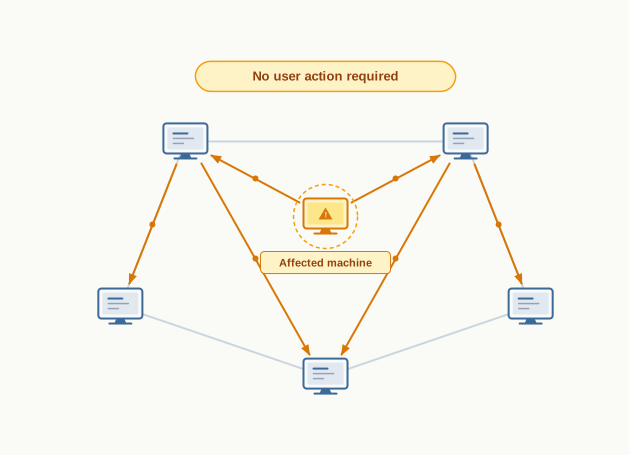
Fig. 12.0 – Automatic spread of malware across a network.
Each of these questions is answered somewhere in the pages that follow.
12.1 Threats and Prevention
A computer that is connected to nothing is remarkably safe. No message can reach it, no file can be copied onto it from outside, and no one sitting anywhere else in the world can ask it to do anything. Whatever is stored on it stays exactly as its owner left it.
That safety is real, and it is also useless. A machine in that condition cannot fetch a page, receive a mail, submit a form, print to a shared printer, or take a software update. Almost everything a computer is worth having for depends on its being joined to other computers. The moment you gain that, you give up the isolation — and the two cannot be had together.
So the practical question is never “how do I stay disconnected?” It is “given that I am connected, what am I exposed to, and what can I do about it?” That question is the subject of this chapter, and the answer has two halves: knowing the ways things go wrong, and knowing the measures that hold them off.
What security is protecting
When we say a device is secure, we are making three separate claims about it, and it helps to keep them apart from the beginning.
The first is that data which should be private stays private — a stored password is not readable by a stranger, a message crossing the network is not legible to whoever it passes. The second is that data which should stay unchanged stays unchanged — a file is not quietly altered, a record is not rewritten behind the owner’s back. The third is that the machine and its services remain available to the people entitled to use them — the site loads, the server answers, the printer prints.
Different threats attack different halves of this. Spyware works against the first. A virus that corrupts files works against the second. A denial-of-service attack, which you will meet later in the chapter, works purely against the third: it steals nothing and alters nothing, and it is still an attack.
Network security is the branch of computing concerned with protecting a device and the data on it from illegitimate access or misuse by way of the network it is connected to.
Threats, vulnerabilities and attacks
Three words get used loosely in ordinary speech and mean quite different things here. Distinguishing them is worth a minute, because almost every safeguard in this chapter is aimed at exactly one of them.
A vulnerability is a weakness that already exists in a system — a flaw in a program, a setting left open, an antivirus that has not been updated for a year, a password shared with a friend. It is a property of the system, and it sits there whether or not anyone ever notices it.
A threat is a way in which such a weakness could be exploited to cause harm — to damage hardware, to steal or destroy data, to interrupt a service, or to damage a person’s or an organisation’s reputation. A threat is a possibility, not an event.
An attack is a threat actually carried out. The vulnerability is the open window; the threat is the possibility that someone climbs through; the attack is someone climbing through.
Notice which column you can actually control. You cannot abolish threats; they exist because networks exist. You can very often remove the vulnerability that a threat depends on, and that is why so much of prevention looks unexciting — updating software, closing accounts, checking a certificate, refusing to run an attachment.
The shape of prevention
Prevention works at three levels at once, and a school computer laboratory shows all three.
There is software that watches the machine itself — antivirus and anti-malware programs that detect and remove hostile code, discussed in Section 12.3. There is equipment and configuration that watches the boundary — a firewall standing between the laboratory network and the outside world, discussed in Section 12.6, deciding which traffic may cross. And there is the behaviour of the people using the machines, which is the layer that fails most often: an attachment opened without thought, a password typed on an unknown computer, a pen drive plugged in without a scan.
No single layer is sufficient. An updated antivirus does not help a student who hands over a password. A firewall does not help a machine infected from a pen drive carried past it. This is why the chapter treats threats and safeguards together rather than separately — each safeguard makes sense only against the particular threat it was designed to stop.
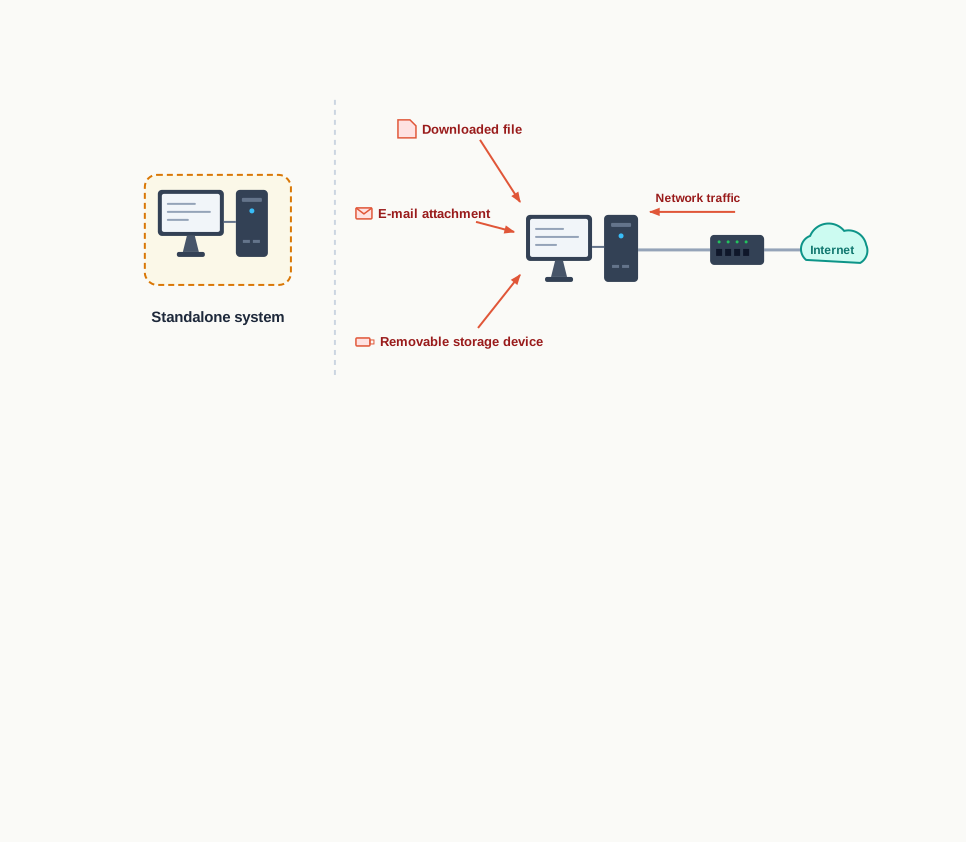
Fig. 12.1 – Vulnerabilities of a connected computer compared to a standalone system.
12.2 Malware
Almost every threat in this chapter arrives in the form of a program. Someone writes code, arranges for it to run on a machine that does not belong to them, and that code then does something its owner never asked for. The general name for such code is malware, a contraction of malicious software.
The word says nothing about how the program is built or what language it is written in. A piece of malware is an ordinary program in every technical respect — it is compiled or interpreted like any other, it uses memory and processor time like any other, and it may be only a few hundred lines long. What makes it malware is intent: it was written to damage hardware, to steal or destroy data, to spy on a user, or simply to make a machine unusable.
Malware is not one thing. It is a family of quite different techniques grouped together by intent, and the differences between them matter, because a defence that stops one kind may be entirely useless against another. The kinds treated in this chapter are viruses, worms, ransomware, Trojans, spyware, adware and keyloggers. They differ mainly in two respects: how they get onto a machine, and what they do once they are there.
New malware appears continuously. Each year brings families that did not exist the year before, and the financial damage they cause worldwide is measured in billions. Some of that damage is visible — data destroyed, ransom paid, business halted. A good deal of it is not: time lost, trust lost, and the standing cost of every organisation having to defend itself.
12.2.1 Virus
The idea is borrowed openly from biology. A biological virus cannot reproduce by itself; it must get inside a living cell and use that cell’s machinery to make copies of itself. A computer virus works the same way. It cannot run on its own. It attaches its code to an existing program or file — the host program — and it runs only when the host is run.
The term was given its technical meaning in the early 1980s by Fred Cohen, whose 1984 paper set out the first formal treatment of self-replicating programs of this kind and demonstrated them experimentally.
Two consequences follow from that definition, and both are worth holding on to.
First, a virus is dormant until triggered. An infected file sitting on a disk does nothing at all. It becomes active the moment someone opens or executes it — which means human action is part of the mechanism. A virus travels because people copy files, open attachments and share pen drives.
Second, spreading and damaging are separate activities. The replication is how a virus survives; the harm it does is a separate part of its code, sometimes called its payload. That payload varies with whatever the author intended: corrupting files, consuming processor time and memory, capturing stored passwords, mailing itself to every address in a user’s contact list, or handing control of the machine to someone else. Some viruses spread widely and do almost nothing; others do great damage from a small number of infections.
Historically important viruses include Brain (1986), which spread by way of floppy disks and is generally taken as the first widespread personal-computer virus; Michelangelo (1991), which stayed inert until a particular calendar date; and CIH (1998), which was unusual in that its payload attempted to damage a hardware component rather than only data.
12.2.2 Worms
A worm is also self-replicating malware, and this is where students most often stop reading and assume it is a virus by another name. It is not, and the difference is precise.
A worm does not need a host program. It is a standalone program, complete in itself, capable of running without attaching to anything. And because it is complete, it does not need a person either. A worm can copy itself from one machine to another across a network on its own, without anyone opening a file or clicking anything.
That single difference — self-propagation without human triggering — changes the speed of the problem entirely. A virus spreads at the speed at which people share files, which is measured in days. A worm spreads at the speed of the network, which is measured in minutes. This is why worms have produced the most abrupt incidents in the history of networked computing: Code Red and Nimda in 2001, and Slammer in 2003, which spread across the world in a matter of minutes.
There is a second consequence, less obvious and often more damaging than any deliberate payload. Every copy of a worm consumes processor time, memory and network capacity. A worm that spreads aggressively enough will exhaust those resources on the machines it reaches and on the links between them, and the network slows to a halt — even if the worm was never written to destroy a single file.
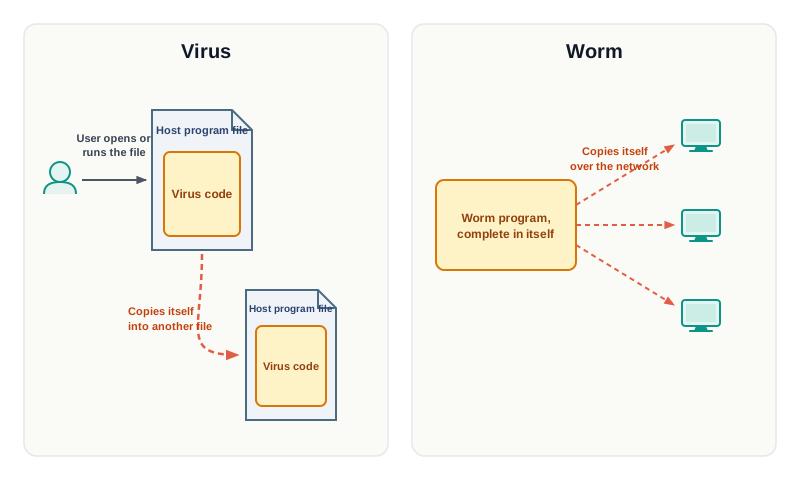
Fig. 12.2 – Propagation mechanisms of a virus and a worm.
12.2.3 Ransomware
Ransomware is malware built around a straightforward act of extortion. It does not steal data in order to sell it and it does not quietly destroy files. It takes the user’s own data and makes it unavailable to the user, then demands payment to give it back.
Two methods are common. The simpler kind blocks access to the system or to particular files. The more serious kind encrypts the data — scrambles it using a key that the attacker holds — so that the files are still physically present on the disk but are unreadable without that key. A message then appears demanding a ransom, usually payable in a cryptocurrency, in exchange for the means to unscramble the data.
In May 2017 a ransomware known as WannaCry spread very widely, affecting on the order of 200,000 computers across some 150 countries within days, encrypting data and demanding payment in Bitcoin. Hospitals, transport operators and manufacturers were among those affected, which shows something important: the cost of ransomware is not confined to the value of the files. When the affected machines are running a scheduling system or a diagnostic service, the loss is the halted service, not the disk.
There is one defence against ransomware that works when everything else has failed, and it is completely unglamorous: a recent backup, kept somewhere the ransomware cannot reach. Data you hold a second copy of cannot be held hostage.
12.2.4 Trojan
When the Greeks could not take the city of Troy by force, the story goes, they left a large wooden horse outside its walls and withdrew. The horse was brought inside as a prize. Soldiers were hidden within it. The city fell not because its defences were breached but because its defenders carried the threat in themselves.
A Trojan takes both the name and the method. It is malware disguised as something a user would want — a free utility, a game, a media player, a document viewer, a codec. Nothing about it announces what it is. The user finds it, downloads it, and installs it deliberately.
Once installed, a Trojan may do much of what a virus or worm does — steal data, damage files, consume resources. But it differs from both in one clean respect: a Trojan does not self-replicate and does not infect other files. It has no mechanism of its own for spreading. It spreads entirely through user interaction — being downloaded from a site, arriving as an e-mail attachment, being passed along on a storage device.
Many Trojans exist to install a backdoor: a hidden means of access that lets someone else connect to the machine later and use it, without going through any of the machine’s normal checks. From the user’s side nothing looks different, which is precisely the point.
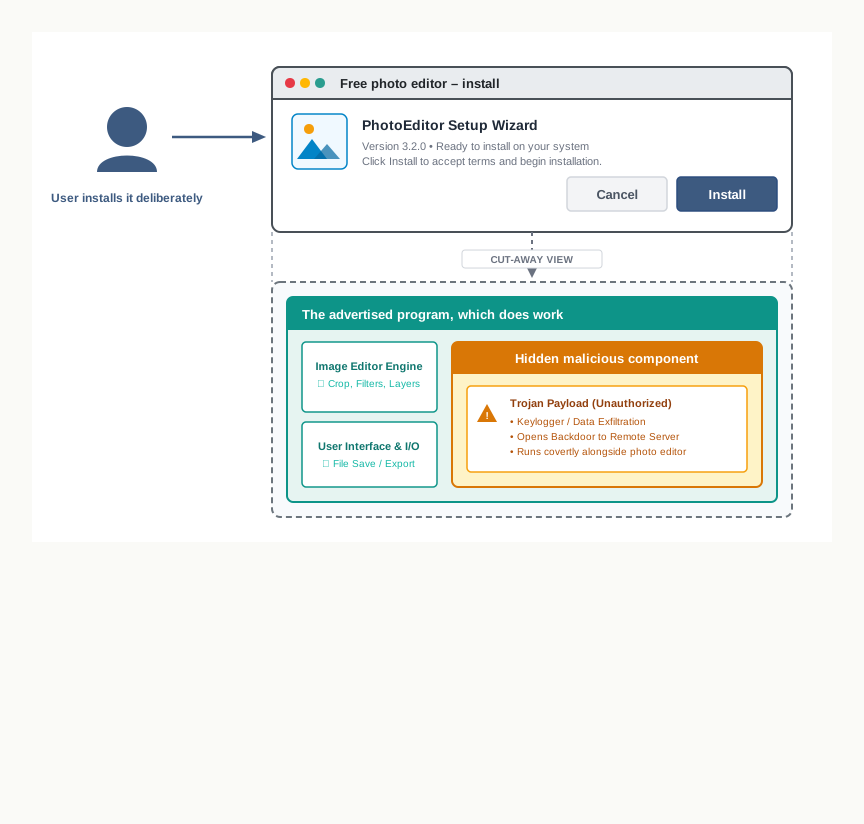
Fig. 12.3 – A Trojan disguised as desirable software.
The three kinds met so far are the ones most often confused with one another, and the distinction is a matter of mechanism rather than of damage.
12.2.5 Spyware
Spyware does not damage anything, and that is what makes it hard to notice. It watches. It gathers information about a person or an organisation — what sites are visited, what is typed into forms, what files exist, what account details are stored — and sends what it collects to an external party, without the knowledge or consent of the user.
Some spyware is comparatively mundane: it tracks browsing habits and sells the resulting profile to advertisers. Some is not: the same technique applied to login credentials, banking details or identity documents. In either case, the harm is real even though the machine keeps working normally, and there is no moment at which the user is told anything has happened.
This is the point in the chapter where the first of the three protections named in Section 12.1 — keeping private data private — is attacked directly, and where the machine’s own behaviour gives the user no warning at all.
12.2.6 Adware
Adware exists to make money for whoever wrote it. It displays advertisements the user did not ask for, through pop-up windows, injected web pages or screens shown during installation. Revenue comes either from the advertisements being displayed or from a “pay per click” arrangement, under which the adware’s author is paid for each click on an advertisement shown.
Adware is usually described as annoying rather than dangerous, and by itself that is fair. But the description understates the risk. An advertisement is a link, and adware chooses which links to show. A machine carrying adware is being shown a stream of content chosen by someone with no interest in its owner’s safety, which makes adware a reliable route by which more serious malware arrives afterwards.
12.2.7 Keyloggers
A keylogger records the keys a user presses. That is the whole of it, and it is enough. Everything a person types on a machine passes through the keyboard: passwords, message text, card numbers, search terms, private conversation. A program that keeps a log of that stream, and periodically sends the log to someone else, has access to all of it without needing to break into a single file.
Keyloggers come in two forms. A software keylogger is a program running on the machine, and antivirus software can look for it. A hardware keylogger is a physical device fitted between the keyboard and the computer, or an overlay placed on top of a keypad; because it is not software, nothing running on the computer can detect it, and it is found only by physical inspection. This is a real reason to be cautious about typing anything sensitive on a machine you do not know — in a cybercafé, at a public terminal, on a shared computer.
12.2.7.1 Online Virtual Keyboard versus On-Screen Keyboard
One familiar defence against keyloggers is to avoid the keyboard altogether and click the characters instead. The two things that let you do this look almost identical, and they are not equally safe.
An on-screen keyboard is the keyboard supplied by the operating system as an accessibility feature. It draws a picture of a keyboard on the screen and you click the keys with a mouse. Its layout is the standard QWERTY arrangement, and — this is the part that matters — the layout is fixed. The key for a given letter is in the same place every time. Software that records the position of each mouse click can therefore work out which characters were entered, because position and character are permanently linked.
An online virtual keyboard is supplied by a website, typically on a login page, and it randomises the arrangement of the keys each time it is displayed. The letter that sits in the top-left corner this time will be somewhere else the next time. A record of click positions is then of no use, because the same position means a different character on every occasion.
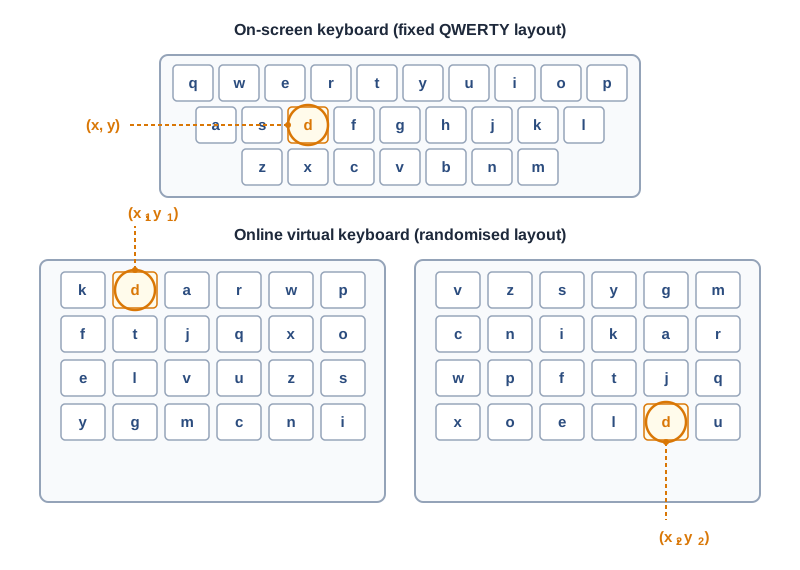
Fig. 12.4 – Fixed and randomised virtual keyboard layouts.
12.2.8 Modes of Malware Distribution
Malware has to get onto the machine somehow. Whatever the kind, the routes are few and well known, and knowing them is what turns a general anxiety into a specific habit.
The first is download from the Internet. Most malware arrives on a machine because a user downloaded it, unintentionally, while meaning to obtain something else. Anything advertised as free software that is normally paid for is a natural disguise, and malware authors take considerable trouble over the disguise.
The second is spam e-mail, treated more fully in Section 12.4. Unsolicited mail carrying a link or an attachment is cheap to send in enormous quantities, and needs to succeed only occasionally.
The third is removable storage devices — pen drives, memory cards, phones and music players connected for charging. Self-replicating malware copies itself onto whatever removable medium it finds, and travels to the next machine that medium is plugged into. This route works even between machines that are on no network at all, which is worth remembering when a laboratory feels safe because it is offline.
The fourth is network propagation, the route worms use: a copy travelling directly from one machine to another over a network connection, with no file exchanged and no user involved.
Read the third column across and one pattern stands out. The first three modes can be defended against by careful behaviour; the fourth cannot, because there is no behaviour to correct. That is exactly the gap a firewall and prompt updating exist to fill.
12.2.9 Combating Malware
Some malware announces itself. Ransomware has to, since a ransom demand nobody sees earns nothing. Most malware does the opposite, and is discovered from indirect signs.
Common signs of infection
- Frequent pop-up windows urging you to visit a site or install software.
- The browser’s home page or default search setting changed without your doing it.
- Mail being sent from your account to your contacts, which you did not send.
- The machine running unusually slowly, or crashing often.
- Unfamiliar programs starting automatically when the machine is switched on.
- Programs opening or closing by themselves.
- Storage space disappearing without explanation; unexpected messages or sounds.
- Files or programs appearing or disappearing without your knowledge.
Any one of these can have an innocent cause — an old machine is slow for ordinary reasons. Several together, appearing at about the same time, are worth taking seriously.
Preventive measures
Prevention is cheaper than recovery here, and unusually so: some malware, ransomware especially, can leave data unrecoverable no matter what is done afterwards. The measures below are ordinary practice rather than expert work.
- Install antivirus or anti-malware software and update it regularly.
- Apply the software updates and patches released by the makers of your operating system and applications.
- Take regular backups of important data, and keep at least one copy separate from the machine.
- Enable firewall protection on the network and on the machine.
- Configure the browser’s security settings rather than leaving them as they came.
- Use licensed software, or free and open source software (FOSS); never use pirated software, which is a well-established carrier of malware.
- Look for the padlock and the
httpsprefix in the address bar before entering payment or personal details, for the reason explained in Section 12.5. - Do not enter passwords, personal identification numbers (PINs) or personal information on unknown or public computers.
- Avoid entering sensitive data over an unknown network, such as public Wi-Fi, even on your own machine.
- Do not click links or download attachments in unsolicited mail.
- Scan every removable storage device before transferring data to or from it.
- Never share account or banking passwords and PINs with anyone.
- Remove programs you do not recognise from your system.
- Never install an antivirus or anti-spyware program offered to you through a pop-up or an advertisement — that offer is itself a common disguise.
- Close an unwanted pop-up using the window’s own close control at its top corner, not a button drawn inside the advertisement; if an installation begins, cancel it at once.
The last two deserve a sentence of explanation, because they look fussy. A pop-up is drawn by whoever wrote the page, and every button inside it does whatever that person chose — including a button labelled “Close”. Only the window frame belongs to the operating system, and only its control can be relied on to do what it says.
12.3 Antivirus
Section 12.2 described what can arrive on a machine. This section is about the software whose entire purpose is to stop it arriving, find it if it has arrived, and remove it.
An antivirus is a program that detects, prevents and removes malware. The name is now historical. The earliest such programs, written in the late 1980s, dealt only with viruses, because at that time viruses were effectively the whole of the problem. Today the same software is expected to handle worms, Trojans, ransomware, spyware, adware and keyloggers as well, which is why it is increasingly called anti-malware — a more accurate name for the same thing. Both terms are used, and they mean one product.
The interesting question is not what an antivirus does but how it decides. A file on a disk is a sequence of bytes. Nothing about those bytes says “I am malicious”; malware is written in the same languages and stored in the same formats as everything else. The antivirus must reach a verdict — safe or hostile — about a file it has never seen, and it must do so quickly enough that the machine remains usable. The methods below are five different answers to that problem, and each has a distinct weakness.
12.3.1 Methods of Malware Identification Used by Antivirus
12.3.1.1 Signature-based Detection
Every piece of malware, being a program, contains some sequence of bytes that is distinctive to it — a stretch of code that appears in that malware and in files it has infected, and does not appear in ordinary files. Such a sequence is called a virus signature, and it works rather like a fingerprint.
The antivirus keeps a large collection of these signatures in a virus definition file (VDF). When it examines a file, it scans the bytes of that file for any signature in the collection. A match means the file is identified as that particular malware; no match means nothing was recognised.
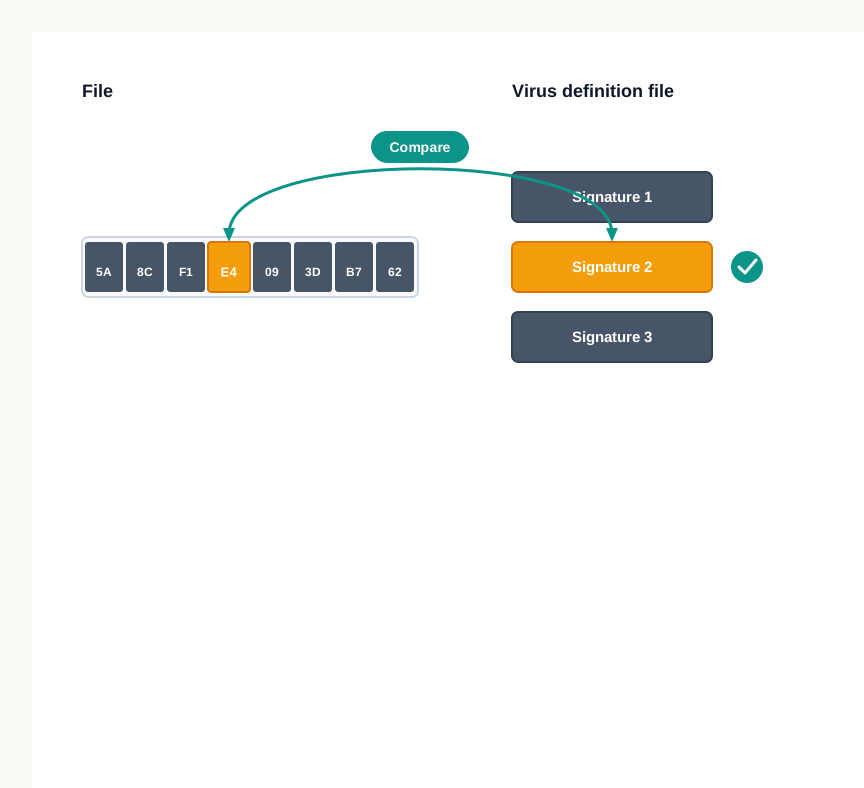
Fig. 12.5 – Signature-based malware detection.
This method is fast, and when it matches, it is exact — the antivirus can name the malware it has found and therefore knows how to remove it cleanly. Its weakness follows just as directly from the mechanism: it can only recognise what is already in the definition file. Malware written last week has no signature in a definition file compiled last month, and passes the scan without comment.
This is why the definition file is updated continuously, often several times a day, and why the updates matter far more than upgrades to the antivirus program itself. An antivirus running with an outdated definition file gives its user the confidence of protection without the fact of it, which is arguably worse than having none at all.
Two kinds of malware defeat signature matching even when the definition file is current. Polymorphic malware changes its own code each time it replicates, so that no two copies share the same byte sequence and there is no stable fingerprint to store. Malware that keeps most of its code encrypted presents the scanner with scrambled bytes that match nothing until the moment they are decrypted in memory. Both are the reason the remaining four methods exist.
12.3.1.2 Sandbox Detection
If you cannot tell what a program is from reading it, you can find out what it is by watching it run. The difficulty is obvious: running an unknown program is exactly what you were trying to avoid.
Sandbox detection resolves this by running the suspect program inside a sandbox — a controlled virtual environment that imitates a real computer but is sealed off from the actual machine. Inside it, the program has no access to the real file system, the real registry or the real network. It behaves as though it were running normally, and the antivirus records what it attempts to do: which files it tries to modify, whether it tries to copy itself, whether it tries to contact an outside address. That record is the program’s behavioural fingerprint, and from it the antivirus engine judges whether the program is a threat.
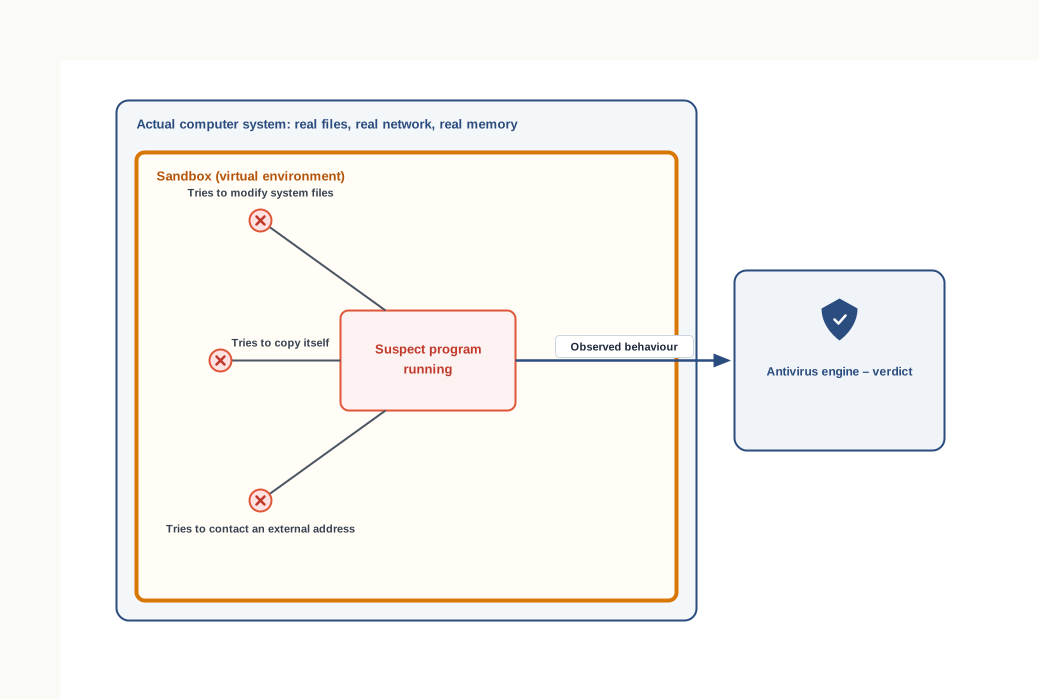
Fig. 12.6 – Sandbox detection of malicious behaviour.
The advantage is that this method needs no prior knowledge of the malware. Behaviour, not appearance, is the evidence, so brand-new malware and polymorphic malware are caught alike — changing your code does not change what your code tries to do. The cost is time. Running a program and watching it is far slower than scanning it, and no machine could afford to treat every file this way. Some malware also delays its activity, doing nothing suspicious for a period, and so shows nothing worth recording within the window it is observed.
12.3.1.3 Data Mining Techniques
This method treats malware identification as a classification problem. A very large collection of files, known in advance to be either benign or malicious, is analysed to extract measurable features — properties of file structure, of the instruction patterns present, of the resources a file asks for. Data mining and machine learning techniques are then used to find which combinations of these features separate the two groups, and the result is a model that can classify a file it has never seen as benign or malicious.
The strength here is generalisation. Because the model learns the characteristics of malware as a class rather than the identity of particular samples, it can flag a new sample that resembles known malware in its features without matching any of them byte for byte. The corresponding weakness is that a judgement of resemblance is a probability, not a fact: the method produces false alarms on unusual but harmless software, and misses malware built deliberately to look ordinary by the features being measured.
12.3.1.4 Heuristics
A heuristic is a rule of thumb — a test that is usually right rather than always right, used where an exact answer is unavailable or too costly. Heuristic detection applies this idea to code.
Instead of asking whether a file matches a known signature exactly, the antivirus examines the file for features and instruction patterns characteristic of malware, and scores what it finds against a set of rules. Code that tries to write to system areas, code that appears to modify itself, structures resembling those of known malware families — each contributes to a score, and a file whose score passes a threshold is flagged as a possible threat.
The point of the method is variants. Malware families are rarely written from scratch; a new sample is very often an existing one with parts altered. Such a variant has no matching signature, but retains much of the family’s characteristic structure, and a heuristic rule written for the family catches the whole family rather than one member of it.
Being a rule of thumb, it is wrong in both directions. Legitimate software that does unusual things — an installer, a compression tool, a system utility — can trip the rules and be flagged when it is harmless, which is a false positive. Malware crafted to avoid the rules escapes, which is a false negative. Setting the threshold is a trade between the two: a stricter setting catches more malware and annoys the user more often.
12.3.1.5 Real-time Protection
All four methods so far are applied to a file at some particular moment — when it is downloaded, or when a scan is run. Real-time protection is not a way of judging a file; it is a decision about when judgement happens.
Under real-time protection the anti-malware software runs continuously in the background and examines programs and files as they are used: as a file is opened, as a program is loaded into main memory, as an executable begins to run. Suspicious activity is caught at the moment it occurs rather than at the next scheduled scan.
This matters because of a category of malware described in Section 12.2: code that stays dormant. Malware that does nothing on the day it arrives will pass any scan run on that day. It becomes visible only when it acts, and something has to be watching at that moment. The price is a permanent, if small, claim on processor time and memory — the reason this feature is sometimes switched off, and one of the more common ways a well-protected machine is quietly left unprotected.
No antivirus relies on one of these. A file is normally checked against signatures first because that is cheap and conclusive, examined heuristically if nothing matched, and executed in a sandbox only if it still looks doubtful — with real-time protection watching throughout. The layering is not redundancy; each method covers precisely the case in which the previous one fails.
12.4 Spam
Not every unwanted thing that reaches a machine is a program. A great deal of it is simply messages — sent in enormous quantity, to people who did not ask for them, by senders who have nothing to do with the recipients.
Spam is the general name for such material. The word is not confined to electronic mail: unsolicited bulk content appears on messaging services, in discussion forums, in chat rooms, in comment sections and as advertising placed where nobody invited it. But e-mail spam is the form everyone recognises, and the one this section takes as its example.
Why spam exists
The mechanism is worth understanding, because it explains why spam has never stopped and probably will not.
A sender who wants to reach a great many people either buys or assembles a mailing list — a collection of e-mail addresses gathered from wherever addresses can be gathered — and sends the same advertisement or invitation to every address on it. What makes this worth doing is arithmetic. Printing and posting a lakh of leaflets costs a substantial sum; sending a lakh of e-mails costs very nearly nothing. A response rate far too small to sustain any ordinary business is enough to sustain this one. Even one reply in a hundred thousand leaves the sender ahead.
That is also why asking spammers to be reasonable has never worked. Nothing about the practice depends on most recipients wanting the mail; it depends only on the cost of sending being close to zero.
What spam actually costs
The obvious cost is nuisance — an inbox that must be waded through to find the messages that matter. The more serious cost is what some spam is carrying. Section 12.2.8 listed spam e-mail as one of the four main routes by which malware reaches a machine, and that is the connection to keep in mind here. A message urging you to open an attachment or follow a link is the cheapest available way of getting a Trojan onto a large number of machines, and it does not need to work often to be worth sending.
Spam also trades on ordinary persuasion: an offer, an urgent-sounding notice, a prize, a piece of software that appears to be free. The message asks you to buy something, install something, or supply information about yourself. Nothing in it needs to be technically clever, because the mechanism it exploits is not the machine.
How spam is filtered
Mail services run automatic spam detection on incoming mail before you ever see it. A spam filter examines each message — who sent it, how many recipients it went to, what it contains, whether its apparent sender matches its actual source — and scores how closely it resembles mail that has previously been identified as spam. Messages scoring above a threshold are diverted to a separate folder instead of the inbox.
You have probably noticed that this works well and not perfectly. It is the same trade seen with heuristic malware detection in Section 12.3.1.4: a strict filter catches almost all spam and occasionally hides a message you wanted, and a lenient one never loses your mail and lets some spam through.
When you mark an undetected message as spam, you are not merely tidying your own inbox. That action is fed back into the filter as evidence, so that messages resembling it are more likely to be diverted in future — for you, and often for other users of the same service. The filter improves because users correct it.
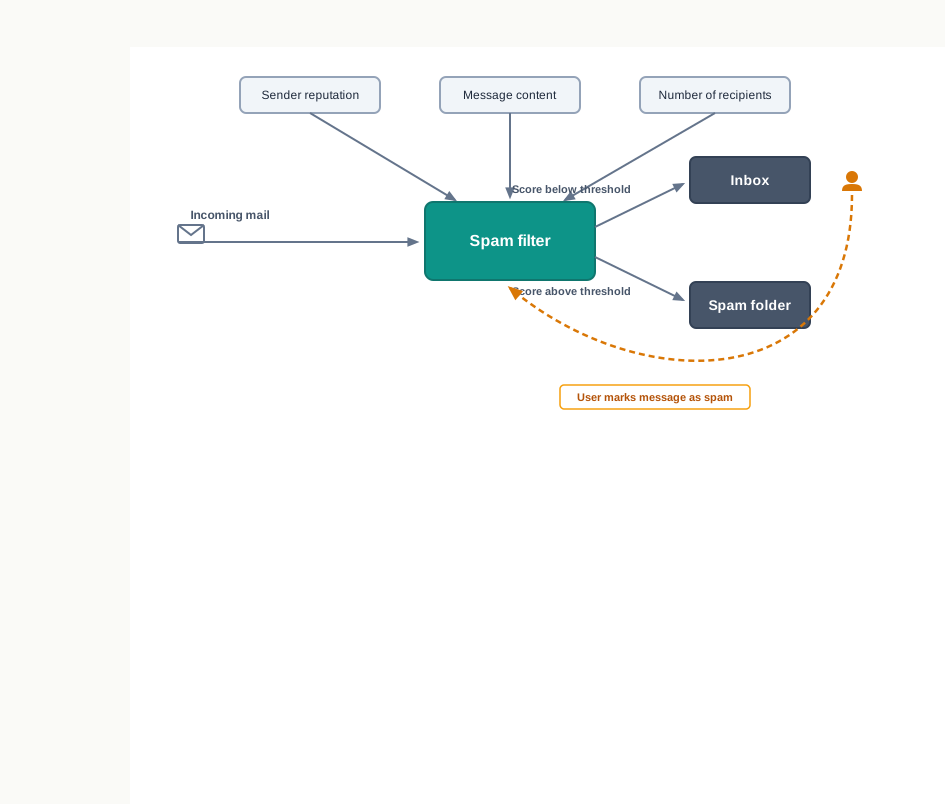
Fig. 12.7 – Spam filtering and the user feedback loop.
One habit is worth recommending explicitly. When mail from a sender you do not recognise offers a link to unsubscribe, leaving it alone is safer than using it. A genuine sender will honour such a link; an unwanted one learns from it that a real person reads mail at your address, which is precisely the information that makes an address worth selling on. Marking the message as spam achieves what you wanted and tells the sender nothing.
12.5 HTTP versus HTTPS
Every time you open a page, your browser and a computer somewhere else exchange messages. The browser asks for something; the other machine sends it back. For that exchange to work at all, both sides must agree in advance on the form of the request, the form of the reply, how a message announces its length, and what is to be done when something is missing. A set of rules of that kind is called a protocol.
The protocol used for pages on the world wide web (WWW) is the hyper text transfer protocol (HTTP). It defines how a client — normally your web browser — asks a web server for a resource, and how the server replies. Every ordinary web page you have ever seen arrived under those rules.
What HTTP leaves open
HTTP was designed to move documents about reliably. It was not designed to keep them private, and it does not.
Under HTTP, whatever is being sent travels across the network exactly as it is. The text of the page, the values you typed into a form, the contents of a search box — all of it goes as ordinary readable data. This matters because of how a network actually works. A message from your machine to a server does not leap there directly; it passes through a series of intermediate devices — the local switch, the router at the boundary of your network, equipment belonging to a service provider, further routers along the route. Each of those devices handles the message. Under HTTP, each of them handles something legible.
For a great deal of the web, that is perfectly acceptable. A news article or a public blog post is meant to be read by anybody; there is nothing to protect, and HTTP is sufficient. The problem begins the moment the data is not public — a password, a card number, a personal detail, an answer you would not want a stranger holding. Sending those as readable text across a route you do not control leaves them open to interception, of the kind described in Section 12.9.3.
What HTTPS adds
Hyper text transfer protocol secure (HTTPS) is the same protocol with a protective layer underneath it. The requests and replies are formed exactly as before; what changes is that they are encrypted before they leave the sender and decrypted after they arrive.
Encryption is the scrambling of data according to a key, so that the result is unreadable to anyone who does not hold the means to reverse it. Under HTTPS the browser and the server agree on such a key when the connection is first set up, and everything afterwards travels scrambled. The intermediate devices still carry the message and still deliver it correctly — they need only its addressing information — but what they carry is no longer legible to them.
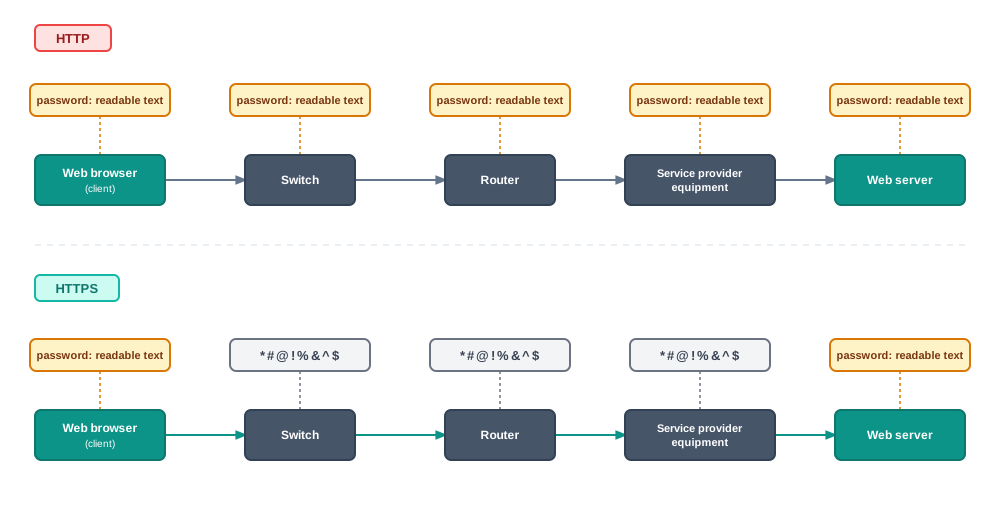
Fig. 12.8 – Data legibility in HTTP and HTTPS connections.
HTTPS carries a second protection that is easy to overlook and just as important. Encrypting a conversation is of no use if you are having it with the wrong party. Before the exchange begins, the server presents a digital certificate — a document issued by a recognised certifying authority, stating which organisation the server belongs to and which internet name it is entitled to serve. The browser checks that certificate. If it does not match, or has expired, or was not issued by an authority the browser trusts, the browser warns you before anything is sent.
So HTTPS answers two separate questions: can anyone else read this? and am I actually talking to the site I typed? The padlock shown in the address bar means both checks passed.
The practical rule that follows is short. Before typing anything you would not put on a postcard — a password, a card number, an account detail — look at the address bar and confirm that it begins with https and shows the padlock. If it does not, the data will leave your machine readable, and no amount of care afterwards can call it back.
12.6 Firewall
The defences so far have all been placed on the machine itself. An antivirus examines files that are already on the disk; the care described in Section 12.2.9 is exercised by the person sitting at the keyboard. Both act after something has arrived.
A firewall works earlier and elsewhere. It sits at the boundary between a network you trust and a network you do not, and it decides which traffic is allowed to cross that boundary in either direction. The name is borrowed from building construction, where a fire wall is a solid barrier built to stop a fire spreading from one part of a structure into the next; it does not put the fire out, it confines it.
The untrusted side is usually the Internet, but it need not be. A firewall is just as often placed between two sections of the same organisation’s network, so that traffic from one department cannot reach the servers of another. Trust here is a matter of policy, not of geography.
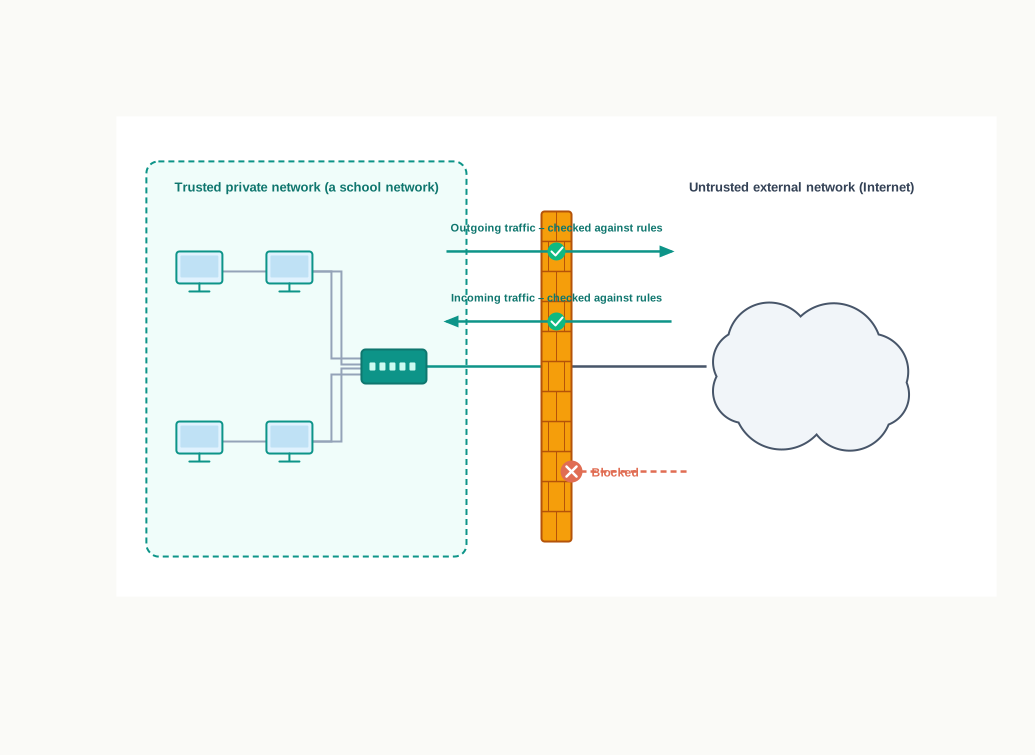
Fig. 12.9 – A network firewall at the boundary of a trusted network.
How a firewall decides
A firewall is a filter, and a filter needs rules. Each rule states a condition and what to do with traffic meeting it: where the traffic came from, where it is going, and what kind of service it is asking for. Traffic matching a rule that permits it is passed on. Traffic matching a rule that forbids it is dropped, and never reaches the machine it was addressed to.
Consider a school network. The laboratory computers need to reach the Internet and the library catalogue server, and nothing else. The office computers need to reach the Internet, the library catalogue and the machine holding staff records. Two rules express exactly this: allow traffic from the laboratory to the catalogue server and to the Internet; block traffic from the laboratory to the staff records machine. A student who tries to reach that machine — deliberately or by accident, from any laboratory computer — is stopped at the boundary, not asked for a password and refused. The traffic simply never arrives.
Notice that the rules run in both directions. Outgoing traffic is examined too, and it is not a courtesy. Spyware that has reached a machine is of no value to whoever placed it there until it can send what it has collected out of the network; a Trojan’s backdoor is useless unless something outside can reach in and something inside can answer. A firewall that controls outgoing traffic can stop the second half of an attack whose first half has already succeeded.
A firewall may be built as hardware — a dedicated device placed at the boundary — or as software running on a computer, or as both together. The distinction is one of packaging. What matters is where it stands in the path of the traffic.
That last point explains why a firewall is often described as the first barrier against malware. Section 12.2.2 established that a worm propagates directly over network connections. Blocking those connections at the boundary stops the worm from reaching the network at all, which is a far better outcome than detecting it on each machine afterwards.
What a firewall cannot do
Every safeguard in this chapter has a boundary, and a firewall’s is unusually sharp: it can only examine what crosses it.
Malware carried in on a pen drive never crosses the boundary and is invisible to it. A file downloaded by a user over permitted web browsing arrives as allowed traffic, because the user asked for it — the firewall’s job was to decide whether browsing is permitted, not whether the downloaded file is trustworthy. Encrypted traffic, of the kind described in Section 12.5, cannot be inspected for content by an ordinary firewall, only permitted or refused as a whole. And a rule set that is too permissive protects nothing, while one that is too strict prevents legitimate work and is usually switched off by somebody within a week.
12.6.1 Types of Firewall
Firewalls are classified by where they stand, and there are two positions.
A network firewall is placed between two or more networks and monitors the traffic passing between them. It protects everything behind it at once, which is why it is the arrangement used at the boundary of a school, an office or a campus. One device, correctly configured, defends every machine on the network — including machines whose users have no idea it exists.
A host-based firewall is placed on an individual computer and monitors only the traffic to and from that computer. Most operating systems now include one. It protects one machine, but it protects that machine wherever it happens to be, and it can act on traffic from inside the same network — which a network firewall standing at the outer boundary never sees.
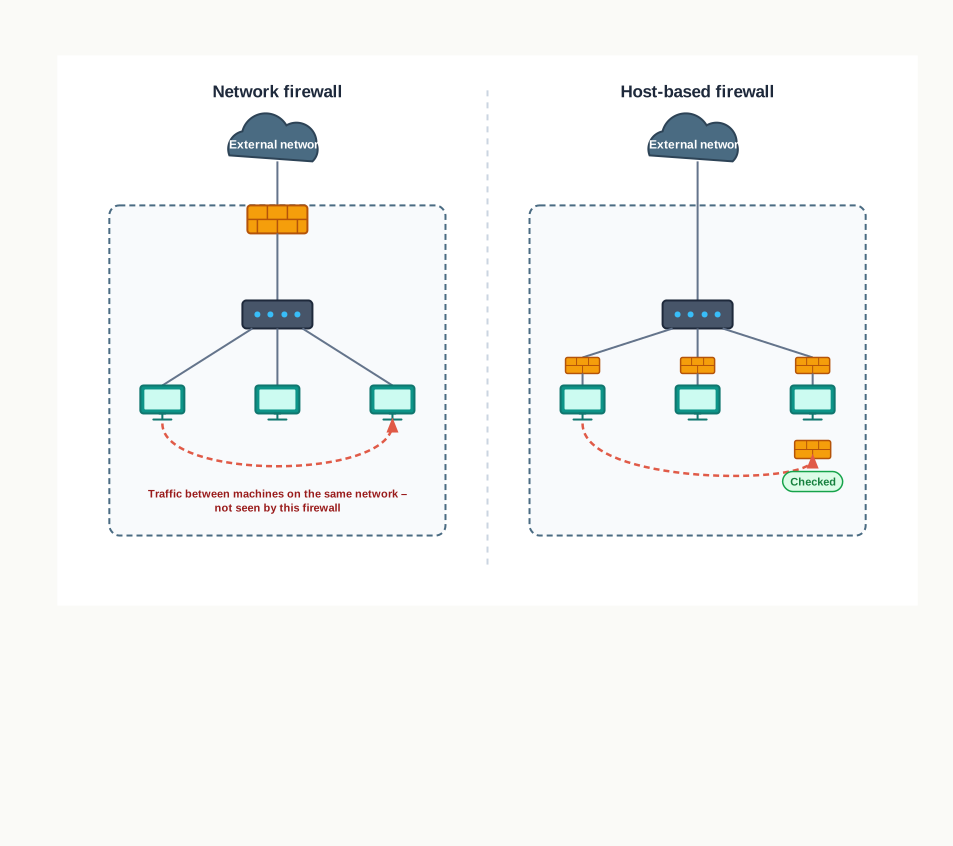
Fig. 12.10 – Network and host-based firewalls.
The two are complements rather than alternatives. A network firewall alone leaves a laboratory defenceless against an infected machine already inside it; host-based firewalls alone leave the organisation depending on every user of every machine having configured theirs sensibly. Organisations of any size run both.
12.7 Cookies
Begin with a problem that HTTP creates and cannot solve on its own.
The protocol described in Section 12.5 treats every request as complete in itself. A browser asks for a page; the server sends it; the exchange ends. When the same browser asks for the next page a second later, the server has no memory that the earlier request ever happened. Each request arrives as though from a stranger. This property is called statelessness, and it is deliberate — it is what allows one server to handle requests from lakhs of browsers without keeping track of any of them.
It is also, on the face of it, impossible to live with. If the server remembers nothing between requests, how does a shopping site keep the items you put in a cart three pages ago? How does a site know you are already logged in when you click a link within it? Something has to carry the memory across requests, and since the server is not holding it, the browser must.
A cookie is that something.
The essential idea is the return trip. The server sends a small item of data along with a page; the browser stores it; and every later request the browser makes to that same site carries that item back. The server therefore receives, with each request, the note it wrote earlier. It is the site’s own memory, kept by the visitor’s machine.
Two properties of the arrangement matter. The client’s computer is only the host — it stores the cookie, it does not use it. And a cookie can be read and edited only by the website that created it; a browser will not hand one site’s cookie to another site. That restriction is the whole basis of cookie safety, and Section 12.7.1 is about the one situation in which it does not achieve what you might expect.
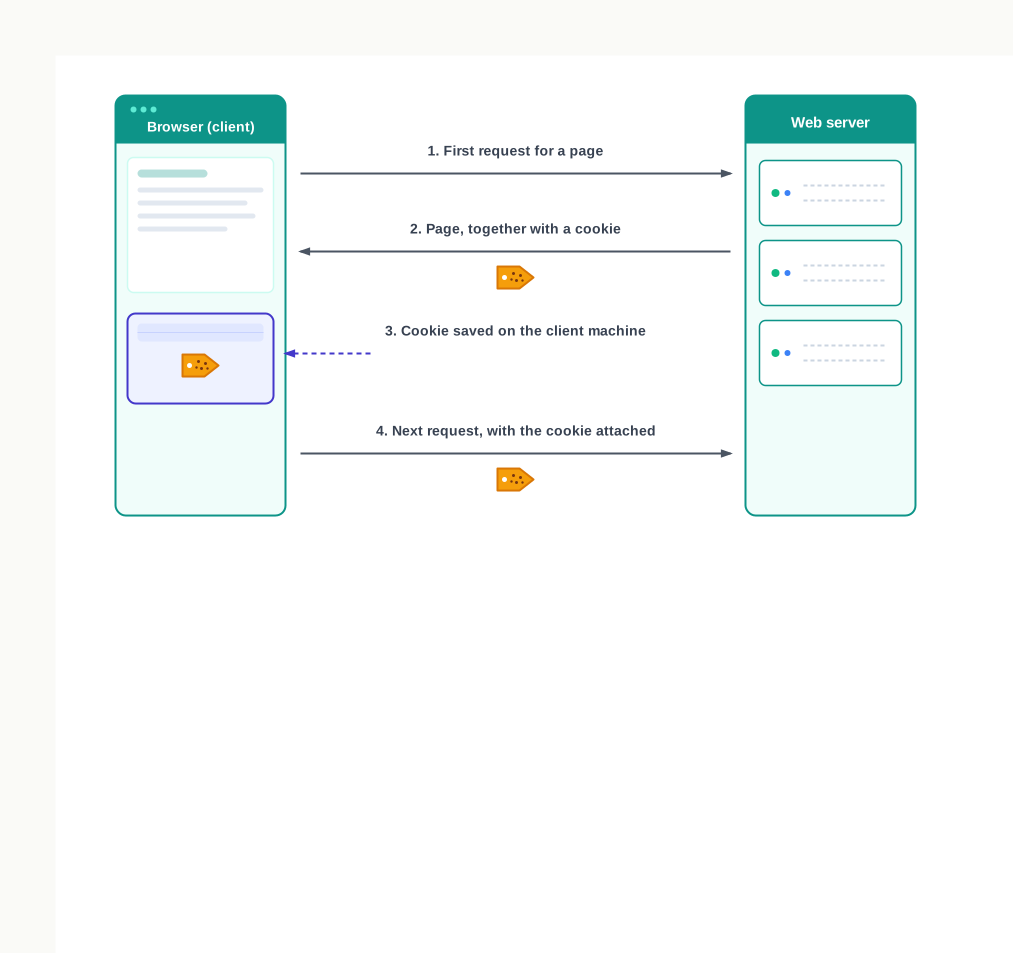
Fig. 12.11 – Cookie exchange between a browser and a web server.
12.7.1 Threats due to Cookies
Cookies do not infect a computer with malware, and the ordinary use just described is harmless. The difficulties lie in three narrower places.
Third-party cookies and tracking
Consider how the same-site rule actually applies. A page you are reading is usually assembled from more than one source: the text comes from the site whose address you typed, while an advertisement, a video player or an analytics component embedded in the page is fetched from an entirely different server. That other server is a third party to your visit, and it may set a cookie of its own.
Now suppose the same advertising provider supplies components to a great many sites. On each of those sites its cookie is returned to it, along with a note of which page you were on. No rule has been broken — the provider is only receiving its own cookie back — but the effect is that one organisation you never chose to visit can assemble a record of your movement across many sites that you did choose to visit.
This is why searching for an item on one site produces advertisements for similar items elsewhere, and it is done without any explicit consent from you. The information is shared for advertising and tracking purposes rather than to serve you, which is why browsers now offer settings controlling third-party cookies, and why sites are increasingly required to ask before setting them.
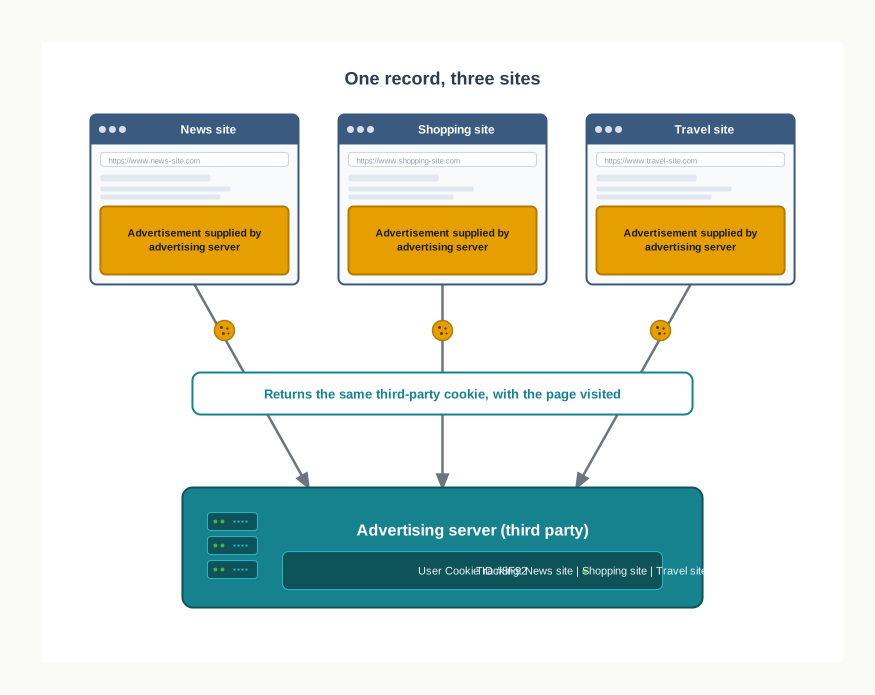
Fig. 12.12 – Cross-site tracking using third-party cookies.
Judging the trade
Cookies are best treated as a bargain rather than as a threat. On one side is real convenience: carts that persist, sessions that stay open, sites that remember your settings — and a security benefit too, since a session cookie that times out protects an account left open on a shared machine. On the other side is a record of your activity, kept on your machine and readable by whoever set it, which in the third-party case may be an organisation you have never heard of.
The sensible position is neither to block everything nor to accept everything. Grant cookies to sites you are actually using, be far more sparing with third-party cookies, and clear stored cookies on any machine that is not yours.
12.8 Hackers and Crackers
Every threat so far has been described by what it does. This section is about the people, and it begins with a word that is used carelessly almost everywhere.
A hacker is someone with deep knowledge of computer systems — of operating systems, networks, programming and the way software actually behaves as against how it is documented to behave — who uses that knowledge to find weaknesses in systems that others have not noticed. That is the whole of the technical description, and you will notice it contains no verdict.
The knowledge is genuinely the same knowledge in every case. Finding a flaw so that it can be repaired and finding the same flaw so that it can be exploited require identical skill; what differs is what the person does next, and whether they were asked. This is why hackers are classified by intent and authorisation rather than by ability, and why the labels below are about conduct, not competence.
The colour-coded names come from old Western films, in which the hero wore a white hat and the villain a black one.
12.8.1 White Hats: Ethical Hackers
A white hat, also called an ethical hacker, uses these skills to find security flaws so that they can be fixed. Organisations employ them deliberately: a bank, a hospital or a government department will hire specialists to search its own systems for weaknesses, on the reasoning that it is far better to be told about a flaw by someone on your side than to discover it when it is used against you.
The defining feature is not good intention. It is authorisation — explicit, prior, and normally written. Before an ethical hacker begins, an agreement states which systems may be examined, by what methods, within what dates, and what is to be done with whatever is found. Findings are reported to the owner of the system and to nobody else, and no data is taken, kept or published.
That agreement is what makes the work lawful and what separates it from the same actions performed by anyone else. Ethical hacking is now an established profession, with recognised certifications and a defined body of practice, and it is one of the routes a student of this subject can genuinely take.
12.8.2 Black Hats: Crackers
A black hat uses the same skills unlawfully — breaking into systems, disrupting their working, stealing or destroying data, exploiting flaws for personal, financial or political advantage. There is no authorisation and no agreement, and the finding is not reported to the owner.
The term cracker was coined by programmers in the 1980s precisely for this group, at a time when “hacker” still meant an inventive and admired programmer and those programmers objected to the word being applied to people who break in. The narrower usage never fully took hold in ordinary speech, and today “hacker” carries the criminal sense for most people. Within computing, the distinction is still worth making.
Motives vary. Some black hats work for money — selling access, extracting ransom, trading stolen data. Some work for a cause: a hacktivist is someone who attacks systems in pursuit of a political or social objective. Some work for a government, or against one. The motive changes the target and the method, and changes nothing about the legality.
In India, unauthorised access to a computer system or network, and damage to the data held in it, are offences under the Information Technology Act, 2000. The Act does not ask whether harm was intended; access without permission is itself the offence.
12.8.3 Grey Hats
Between the two lies a class that fits neither description, which is why the distinction is drawn in three parts rather than two.
A grey hat breaks into systems without permission, but not for money and not for a political cause. The motivation is challenge, curiosity, or the satisfaction of having got in. Grey hats often report what they found to the system’s owner afterwards, sometimes publicly, and many regard themselves as having done the owner a service.
The ethical position here is worth thinking about carefully rather than settling quickly. On one hand, a flaw found by a grey hat and reported is a flaw that gets fixed, and the owner may well be better off than before. On the other, the owner never agreed to any of it, had no opportunity to prepare, and cannot know what else was seen or copied while the visitor was inside. Nor can the owner distinguish, at the moment of detection, a grey hat from a black one — the intrusion looks identical from the inside.
And the law is not in doubt, whatever the motive. Access without authorisation is unlawful whether the visitor takes something, leaves a helpful note, or does nothing at all. Intent may affect how an offence is treated; it does not decide whether one occurred.
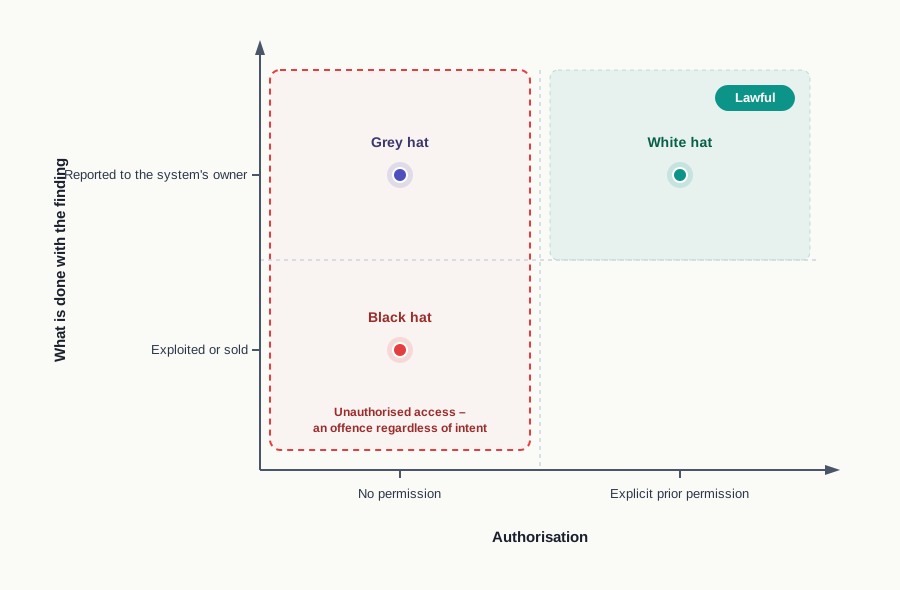
Fig. 12.13 – Classification of hackers by authorisation and intent.
12.9 Network Security Threats
The threats gathered in this section have something in common that the earlier ones did not. They do not begin with a file arriving on a machine. They are carried out against the network itself, and against the traffic passing over it, and several of them leave no trace on any disk at all.
Section 12.1 said that securing a system means protecting three things: the privacy of data, the correctness of data, and the availability of the system to those entitled to use it. The threats below divide neatly along those lines. A denial-of-service attack goes after availability and nothing else. Intrusion is an attack on the boundary itself. Snooping and eavesdropping go after privacy, and are unusual in that a successful attack of either kind may never be noticed by anyone.
12.9.1 Denial of Service
Most attacks try to obtain something. A denial of service (DoS) attack does the opposite: it takes nothing and alters nothing, and simply prevents legitimate users from getting the service they are entitled to.
The method is overload. Every server has a finite capacity — a number of requests it can handle at once, a quantity of memory it can allocate, an amount of network traffic its connection can carry. An attacker sends illegitimate requests in such volume that this capacity is consumed. The server is not broken; it is busy. Genuine users find that pages do not load and connections are refused, and to them the service simply appears to be down.
The target need not be a website. The same approach is used against mail servers, against network storage, against the connection between two particular machines, and against the state of an established session, which can be disrupted so that a user is repeatedly thrown out of whatever they were doing.
Recovery depends on how the attack worked. If the flood caused the server to crash, restarting it restores the service — unpleasant, but bounded. A sustained flooding attack is harder, because the traffic must be separated from genuine traffic before it can be discarded, and among the illegitimate requests there are real users trying to get through. Filtering too aggressively completes the attacker’s work for them.
Distributed denial of service
A DoS attack mounted from one machine has an obvious weakness. All the hostile traffic comes from one source, so the source can be identified and its traffic blocked, and the attack ends.
A distributed denial of service (DDoS) attack removes that weakness by using many sources at once. The attacker first infects a large number of ordinary computers with malware that places each of them under remote control; such a program is called a bot, the machine it controls is called a zombie, and the collection of them is a bot-net. The owners of those machines are not attackers and generally have no idea anything is wrong — their computers behave normally, apart from being a little slower. When the attacker chooses, every machine in the bot-net begins sending requests to the same target simultaneously.
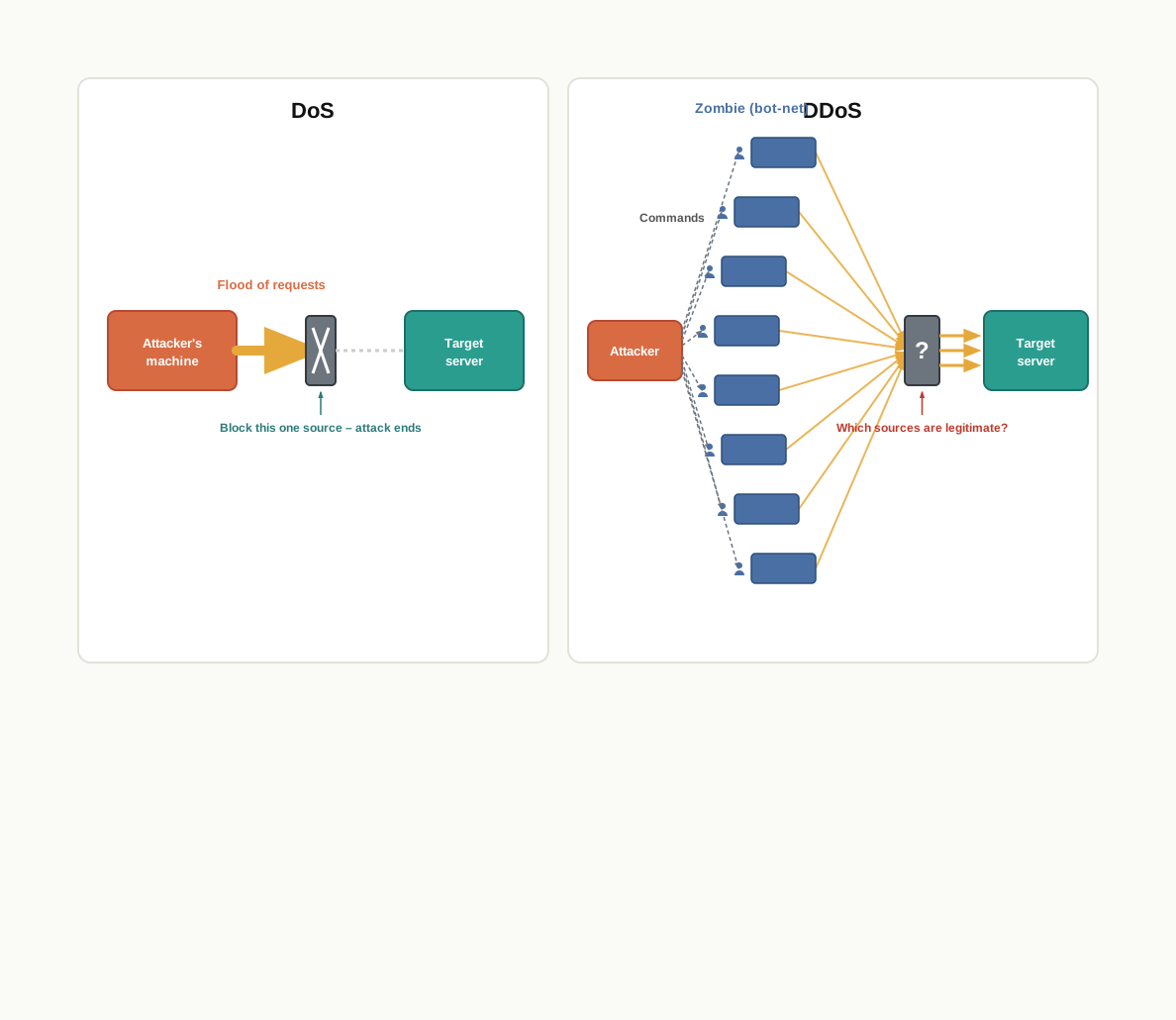
Fig. 12.14 – DoS and distributed denial of service attacks.
The reason DDoS is so much harder to resist is not the volume alone. It is that every packet arrives from a real computer with a legitimate address, belonging to a real person somewhere. There is no property of the traffic that cleanly separates the attack from the ordinary use of the service, which is precisely what the attacker arranged.
12.9.2 Intrusion Problems
Network intrusion is the general name for any unauthorised activity on a computer network — using its resources without permission, reaching data not meant for you, or interfering with its working.
Several forms of intrusion have already appeared in this chapter: the denial-of-service attack just described, worms that arrive over network connections, and Trojans that leave a backdoor open for later access. Networks of any size are watched by intrusion detection systems, which examine traffic for patterns characteristic of an attack and raise an alarm when they find one. Three further forms of intrusion are described below, and the first two are notable for being aimed at that watching itself.
12.9.2.1 Asymmetric Routing
Traffic between two points on a large network can usually travel by more than one route. Intrusion detection normally depends on seeing the whole of a conversation: a single packet in isolation is meaningless, and it is the pattern across a sequence of packets that identifies an attack.
In asymmetric routing, an attacker exploits this by sending the packets of an intrusion along several different paths, so that no single detection sensor sees more than a fragment of the whole. Each fragment looks unremarkable on its own, and the pattern that would have triggered an alarm is never assembled anywhere. The defence is to ensure that detection is placed where the traffic necessarily converges, so that fragments cannot be separated from one another.
12.9.2.2 Buffer Overflow Attacks
A buffer is a region of memory that a program sets aside to hold a certain quantity of data — say, sixty-four characters for a name typed into a form. A buffer overflow occurs when a program writes more data into such a region than it was sized for, and the surplus spills into the memory immediately beyond it, overwriting whatever was there.
This is a programming error, not a feature of any attack. It happens when a program accepts input without checking that the input fits the space reserved for it. What makes it a security matter is that the memory beyond a buffer is not empty: it holds other values the program is relying on, and in some cases information the processor uses to decide what to execute next. Careless input handling therefore allows an outsider’s data to end up in places the program will later act upon, and an attacker who understands the program’s memory layout can use this to have code of their own choosing executed, or to crash the program and deny service.
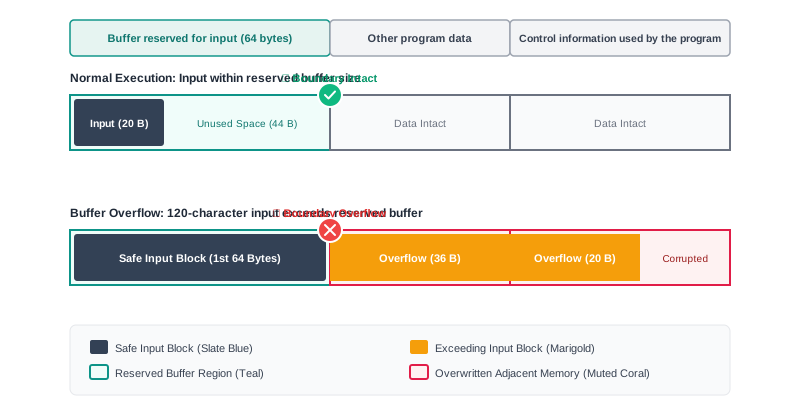
Fig. 12.15 – A buffer overflow overwriting adjacent memory.
The defence lies entirely with the programmer, and it is the same discipline you apply in any language: never write data into a region without first checking that it fits, and never assume that input will be the size you expected. Modern languages, Python among them, manage memory for you and make this class of error far harder to commit — but the principle of validating input before acting on it is not language-specific, and it is worth carrying into every program you write.
12.9.2.3 Traffic Flooding
This is the crudest of the three, and it works. The attacker floods the network — and in particular the intrusion detection system watching it — with an enormous quantity of message packets. A detection system, like a server, has a finite capacity for examining traffic. Beyond that capacity it can no longer inspect everything passing through, and packets begin to go by unexamined.
The flood is not the attack; it is the cover for one. Under the noise of a congested and chaotic network, an intruder’s own traffic passes unnoticed, because the system that would have noticed it is fully occupied. You will recognise the resemblance to a denial-of-service attack — the same technique of overload, turned against the observer rather than the service.
12.9.3 Snooping
The threats so far interfere with a system. The last two do not interfere with anything, which is what makes them difficult.
Snooping, also called sniffing, is the secret capture and analysis of network traffic. Software with traffic-monitoring capability is used to pick up the traffic passing along a channel, and copies of the packets are kept for examination. The traffic itself is delivered as normal, arriving at its destination unchanged and on time, so neither the sender nor the receiver has any reason to suspect that anything has occurred.
Whether this yields anything useful depends entirely on Section 12.5. Traffic sent under HTTP travels as readable data, so a captured copy is immediately legible. Traffic sent under HTTPS is encrypted, so a captured copy is a sequence of meaningless bytes. Encryption does not stop the capture — nothing does, on a channel the attacker can reach — but it makes the capture worthless, which is the same thing from the victim’s point of view.
Snooping is also the one item in this section that is not always hostile. Network administrators use the same traffic-analysis tools to diagnose faults, trace where packets are being lost and understand why a link is congested; switches provide a switched port analyser (SPAN) facility for exactly this purpose, mirroring traffic to a port where it can be examined. The technique is the same in both cases; what differs is authorisation — the distinction drawn at length in Section 12.8.
12.9.4 Eavesdropping
The word comes from the eaves of a house, under which a person could stand close enough to overhear a conversation indoors. In computing it keeps that sense exactly: eavesdropping is the unauthorised interception of private communication between two parties, as it happens.
The targets are the channels people use to communicate directly — voice calls carried over the Internet, instant messages, video conferences, fax transmissions. In the days of the telephone network, the same act was performed on the line itself and was called wiretapping. On modern devices it does not need a line at all: a laptop or phone with a built-in microphone and camera can be made to relay them, which is one thing that certain malware is written to do.
The difference between eavesdropping and snooping is not the target but the timing, and it is best held in mind through an ordinary comparison. A letter you have written is carried to the post office. If someone opens it there, photographs it, seals it again and sends it on, the letter arrives exactly as intended and you learn nothing — that is snooping, and what was taken was a copy, read later. If instead someone stands outside your window while you dictate the letter aloud, they are hearing it as it is spoken, and there is no copy anywhere — that is eavesdropping.
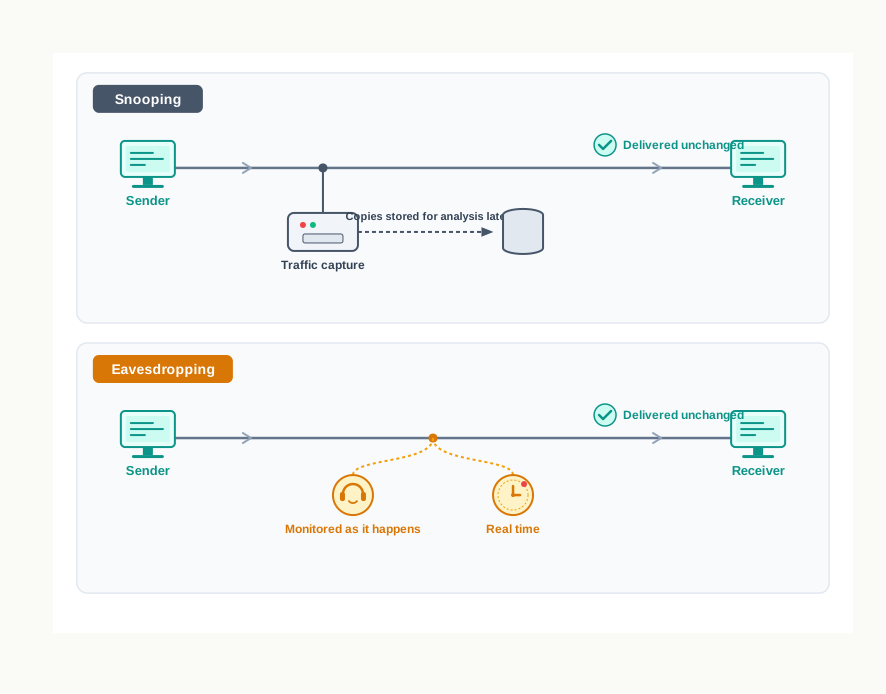
Fig. 12.16 – Snooping and eavesdropping on network traffic.
Notice what appears in the last row of both comparison tables in this section, and in the discussion of HTTP in Section 12.5. Against attacks on privacy, the defence is never to prevent the interception — on a channel you do not control, you cannot. The defence is to make what is intercepted useless, and encryption is what does that.
12.10 Summary
Threats and prevention
- A computer connected to no network is free of the threats that arise from connection, but it is also unable to do most of what a computer is for. Security is therefore managed on a connected machine rather than achieved by disconnecting it.
- Securing a system means protecting three things: the privacy of its data, the correctness of its data, and its availability to those entitled to use it. Different threats attack different ones of these.
- A vulnerability is a weakness already present in a system. A threat is a possible way of exploiting such a weakness. An attack is a threat actually carried out. Of the three, the vulnerability is the one an owner can remove.
- Prevention operates at three levels together: software on the machine, controls at the network boundary, and the behaviour of the people using it. None of the three is sufficient alone.
Malware
- Malware is software written to damage a system, steal or corrupt data, or interfere with a user’s use of the machine, without consent. What makes a program malware is intent, not construction.
- A virus attaches its code to a host program or file, replicates by inserting copies into other files, and executes only when a user runs the infected host. It is dormant until triggered.
- A worm is a standalone program that replicates and spreads over a network by itself, needing no host and no user action. This is why worms spread at the speed of the network and viruses at the speed of file sharing.
- Ransomware blocks access to a user’s own data, or encrypts it, and demands payment to restore access. A recent backup kept out of its reach is the defence that works when others have failed.
- A Trojan is disguised as legitimate, desirable software so that the user installs it voluntarily. It does not self-replicate and does not infect other files; it spreads entirely through user interaction, and often installs a backdoor.
- Spyware secretly collects information about a user or organisation and sends it to an external party without consent. It damages nothing, which is what makes it hard to notice.
- Adware displays unwanted advertisements to generate revenue for its distributor. It is usually more annoying than damaging, but it is a reliable route by which more serious malware arrives.
- A keylogger records the keys a user presses and may transmit the log to an external entity. It may be software, which antivirus can look for, or hardware, which only physical inspection will find.
- An on-screen keyboard uses a fixed QWERTY layout, so a record of click positions identifies the characters entered. An online virtual keyboard randomises the layout on every use, so click positions reveal nothing reusable.
- The modes of malware distribution are: downloaded from the Internet, spam e-mail, removable storage devices, and network propagation. The first three are defended against by careful behaviour; the fourth cannot be, since the user does nothing.
- Signs of infection include unexpected pop-ups, a changed browser home page, mail sent from your account that you did not send, unusual slowness and frequent crashes, unknown programs starting automatically, and files appearing or disappearing.
- Preventive practice rests on a few habits: updated antivirus and patched software, regular backups kept separately, firewall protection enabled, licensed or free and open source software rather than pirated software, care with attachments, links, removable media and public machines, and never installing security software offered through a pop-up.
Antivirus
- An antivirus, also called anti-malware, prevents, detects and removes malware. The name is historical; such software now handles the whole family of malware, not viruses alone.
- Signature-based detection compares a file’s bytes against stored virus signatures held in a virus definition file. It is fast and exact, and blind to anything whose signature it does not yet hold — which is why the definition file must be updated continually.
- A virus signature is a consecutive sequence of bytes characteristic of a particular malware sample, present in it or in files it has infected and absent from unaffected files.
- Sandbox detection runs a suspect program in a sealed virtual environment and judges it by what it attempts to do. It needs no prior knowledge of the malware, and it is slow.
- Data mining techniques learn, from large collections of known benign and malicious files, which measurable features separate the two, and classify new files on that basis.
- Heuristics scores a file against rules describing the features and code patterns of malware families, so that variants with no matching signature are still caught. Being a rule of thumb, it produces both false alarms and misses.
- Real-time protection is a decision about when judgement happens rather than how: the software runs in the background and examines programs as they are opened and executed, which is the only way dormant malware is caught.
- No antivirus relies on one method. Each covers the case in which the previous one fails.
Spam
- Spam is unwanted, unsolicited content sent in bulk to recipients who did not ask for it. E-mail spam is the familiar form, but the term covers messaging, forums, chat and unsolicited advertising generally.
- Spam persists because the cost of sending a message is close to zero, so a response rate far too small for any ordinary business is enough to make the practice profitable.
- A spam filter scores incoming mail on sender, content and volume and diverts what scores above a threshold. Marking a message as spam feeds the filter with evidence, so it improves as users correct it.
- Spam matters for security because it is one of the four distribution routes for malware, and because it works by ordinary persuasion rather than by technical cleverness.
HTTP and HTTPS
- A protocol is an agreed set of rules governing how data is formatted, transmitted and received, so that both sides interpret an exchange identically.
- HTTP, the hyper text transfer protocol, governs the exchange of pages between a browser and a web server. It sends data as readable text, so every intermediate device along the route handles something legible.
- HTTPS is the same protocol over an encrypted connection: data is scrambled before transmission and unscrambled only at the receiving end. The route is identical; only legibility differs.
- HTTPS also verifies identity. The server presents a digital certificate, which the browser checks, so the padlock means both that the connection is private and that the site is the one named in the address bar.
- The padlock does not certify that the site’s operators are honest. It protects the conversation, not the choice of whom to converse with.
Firewall
- A firewall monitors traffic crossing the boundary between a trusted network and an untrusted one, and permits or blocks it according to predefined rules. It acts before anything arrives, where an antivirus acts after.
- Rules are applied in both directions. Controlling outgoing traffic can stop the second half of an attack whose first half has already succeeded, such as spyware attempting to send out what it has gathered.
- A firewall may be implemented in hardware, in software, or in both; what matters is its position in the path of the traffic.
- There are two types. A network firewall sits between two or more networks and protects every machine behind it. A host-based firewall sits on one computer and protects only that computer, but does so wherever the machine goes and also examines traffic from within the same network.
- A firewall cannot examine what does not cross it — malware carried in on a pen drive, or a hostile file downloaded as part of permitted browsing.
Hackers and crackers
- A hacker is a person with expert knowledge of systems, networks and programming who uses it to find loopholes and vulnerabilities. The skill is identical whether the finding is repaired or exploited.
- Hackers are classified by authorisation and intent, not by ability. A white hat works with explicit prior permission, reports findings to the owner and takes nothing. A black hat, or cracker, acts unlawfully for money, damage or political gain. A grey hat acts without permission but not for gain, usually reporting what was found.
- Authorisation is what makes ethical hacking lawful. Unauthorised access is an offence whatever the motive, and a system’s owner cannot tell a curious intruder from a hostile one at the moment of detection.
Network security threats
- A denial of service attack prevents authorised users from reaching a service by overloading it with illegitimate requests. It steals nothing and alters nothing; what it destroys is availability.
- A distributed denial of service attack floods the target from many compromised machines at once. A bot is the malware giving remote control, a zombie is such a machine, and a bot-net is the collection of them. Blocking a single source no longer ends the attack.
- Network intrusion is any unauthorised activity on a network. Asymmetric routing splits an intrusion across several paths so that no sensor sees the whole pattern; a buffer overflow attack exploits a program’s failure to check that input fits the memory reserved for it; traffic flooding overloads the intrusion detection system so that an intruder passes unexamined.
- Snooping, also called sniffing, is the capture of network traffic for later analysis, the traffic itself being delivered unchanged. It is the one technique here that is legitimate when performed by administrators for troubleshooting.
- Eavesdropping is the unauthorised interception of a private communication in real time — calls, messages, video conferences — and corresponds to what was called wiretapping on telephone lines.
- Snooping and eavesdropping differ in timing rather than target, and neither disturbs the communication, which is why neither is easy to detect. Against both, the defence is not to prevent interception but to make what is intercepted unreadable, which is what encryption achieves.
12.11 Key Terms
- Adware — malware that displays unwanted advertisements on a user’s system in order to earn revenue for its distributor.
- Anti-malware — the current name for antivirus software, reflecting that it handles the whole family of malware and not viruses alone.
- Antivirus — software that prevents, detects and removes malware from a computer system.
- Attack — a threat actually carried out against a system.
- Authentication cookie — a cookie that tells a site you are already logged in, so that you are not asked to sign in again on every page.
- Authorisation — explicit prior permission from a system’s owner, which is what makes security testing lawful.
- Backdoor — a hidden means of access to a system, allowing someone to connect to it later without going through its normal checks.
- Black hat — a hacker who breaks into systems unlawfully, for money, damage or political gain.
- Bot — malware that places an infected machine under an attacker’s remote control.
- Bot-net — the collection of compromised machines an attacker controls and can direct at a single target.
- Buffer overflow — a programming error in which more data is written into a region of memory than it was sized for, so that the surplus overwrites what lies beyond it.
- Cookie — a small item of data that a website stores on the client’s machine and that the browser returns to that site with later requests.
- Cracker — a person who uses expert knowledge of systems to gain unauthorised access to them; a black hat hacker.
- DDoS — distributed denial of service: a denial-of-service attack mounted simultaneously from many compromised machines.
- Denial of service — an attack that prevents authorised users from reaching a service by overloading it with illegitimate requests.
- Digital certificate — a document issued by a certifying authority, by which a server proves to a browser which organisation and internet name it belongs to.
- Dormant — the inactive state of malware that is present on a machine but has not yet been triggered.
- DoS — denial of service.
- Download from the Internet — the distribution mode in which a user unintentionally obtains malware while meaning to obtain something else.
- Eavesdropping — the unauthorised interception of a private communication over a network as it is taking place.
- Encryption — the scrambling of data according to a key, so that it is unreadable to anyone who cannot reverse the process.
- Ethical hacker — a security specialist who searches a system for flaws with the owner’s permission, so that they can be repaired; a white hat.
- Firewall — a network security system that permits or blocks traffic crossing the boundary between a trusted and an untrusted network, according to predefined rules.
- FOSS — free and open source software: software that may be used and shared freely, offered as the alternative to pirated software.
- Grey hat — a hacker who breaks into systems without permission but not for gain, usually reporting what was found.
- Hacker — a person with expert knowledge of computer systems, networks and programming, who uses it to find loopholes and vulnerabilities.
- Hacktivist — a hacker who attacks systems in pursuit of a political or social objective.
- Heuristic — a rule of thumb; in malware detection, a rule describing features characteristic of a malware family, used to catch variants that no signature matches.
- Host-based firewall — a firewall running on an individual computer, examining only the traffic to and from that machine.
- Host program — the existing program or file to which a virus attaches its code and on whose execution it depends.
- HTTP — hyper text transfer protocol: the protocol governing the exchange of pages between a browser and a web server, which sends data as readable text.
- HTTPS — hyper text transfer protocol secure: HTTP carried over an encrypted connection, with the server’s identity verified by a digital certificate.
- Keylogger — malware or hardware that records the keys a user presses and may transmit the log to an external entity.
- Mailing list — a collection of e-mail addresses, bought or assembled, to which bulk unsolicited mail is sent.
- Malware — software written to damage a system, steal or corrupt its data, or interfere with its use, without the user’s consent.
- Network firewall — a firewall placed between two or more networks, protecting every machine behind it.
- Network intrusion — any unauthorised activity carried out on a computer network.
- Network propagation — the distribution mode in which malware copies itself directly from one machine to another over a network connection.
- Network security — the protection of a system and its data from unauthorised access, alteration or disruption arising through the network it is connected to.
- On-screen keyboard — the operating system’s software keyboard, which uses a fixed QWERTY layout.
- Online virtual keyboard — a website’s software keyboard, whose key layout is randomised on every use.
- Persistent cookie — a cookie stored with an expiry date, which survives the browser being closed.
- PIN — personal identification number: a short secret number used to authorise access to an account or a device.
- Polymorphic — describing malware that alters its own code as it replicates, so that no stable signature exists for it.
- Protocol — an agreed set of rules governing how data is formatted, transmitted and received between devices.
- Ransomware — malware that blocks or encrypts a user’s own data and demands payment to restore access to it.
- Removable storage devices — the distribution mode in which malware travels on pen drives, memory cards and similar media, reaching machines on no network at all.
- Sandbox — a sealed virtual environment in which a suspect program is run and observed, without access to the real system.
- Session cookie — a cookie that lasts only for the current visit and is discarded when the browser closes or the session times out.
- Sniffing — another name for snooping.
- Snooping — the unauthorised capture and analysis of network traffic, the traffic itself continuing to its destination unchanged.
- Spam — unwanted, unsolicited content sent in bulk to recipients who did not ask for it.
- Spam e-mail — the distribution mode in which malware arrives as an attachment or link in unsolicited mail.
- Spam filter — software that scores incoming mail and diverts what resembles spam to a separate folder.
- SPAN — switched port analyser: a facility on a switch that mirrors traffic to a port where it can be examined.
- Spyware — malware that secretly collects information about a user and transmits it to an external party without consent.
- SSL — secure sockets layer: the original protective layer beneath HTTPS, now superseded by TLS though its name survives in the term “SSL certificate”.
- Supercookie — identifying data stored outside the browser’s normal cookie storage, so that clearing cookies does not remove it.
- Supercookie — a means of storing identifying data outside the browser’s ordinary cookie storage, so that clearing cookies does not remove it.
- Third party — a server other than the one whose address you typed, which supplies content embedded in the page and may set cookies of its own.
- Threat — a possible means by which a vulnerability could be exploited to cause harm.
- TLS — transport layer security: the current protective layer beneath HTTPS, successor to SSL.
- Trojan — malware disguised as legitimate, desirable software, which the user installs voluntarily and which does not self-replicate.
- VDF — virus definition file: the collection of virus signatures an antivirus compares files against, requiring continual updating.
- Virus — malicious code that attaches itself to a host program or file and replicates into other files, executing only when the host is run.
- Virus signature — a consecutive sequence of bytes characteristic of a particular malware sample and absent from unaffected files.
- Vulnerability — a weakness already present in a system, whether or not anyone has noticed it.
- White hat — a hacker who searches for flaws with the owner’s explicit permission and reports them so they can be fixed.
- Worm — standalone malware that replicates and spreads over a network by itself, needing neither a host program nor any user action.
- WWW — world wide web: the collection of linked pages and resources served over HTTP and HTTPS.
- Zombie — a compromised machine under an attacker’s remote control, forming part of a bot-net.
- Zombie cookie — a cookie that recreates itself after being deleted, from a copy kept elsewhere on the machine.
12.12 Points to Ponder
A school gives its students Internet access so that they can finish a project, and then configures the firewall to block sites that have nothing to do with the project. The firewall was described in this chapter as a security device. Is blocking distraction a use of it, a misuse of it, or evidence that “security” is a broader idea than the chapter suggested?
A grey hat finds a flaw in a system, takes nothing, and tells the owner, who repairs it. The system ends up safer than it was, and the law still treats the intrusion as an offence. What is the law protecting that the improved system does not already account for?
Cookies deliver convenience and tracking by exactly the same mechanism, and a browser cannot tell which of the two a given cookie is for. Does that mean the distinction is one only a person can draw, or could a browser be designed to draw it?
Against snooping, encryption does not prevent the interception; it makes what is intercepted worthless. Where else in computing is “make the prize worthless” a better strategy than “make the theft impossible”, and what does it take for that approach to work at all?
Signature-based detection can only recognise malware that already exists and has already been catalogued. Sandbox detection and heuristics were offered as answers to that limitation. Do they actually escape it, or do they only push the same problem a step further back?
The machines that carry out a distributed denial of service attack belong to ordinary users who have no idea what their computers are doing. If a person’s neglected machine is used to attack a hospital’s systems, does any part of the responsibility rest with its owner?
12.13 Objective Questions
- Which of the following spreads from one computer to another without needing a host program and without any action by a user?
- Virus
- Worm
- Trojan
- Adware [1 mark]
- The collection of virus signatures that an antivirus compares a file against is called the:
- sandbox
- heuristic threshold
- virus definition file
- mailing list [1 mark]
- A firewall placed on one computer, monitoring only the traffic to and from that computer, is called a:
- network firewall
- host-based firewall
- hardware firewall
- boundary firewall [1 mark]
- Which of the following attacks steals no data and alters no file, yet still causes serious loss to the victim?
- Snooping
- Spyware infection
- Denial of service
- Buffer overflow [1 mark]
- Assertion (A): An online virtual keyboard offers better protection than an on-screen keyboard when a password is typed on an unfamiliar computer. Reason (R): An online virtual keyboard rearranges the positions of its keys every time it is displayed.
- Both A and R are true, and R is the correct explanation of A.
- Both A and R are true, but R is not the correct explanation of A.
- A is true, but R is false.
- A is false, but R is true. [1 mark]
- Assertion (A): A cookie placed on a computer by a website can execute on that computer and read the user’s files. Reason (R): A cookie is stored on the client’s computer and is returned to the website with later requests.
- Both A and R are true, and R is the correct explanation of A.
- Both A and R are true, but R is not the correct explanation of A.
- A is true, but R is false.
- A is false, but R is true. [1 mark]
- Match each item in Column I with its description in Column II.
| Column I | Column II |
|---|---|
| a. Zombie | i. A sealed virtual environment in which a suspect program is observed |
| b. Bot-net | ii. A facility on a switch that mirrors traffic to a port for examination |
| c. Sandbox | iii. A compromised computer used as one source in a distributed attack |
| d. SPAN | iv. A collection of compromised machines under a single attacker’s control |
[1 mark]
Fill in the blank: Malware that is disguised as useful software so that the user installs it willingly, and which neither replicates itself nor infects other files, is called a ____________. [1 mark]
State whether the following is true or false: A padlock shown in the browser’s address bar confirms that the connection is encrypted and that the organisation running the site can be trusted with your money. [1 mark]
Write the full form of each of the following: DDoS, VDF, HTTPS, FOSS, SPAN. [1 mark]
12.14 Check Your Concepts
Define network security. Name any one threat it is meant to protect a system against. [2 marks]
Differentiate between a vulnerability and a threat, in two points. [2 marks]
What is a session cookie? State one situation in which its expiry protects a user. [2 marks]
Differentiate between spyware and adware, giving one example of the harm each can cause. [3 marks]
What is a virus signature? Explain why signature-based detection fails to identify polymorphic malware. [3 marks]
A firewall is often described as the first barrier against a worm, whereas an antivirus is not. Explain this with reference to how a worm reaches a machine. [3 marks]
Explain any two methods of malware identification used by antivirus software, and state one limitation of each. [4 marks]
A firewall examines outgoing traffic as well as incoming traffic. Give reasons why this is necessary, supporting your answer with two examples of what outgoing filtering can prevent. [4 marks]
Compare snooping and eavesdropping on at least four points, and explain why encryption, rather than prevention of interception, is the principal defence against both. [5 marks]
Distinguish between white hat, black hat and grey hat hackers. Justify, with reasons, why authorisation rather than intention is used to decide whether such work is lawful. [5 marks]
12.15 Output & Debugging
- Copy the following comparison into your answer sheet and complete the four blank cells.
| Feature | Virus | Worm |
|---|---|---|
| Needs a host program | Yes | ____________ |
| Needs a user to act before it spreads | ____________ | No |
| Speed of spreading | ____________ | Very fast |
| Typical secondary effect | Corrupted or altered files | ____________ |
[4 marks]
Classify each of the following as malware, an attack technique, or a safeguard: worm, firewall, traffic flooding, adware, digital certificate, distributed denial of service. [3 marks]
For each situation below, name the one measure from this chapter that addresses it most directly, and give a one-line reason.
- A laptop is carried to a public place and joined to a network the owner does not control.
- Forty machines in a school laboratory share a single connection to the Internet.
- Card details are to be entered on a shopping website.
- A pen drive is brought from home and connected to a laboratory computer. [4 marks]
A figure shows a message travelling from a web browser to a web server, passing through a switch, a router and a service provider’s equipment. At each of those three intermediate points the contents of the message are shown as readable text.
- Which of the two protocols studied in this chapter is in use?
- State what would be different at each intermediate point if the other protocol were used.
- Name one thing that would still be visible at those points even then, and say why it must be. [3 marks]
Each statement below contains exactly one factual error. Identify the error and write the statement correctly.
- A Trojan replicates itself across a network and infects other files on the way.
- Real-time protection is a method of examining a file’s bytes for a stored signature.
- A third-party cookie is set by the website whose address the user typed.
- In a distributed denial of service attack, all the flooded requests come from a single machine belonging to the attacker. [4 marks]
12.16 Case-Based Questions
- The librarian of a school reports several problems on the library issue counter’s computer over the same week. Pop-up windows appear urging the installation of a cleaning tool; the machine has become very slow and crashes often; a member of staff has received mail apparently sent from the library’s own account, which nobody in the library sent. The librarian mentions that a pen drive brought from home was used on the machine a few days earlier to print a notice.
- Name the general category of problem the machine is suffering from, and give two of the reported observations that support your answer. [2 marks]
- State the mode of distribution by which the problem most likely reached this machine. [1 mark]
- Suggest two preventive measures the school should adopt so that the same route is closed in future, giving a reason for each. [2 marks] [5 marks]
- On the morning that a school publishes its examination results, its result portal becomes unreachable. The server has not crashed and no data has been altered or lost. The administrator finds that requests are arriving in enormous numbers from thousands of different computers located in many countries, and that each request looks like an ordinary request from a web browser.
- Name the attack taking place and explain how it differs from its simpler form mounted from one machine. [2 marks]
- Explain why the administrator cannot simply block the source of the traffic. [1 mark]
- The computers sending the requests belong to ordinary users who are unaware of what is happening. State what is present on those machines, what the collection of them is called, and one measure their owners should have taken. [2 marks] [5 marks]
- A student uses a computer in a public cybercafé to log into a school portal. The address in the browser begins with
httpand no padlock is shown. While the page is loading, a window appears offering a free tool that promises to make the machine faster, with a button to install it.- State two distinct risks the student runs by typing a password on this machine, naming the threat behind each. [2 marks]
- State what the student should look for in the address bar before entering the password, and explain the two separate assurances it provides. [2 marks]
- Classify the offered tool and state what the student should do with the window. [1 mark] [5 marks]